
Field Tree
Field Tree
The field tree is a complete list of all available fields and is available within the following two areas:
- New Report Wizard - Step 2
- Editing a Report
Report Wizard – Step 2
The tree is extensive and as such is initially shown in a collapsed state per product.
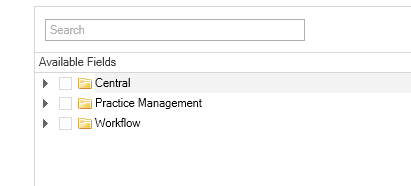
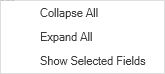
For non-selected fields, right click provides the following options:
|
Collapse All |
This collapses all expanded nodes to product level. |
|
Expand All |
This expands all products and nodes displaying all fields |
|
Show Selected Fields |
Where specific fields have been selected, this expands the products and nodes for those fields. |
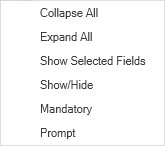
For selected fields, right click provides the following options:
|
Collapse All |
As detailed above |
|
Expand All |
As detailed above |
|
Show Selected Fields |
As detailed above |
|
Show/Hide |
A field may have been selected as it was required for filtering purposes. This option allows you to hide the field from displaying within the report. The field is italicised within the tree. To display the field, click Show/Hide. |
|
Mandatory |
When the report is previewed an entry must be made for this field. The field is displayed in red followed by a ?. |
|
Prompt |
When the report is previewed an entry is requested but not required for this field. The field is displayed with a ?. |
Editing a Report
By default when opening a report for editing, the field tree is expanded to display the fields used.
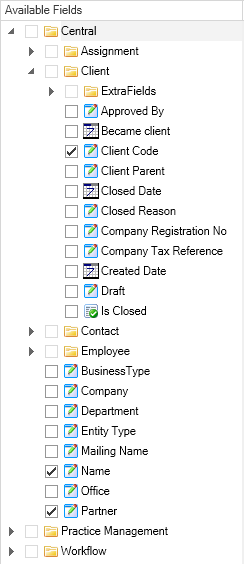
For non-selected fields, right-click provides the following options:
|
Collapse All |
This collapses all expanded nodes to product level. |
|
Expand All |
This expands all products and nodes displaying all fields |
|
Show Selected Fields |
Where specific fields have been selected, this expands the products and nodes for those fields. |
For selected fields, right-click provides the following options:
|
Collapse All |
As detailed above |
|
Expand All |
As detailed above |
|
Show Selected Fields |
As detailed above |
|
Show/Hide |
A field may have been selected as it was required for filtering purposes. This option allows you to hide the field from displaying within the report. The field is italicised within the tree. To display the field, click Show/Hide. |
|
Mandatory |
When the report is previewed an entry must be made for this field. The field is displayed in red followed by a ?. |
|
Prompt |
When the report is previewed an entry is requested but not required for this field. The field is displayed with a ?. |