
How To
Saving a Report
CCH Central
Useful Information! If you expect to reuse a report, either in its current form or with edits, it recommended that you save it regularly. In the Change Report window, you can click the Save icon at any time.
Save a Report
- Click the Save icon,
. The Save report layout window displays. You have the options to save as a new report or to overwrite an existing report.
- For a new report, type a new name in the Title field.
- Key in a Description for the report; this is a useful area to detail how and when the report is used within your practice.
- Click the OK button to save the report layout.
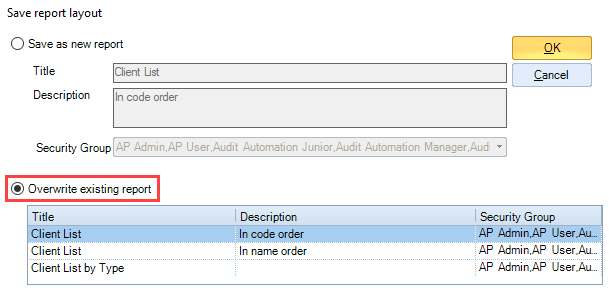
Note: the Report title (that is, what is included in the header of the printed report,) may or may not be suitable as the name of the report as referenced within your practice. The name you enter here in the Save report layout window displays in the CCH Smart Reports listing that most users will run their reports from.
Related documents
CCH Central Suite 2026.3 Update Guide
This guide explains how to update an existing install of the CCH Central Suite to the latest version 2026.3 (including Service Packs and Hotfixes) using the Central Suite Installer (CSI).
Central Suite Installer (CSI) instructions
The document announces the update of the Central Suite Installer (CSI) for the CCH Central Suite, now compatible with the latest releases and service packs and hotfixes of various CCH applications. Key points include prerequisites for installation, compatibility information, and the necessity for proper backup before proceeding with the update. It highlights specific requirements for Microsoft components, and it warns users of CCH Accounts Production regarding regional settings for date format. Support options are mentioned for users seeking assistance during the update process. Release notes are accessible for detailed information on the updates.
Setting up users - CCH Central
This document provides a detailed guide on setting up employees in the CCH Central system to integrate with CCH Trust Accounts. It outlines the necessary steps for creating a new employee, including mandatory fields such as unique identifiers, personal details, and security group assignments. The document emphasizes the importance of specific access rights for CCH Trust Accounts users, particularly for preparing accounts and configuration purposes. Additionally, it includes instructions for adding extra security groups as needed.
CCH Conversions - Data categories and descriptions
This document outlines the key components of standing/static/core data and practice management data necessary for client management in professional services. It details the types of essential client information such as unique client codes, contact details, and employee data. Additionally, it includes information on compliance data related to various tax modules and the ability to import financial records into the system. Document management capabilities for electronic files are also mentioned, along with a reference to a comprehensive guide for preparing and auditing practice data.
Importing Data Services: New Customers
The document outlines data importing services for new customers transitioning to the CCH Central database. It details options for populating client and contact information, including self-service imports and professional services support. Customers can manage data quality through templates for import, thereby maintaining high integrity and facilitating a smooth transition. Additionally, the document discusses converting work in progress (WIP) and debt data, offering options for detailed transaction transfers or top-level balances. It emphasizes a seamless migration experience without system downtime, with support available for various data needs.