How to use our Virtual Assistant

You will see the Virtual Assistant icon (at the bottom right of your screen) 
 

icon_Virtual_Expert.png


when you are logged into the Support Portal.  

Onboarding_access_customer_support_1.png


Getting started

Start by reviewing the popular links shown in the blue box and click on any that may answer your question.

If none of these links are helpful to you, type your question into the New question field shown.  Make sure you use keywords as if you were talking to a human. The Virtual Assistant will then search our support articles and product guides for your solution.  

Onboarding_Using_our_Virtual_Expert_2.png

Reviewing your information

You will see a summary of information that is relevant to your question and beneath the summary, there will be three links to articles that are also seen as relevant to your question. There is a summary for each article provided and a read more prompt to help you decide.

Beneath the articles you will be asked whether the information answers your question or not at which time you can refine your question, ask a new question or contact our Support Team.

Onboarding_Using_our_Virtual_Expert_3.png
Onboarding_Using_our_Virtual_Expert_4.png
Onboarding_Using_our_Virtual_Expert_5.png

Requesting assistance from a Support agent

Onboarding_Using_our_Virtual_Expert_6.png

When you click Contact Support, you will be offered a Create a Case form to complete form before selecting how you would like to work with a support agent. 

You must complete all form fields showing an asterisk.  Please use the Create a Case instructions if you need assistance with this.  Once the form has been completed, tick the Privacy Notice box (if you have read and agree) and click Next.

Onboarding_Using_our_Virtual_Expert_7.png
Onboarding_Using_our_Virtual_Expert_8.png
Onboarding_Using_our_Virtual_Expert_9.png

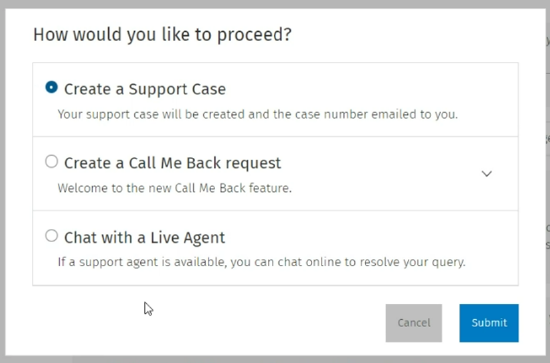
Now you can select from one of three options:
clipboard_ee108c52f04b2b0ed88c099bec799cc18.png

Follow the prompts as appropriate for each option.  When you create your case, a case number will show on your screen before your leave the chat.  
 

Useful Information

The Virtual Assistant is available for you 24/7 so you'll have access to the information you need in real-time.  

Q    When I click away from the Virtual Assistant search, how do I return to my existing chat?
A    Click the browser icon you were using for your chat, located in the bottom taskbar (eg. Google Chrome or Firefox) and you will be able to return to your existing Virtual Assistant chat window.

Q    Will the Virtual Assistant time out during my session?
A    The Virtual Assistant will time out after six minutes if there has been no activity.

Q    How can I view previous searches I have made with the Virtual Expert?
A    Each time you search using our Virtual Assistant a closed case will be created and show in your Closed Cases tab on the Support Portal. You can use this to review information you searched for and to refresh your memory of answers delivered.

Related documents

How to Interact with a Group
The document provides guidance on how to engage with the Wolters Kluwer Tax & Accounting UK News Group and related product groups. It encourages users to actively participate by sharing expertise and asking questions. Users can start by clicking on the Groups section, selecting their desired group, and posting updates. For additional assistance, it directs users to utilize the online support resources available via the Chatbot on the Support Portal.
Groups explained
The document outlines the purpose and structure of Groups created by Wolters Kluwer for facilitating communication between their team and customers. Groups can be Private, Broadcast, or Public, with a specific focus on the "Wolters Kluwer Tax & Accounting UK News" Group, crucial for receiving important service updates and product information, as e-bulletins are no longer issued. Customers are encouraged to join Public groups freely for discussions and insights on relevant products and releases. Instructions for joining these groups are available through a provided link.
How to Join a Group
This document outlines the process to join groups through the Wolters Kluwer Support Portal. It includes instructions on accessing the portal, joining the Wolters Kluwer Tax & Accounting UK News Group, selecting specific product groups for updates, and choosing notification preferences. Visualization aids depict the process, emphasizing features like group search, joining groups, and managing group administration. The document encourages users to engage with groups for timely information and support, enabling effective management of group memberships and interactions.
How to join the Support Portal
All of our customer support is delivered through our Support Portal.  Watch the video or follow the step-by-step instructions on how to register for your Wolters Kluwer Account and join the Support Portal.
Release Schedule 2026
The document provides information about joining groups for updates on Wolters Kluwer software releases, particularly in the Tax and Accounting sector. It details scheduled releases for various software, including CCH Central, CCH OneClick, and CCH iFirm, along with specific dates and software functionalities. Key upcoming versions include CCH Central 2026.3 and several CCH iFirm releases throughout Q3/Q4 of 2026, focusing on enhancements and bug fixes across their suite of services. Users are encouraged to provide feedback through the relevant groups.