Add Documents Overview
| Option | How to Use |
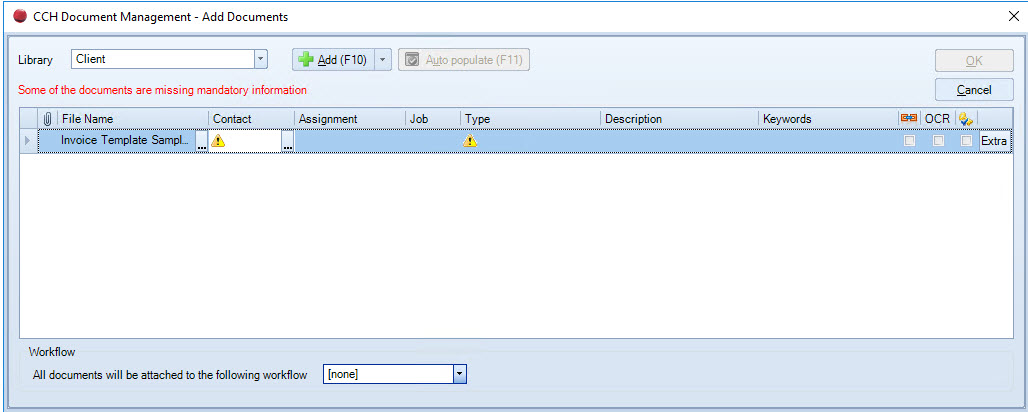
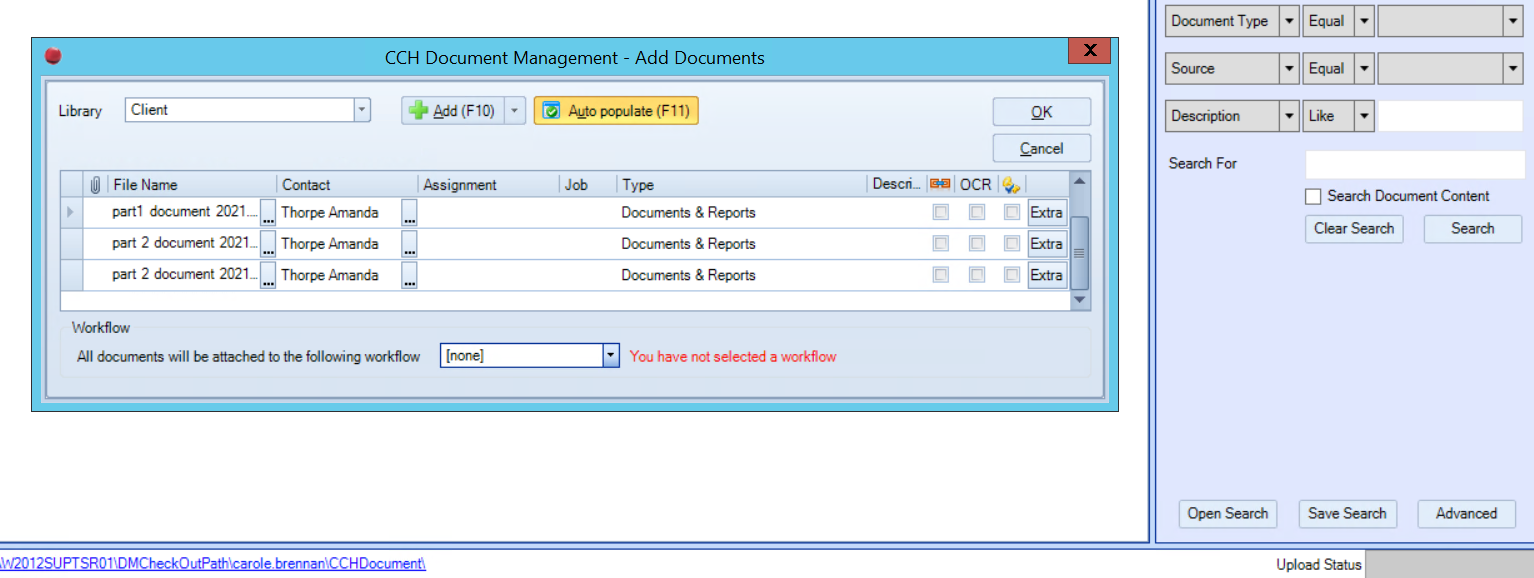
| Library (mandatory) | The documents are saved in the library selected. The library will be set based on where you access the window from else the client library is selected by default. |
 |
Click the Add button (or use the F10 key or Alt and A) to browse and locate the document(s) to be uploaded. Click the down arrow |
 |
Use to copy the details in the selected row to all other rows. This means that you do not have to enter the same information for each document individually. |
 |
Where this icon is displayed you can click on it to view a list of attachments. You are able to detach these and file them as separate documents or delete them. |
| File Name (mandatory) | The File Name can be amended if required. If additional documents are needed, click  to open a file browse window to locate the document(s) to be uploaded. to open a file browse window to locate the document(s) to be uploaded. |
| Contact or Supplier |
Displays the Contact Name. Automatically completed when Add Document is selected from within a Client, Assignment, Employee, Contact or Supplier record. Type in a code, or part of a name, then [tab] to have the system search for a matching contact. The dropdown selector will either contain
Use the |
| Assignment | The assignment field is a dropdown containing all the assignments for the selected client. The field is not compulsory and the default value is None. |
| Job | Displays the jobs attached to the selected assignment. The field is not compulsory and the default value is None. |
| Type (mandatory) | The Type dropdown allows you to select a document type for the document. This is a mandatory field. Note that the list of types available may be restricted by the chosen assignment and/or security permissions. |
| Description | Enter a short description for ease in identifying the document. The description field is not compulsory. The dropdown selector will hold the last five descriptions used. |
| Keywords |
By default this field is not displayed. If you want to add it to the the grid, right click anywhere on the grid and select Show/Hide Keywords. Keywords are custom tags which let you add additional profiling data. Keywords can be used to search for a document from the search panel and also in advanced searching. Click on the |
 Link Documents Link Documents |
Tick to select any documents you want to show as linked. You will be prompted to select the link type when you click OK to upload. |
| OCR | This is no longer used. |
 Leave Checked Out Leave Checked Out |
Will leave the document checked out to you after it is uploaded. |
| Extra fields | The content of these extra fields can be searched and filtered as easily as the document types. Depending on the Library and Type selected when documents are profiled in the Add Document window, you are presented with a list of extra fields that are applicable. Click the Extra fields button from the Add Document window to display the extra fields: The Name column displays the descriptive name of the extra field. Where the field name is in red indicates that this is a mandatory field and must be completed before upload can take place. A warning message is displayed in the main form windows to advise of any mandatory extra fields. The Value column is where your entries are made either by typing or selecting from a drop down list of choices. |
| Workflow | If this has been enabled the workflow field is a dropdown containing all the workflows associated for the Upload Source and the selected Type. The field is not compulsory and the default value is None. |
 section of the button and select Folder to open a file browse window to locate a folder of documents to be uploaded.
 Add Document Tips
To change the client/contact click to open the Select Multiple Contacts window. Click onto the blank row to open the Find Contact window.
Upload
When you have completed the meta data click OK to upload the documents. The status of your upload is shown at the bottom right of the document centre window, below the search/properties panels.
You are able to navigate away from the screen elsewhere in central whilst the upload completes.
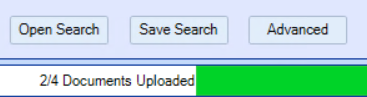
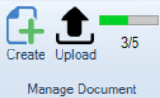
When uploading from the Find windows in central the status update is shown in the manage document area of the ribbon bar.