Note

The information below is only valid for the following modes: Assignments, Schedules an Jobs OR Assignments, Schedules, Jobs and Job time recording.

If you are not using Jobs, you can create a Schedule which specifies the start and end date of the work to be carried out.

Schedules are usually cyclical because the nature of the work involved in them can be repeated time and time again for the same client or another client.

When specifying the start and end dates, you need to consider deadline dates that could be involved. The dates are used as the basis for calculating the default project start and end date from the offset dates defined in the schedule template.

  1. Find the Assignment.
    The Assignment Detail page appears.

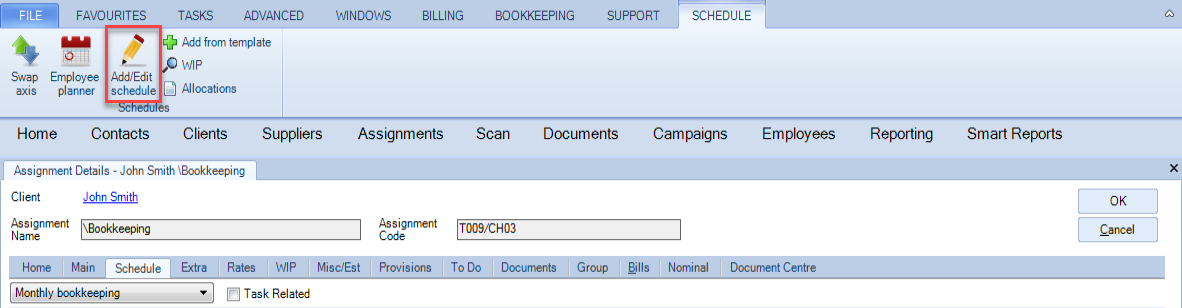
  1. Click the Schedule tab.

  2. In the Task Bar under Schedules, click Add/Edit schedule option.
    The Add/Edit Schedule details window appears.
Assignment - edit a schedule.PNG

  1. Click in the Description field and type a description for the Schedule.

    For example:

    • a yearly schedule example might be called — 2019, 2020 and so on

    • a quarterly schedule example might be called   — First Quarter, Second Quarter, etc.

    • a monthly or weekly schedule example might be called — Monthly Bookkeeping Schedule, Monthly Wages Schedule, or similar.

  2. Click in the Start Date and End Date fields and type in the start and end dates for the Schedule.

  3. Click in the Fee Budget field and type in the budget amount for the Schedule.

  4. Click in the Frequency field and select how often the Schedule will be completed.
    Do not click the Rolled Fwd check box because the schedule is not being rolled forward at this time.

  5. Click OK.
    The description appears in the Schedule drop-down list (under the Schedule tab in the content area).

Note

The next step is to create a stage. You can do this by adding a stage individually.

Related documents

CCH Central Suite Update Guide (Latest Offline Version)
The document outlines the process for using the Central Suite Installer Offline (CSI Offline) for customers with specific IT requirements that prevent internet updates. It provides detailed instructions for installing updates to the Central Suite, including necessary prerequisites, folder structure, and the installation steps. Key points include ensuring Microsoft SQL Server is supported, confirming .NET Framework requirements, and the importance of backups before starting the update. The document also highlights the need for administrator rights, handling database upgrades, and checking for office plugin updates, particularly for users of CCH Document Management.
CCH Central Suite 2026.3 Update Guide
This guide explains how to update an existing install of the CCH Central Suite to the latest version 2026.3 (including Service Packs and Hotfixes) using the Central Suite Installer (CSI).
CCH Central 2026.3 Release Notes
Central Suite Installer (CSI) instructions
The document announces the update of the Central Suite Installer (CSI) for the CCH Central Suite, now compatible with the latest releases and service packs and hotfixes of various CCH applications. Key points include prerequisites for installation, compatibility information, and the necessity for proper backup before proceeding with the update. It highlights specific requirements for Microsoft components, and it warns users of CCH Accounts Production regarding regional settings for date format. Support options are mentioned for users seeking assistance during the update process. Release notes are accessible for detailed information on the updates.
CCH Central 2026.210 Service Pack