Assignment Template Group Type
Setting up an Assignment Group Type
-
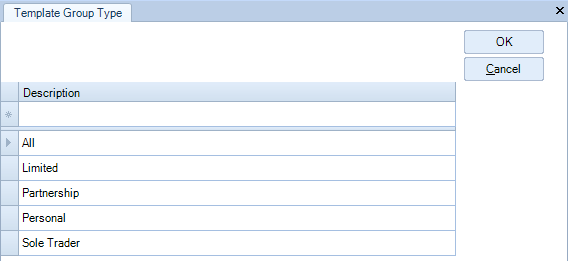
From the main menu, select File > Maintenance > Assignment > Template Group Types.
-
In the Template Group Types window, enter the name of the new Template Group Type in the blank cell at the top of the table, and press [Enter]. The newly entered Template Group Type moves lower down the list and a new blank cell is created at the top of the table.
-
To enter another Template Group Type, enter the name in the new blank cell.
-
To save the new Template Group Type and close the window, click OK.
Editing an Assignment Template Group Type
- From the main menu, select File > Maintenance > Assignment > Template Group Types.
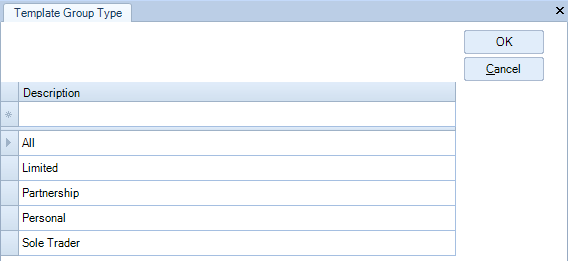
- On the Template Group Types window, click the Template Group Type you want to edit and directly edit the text.
- To save the changes and close the window, click OK.
Adding or Removing Templates from an Assignment Group
-
From the main menu, select File > Maintenance > Assignment > Assignment Template Groups.
The Assignment Template Groups window displays a drop down list of Assignment Template Group Types at the top of the window, and two panes that display available templates and selected templates respectively.
When the window opens, the default Assignment Template Group Type is selected and the panes display information for the default. -
From the Group drop down list, select the Assignment Template Group Type you want to set up. The Not In Group pane on the left displays templates available for selection while the In Group pane on the right displays templates that already belong to the group, if any.
-
To:
-
Add a single template to the template group, on the Not In Group pane, select the template and click
.
-
Add all the available templates in the Not In Group pane to the group, click
-
Remove a template from the group, select the template in the In Group pane and click .
-
Remove all the templates from the group, click
.
-
When you have finished, click OK to save the changes and close the window.
Deleting an Assignment Template Group
- From the main menu, select File > Maintenance > Assignment > Template Group Types.
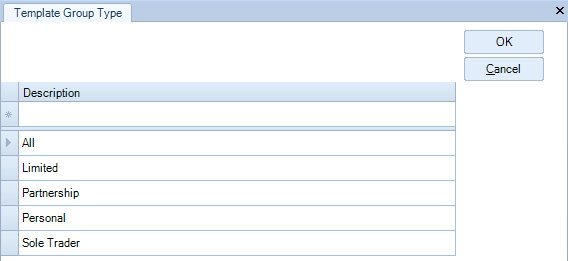
- In the Template Group Types window select the Template Group Type you want to delete and then press the [Delete] key.
- If the template group has been used elsewhere in the system it is not possible to delete it.
- To save the list of Template Group Types and close the window, click OK.