
CCH Backup and Restore Utility (Installation Guide)
CCH Backup and Restore Utility v6.0.1
Prerequisites
This document is intended for use by IT Support Professionals who work for and/or on behalf of CCH Clients who are licensed users of CCH Products. Therefore, an understanding of files, folders, network shares and Windows shortcuts plus some experience of software installation is prerequisite knowledge. This document is a valid install guide for new users of the Backup and Restore Utility. If you have a previous version of the Backup and Restore Utility on the server you want to install this version to please contact Customer Care and Support.
Please note the following:
- The user installing the CCH Backup and Restore Utility must have administrator rights to the server that the utility will be installed to
- If you need to back up a selection of databases over multiple servers you will need to install the utility separately on each server
Software Prerequisites
Microsoft Service Pack
Ensure that you have the current Microsoft Windows Service Packs installed on the SQL Server(s) on which the CCH Central database is installed.
CCH recommends:
- MS Windows XP Professional: Service Pack 2
- MS Windows Server 2003: Service Pack 1
- MS Windows Vista: Service Pack 1
To find out which Microsoft Windows Service Packs you currently have installed, open Windows Explorer and select Help > About.
SQL Requirements
Verify that the current Microsoft SQL 2008 Express Service Packs are installed on the SQL 2008 Express server. Complete the following steps to find out the version of Microsoft SQL 2008 Service Pack that you have installed:
Note: This should be done in consultation with your practice’s IT Support.
1. Go to Settings > Control Panel > Add/Remove Programs and highlight the SQL component.
2. Click on the Support Information link. The version corresponding to:
- SQL 2008 Server Express is 10.0.2531
Implementation Instructions
Overview
The following table provides a high-level summary of the installation steps:
| Step | Description | Completed |
| 1 | Ensure that you have read and complied with the Prerequisites. |  |
| 2 | User Guide for performing backups via Backup & Restore utility, Enterprise Manager and SQL Server Management Studio (SSMS) -clickhere |  |
| 3 | Download the Setup.exe file |  |
| 4 | Perform the CCH Backup and Restore Utility Install. |  |
| 5 | Install the CCH Central Homepage Control. |  |
| Install complete! |  |
Install Backup and Restore Utility
Downloading
Click here and then select CCH Backup and Restore Utility.
1. Browse to the CCH Backup and Restore Utility location on the website and download the Setup.exe file to the server machine containing the databases you want to schedule backup tasks for. 2. Double-click on the Setup.exe file, the following window appears:
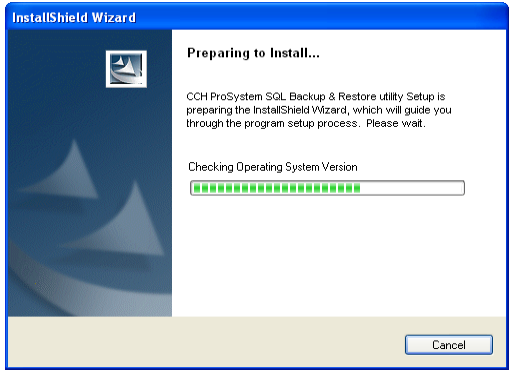
When the system checks are complete the following window appears:
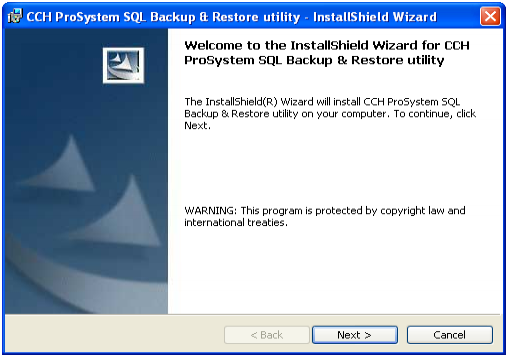
3. Click Next to start the installation process.
4. You can choose to accept the default path for the software installation (C:\Program Files\CCH\SQL Backup and Restore\), or click on the Browse button to change the path to the relevant location.
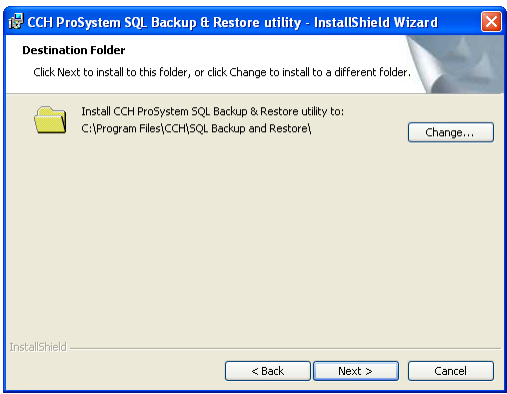
5. Click Next to continue.
6. Enter a user name and password for the account that will be used when logging in to the Backup and Restore Utility.
Note: The user account specified must have local administrator rights to the server that the utility is being installed to.
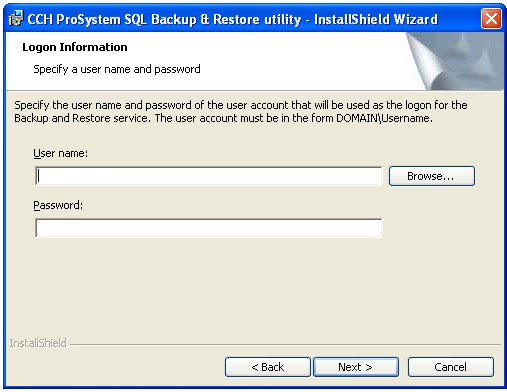
7. If you are unsure of the domain and username please click on the Browse button to access the following window:
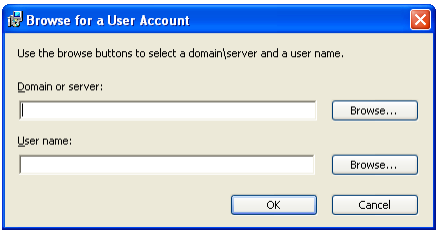
8. Use the Browse button in the Domain or server section to identify the correct domain.
9. Use the Browse button in the User name section to identify the users in the domain selected.
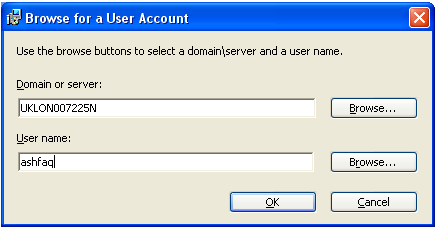
10. When you are satisfied with the domain and user name selected click OK to accept the information.
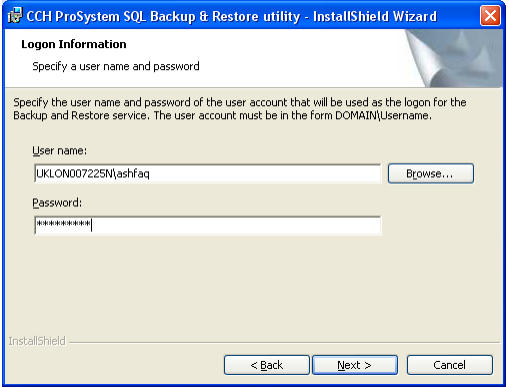
11. Enter the password and click Next to continue.
12. Click Install to start the installation.
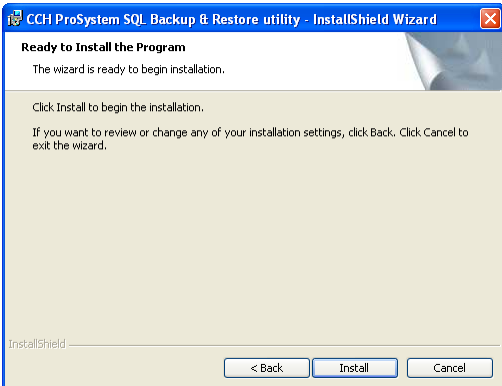
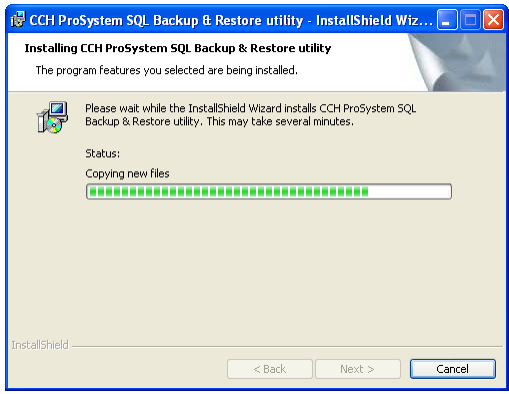
A status bar indicates the progress of the installation.
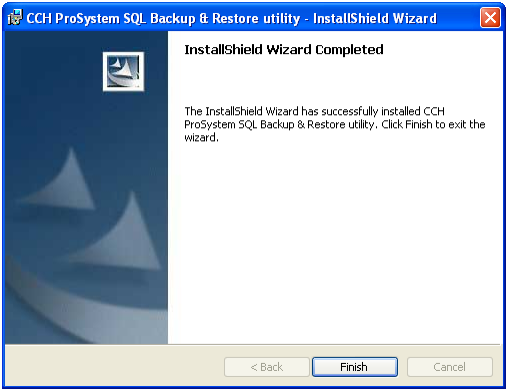
13. Click Finish to complete the installation.
14. To start the Backup and Restore Utility go to the Desktop and find the CCH Backup and Restore Utility shortcut. Double-click the shortcut to open the Utility.

-----------------------------------------------------------------------------------------------------------------------------------------------------------------------------
Legal Notice
Disclaimer : Wolters Kluwer (UK) Limited has made every effort to ensure the accuracy and completeness of these Update Guides. However, Wolters Kluwer (UK) Limited, its staff and agents will not be liable for any errors or omissions and use of the software is subject to the customer’s licence with Wolters Kluwer (UK) Limited. These Update Guides should not be relied upon as a detailed specification of the system or the software. Wolters Kluwer (UK) Limited may make changes to these Update Guides from time to time. This is provided for informational purposes only. The information reflected in this document may be changed or updated without notice. Wolters Kluwer (UK) Limited may also make improvements and/or changes in its products, practices, and/or programs described in this document at any time without notice. This document should not be seen as a contractual agreement, a modification or amendment of any existing contractual agreement with Wolters Kluwer (UK) Limited, or an indication of terms of service. All technical data, specification and other information contained in this document is confidential and the proprietary intellectual property of Wolters Kluwer (UK) Limited and/or its licensors. No reproduction, copy, alteration, or distribution thereof may be made without the express written consent of Wolters Kluwer (UK) Limited.
Copyright: These Update Guides may not be copied, altered, edited, disposed of, or distributed without the prior consent of Wolters Kluwer (UK) Limited. The content is confidential. Unless indicated otherwise all elements of this software product are owned by Wolters Kluwer (UK) Ltd. © 2023 Wolters Kluwer (UK) Limited
Trademark Rights: Microsoft, Windows, Windows NT, Windows for Workgroups, Windows 98, 2000, XP, MSDOS, Windows Vista, Windows 7, Windows 8, Windows 10, Windows Server, Microsoft SQL Server, and Microsoft Office, are either registered trademarks or trademarks of Microsoft Corporation. Novell and NetWare are trademarks of Novell Inc. Citrix MetaFrame is a registered trademark or trademarks of Citrix Systems, Inc. All rights reserved. All other trademarks are the property of their respective owners.
Wolters Kluwer (UK) Limited,Wolters Kluwer House, 145 London Road, Kingston Upon Thames, Surrey, KT2 6SR