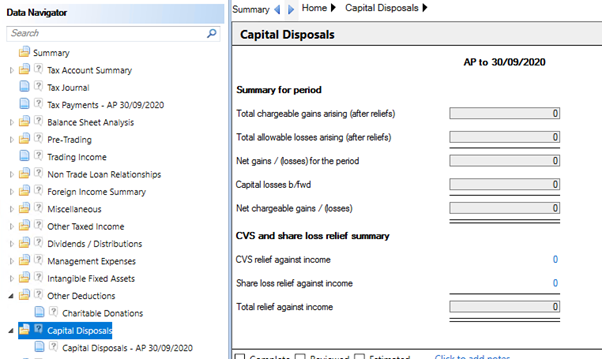
Capital Disposals is located within the Data Navigator.
clipboard_e494de0c92d534e878d00cecd2a8b54d9.png

The Summary for the period shows the total chargeable gains and the net chargeable gains / losses.

Access the Capital Disposal input for the accounting period in the Data Navigator.
clipboard_e36a0fc861505687257a23b5808441112.png

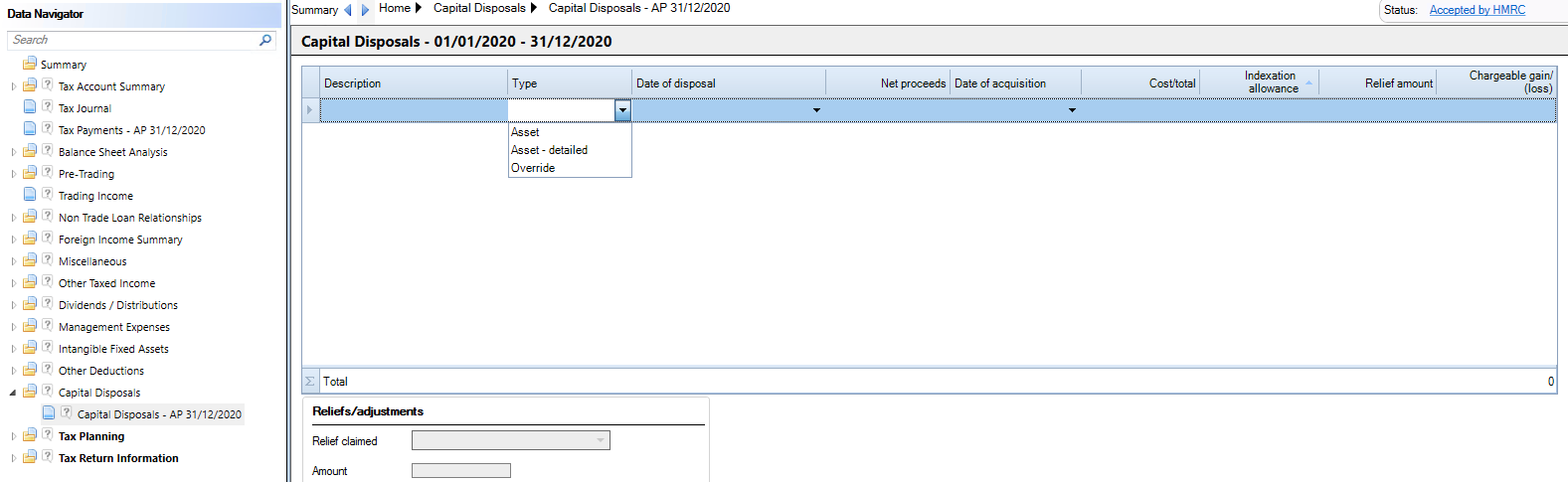
Enter a Description and select the Type.

Asset  - For a basic capital disposal where there is a single date of expenditure.

Asset – detailed – where there are multiple dates of expenditure, acquisition and disposal costs.

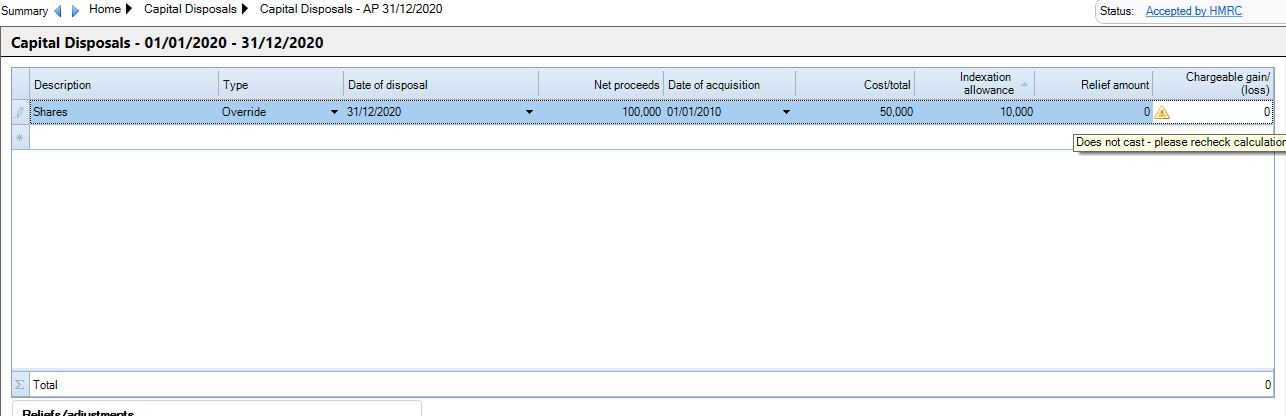
Override – to enter a customised capital disposal calculation (e.g. shares, pre-1982 acquisitions).

Asset

Enter the Date of disposal, the Net proceeds, the Date of acquisition the Cost/total.

Asset – detailed

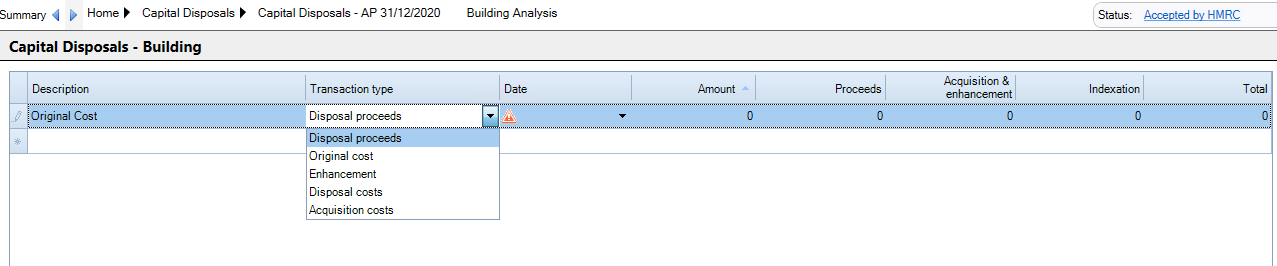
When Asset Detailed is selected the remainder of the row becomes uneditable and is populated from a detailed sub analysis. To access the detailed analysis hold the Ctrl key on the keyboard and click on the hyperlink that now appears in the Description column.

clipboard_eb8bd3baac3f3f525cee294d17a1882c2.png

Enter the Description of Original Cost, Acquisition Costs, Enhancement, Disposal Proceeds and Disposal costs selected from the Transaction Type drop down menu.
clipboard_e8bc5a932b6bf85d0ae94e5b40b160ec0.png

Enter the Date and Amount for each transaction and tab to the next row. 

The Total row will populate the analysed row on the Capita Disposal input statement. 

Override

Enter the Description, Date of disposal, Net proceeds, Date of Acquisition, Cost/Total, Indexation Allowance and Chargeable gain/(loss).

A Warning will appear if the Chargeable gain(loss) does not cast arithmetically with the input figures.
clipboard_e9e06f6e4a24f119c0daded9f97eecbb2.png

Claiming Reliefs/Adjustments on Capital Disposals

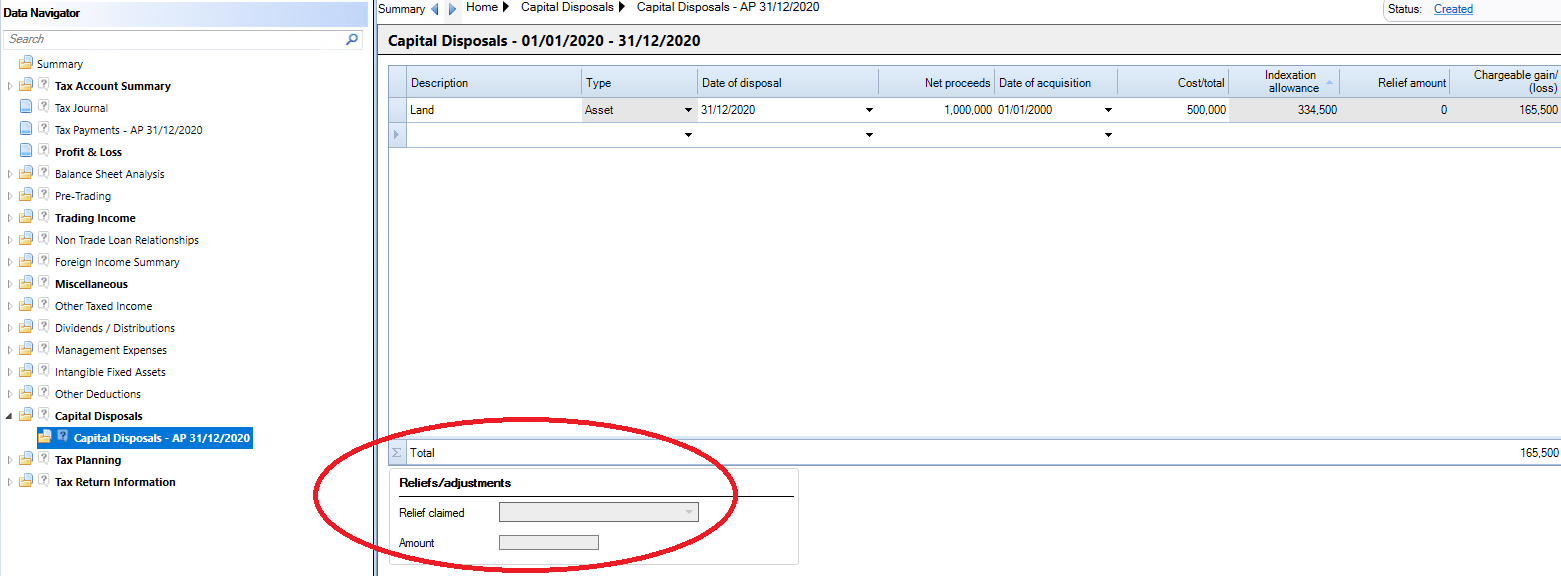
The claim for Reliefs/adjustments is made in the Capital Disposals window.
capital-disposals-1.png

The relief is made per row. Highlight the capital disposal and the Reliefs/adjustments drop down menu becomes available.
capital-disposals-2.png

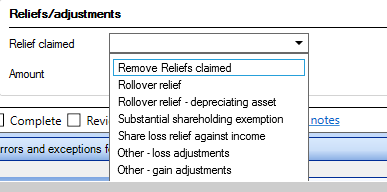
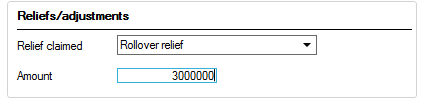
Select the required relief / adjustment and enter the Amount.
capital-disposals-3.png

To remove an existing Relief/adjustment, select the Remove reliefs claimed option from the drop down menu. 

Related documents

CCH Corporation Tax 2026.3: Release Notes
Release Notes for CCH Corporation Tax 2026.3
CCH Corporation Tax 2026.2: Release Notes
Release Notes for CCH Corporation Tax 2026.2
Getting Started
This document provides a quick start guide for using CCH Corporation Tax software. It outlines essential features such as the Data Navigator, which assists in completing clients' Returns, and the use of Breadcrumbs for navigation. Additionally, it explains the functions available in the Ribbon panel located at the top of the screen. Overall, the document aims to streamline the user experience by highlighting key tools and navigation methods within the software.
Non Trade Loan Relationships
This document outlines topics related to Non Trade Loan Relationships in corporate tax computations. It includes links to sections on Non Trade Loan Relationship Summary, Credits, and Debits, detailing how to input and summarize these tax-related items in the Data Navigator. Each section describes the process for entering data and how totals are summarized for reporting purposes. Additionally, it links to related topics like Foreign Income and Miscellaneous Income.
Document Publishing
This document outlines the options for electronically storing tax returns and computations using CCH Document Management and CCH OneClick. It emphasizes that access to these tools requires appropriate licenses and user rights. Users can publish tax returns and computations both in draft form for client review and at various stages in the submission process to HMRC. The document includes specific links to guides on how to publish documents using both systems.