How do I claim Annual Investment Allowance (AIA)

How do I claim Annual Investment Allowance (AIA)?

The software has a dedicated screen to enable you to claim AIA up to the maximum amount of AIA allowable for the period in question.  

Once you have entered or linked additions qualifying for AIA into the relevant pools as per Adding assets for Capital allowances.

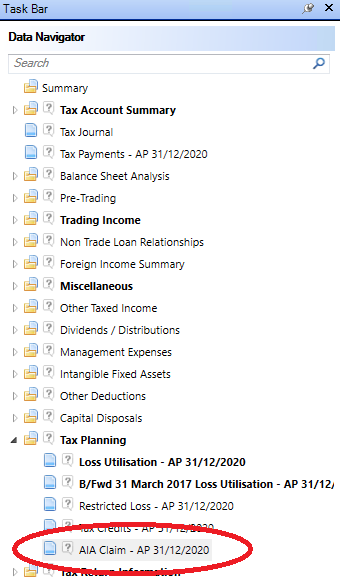
The AIA Claim input is located under the Tax Planning area of the Data Navigator.
clipboard_efde67ca27eaa6c19b84f1925acfe923b.png

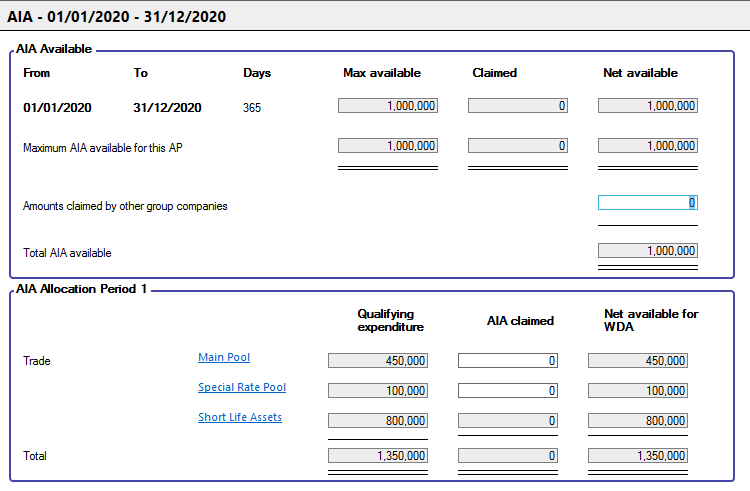
AIA Available displays the maximum amount of AIA available for the Accounting Period.
clipboard_ef8f8f43375ecc6839919b82265b3bfd1.png

An entry in Amounts claimed by other group companies which will reduce the maximum available.

The 'Maximum AIA available for this AP' does not represent the grand total of the 'Max available' column.

The rules for calculating the 'Max available' for each period are based on apportioning the relevant maximum available amounts pre and post the straddling dates and the formulae for these periods are not the same.

The calculation of the maximum available can be by reference to the number of days or months in the Accounting Period. The calculation that produces the most beneficial result is the one applied.

However, the monthly basis cannot be used if the Accounting Period does not start on either the first day of the month or if the Accounting Period does not end on the last day of a month.

AIA Allocation allow you to specify the amount of AIA you wish to claim against qualifying expenditure.

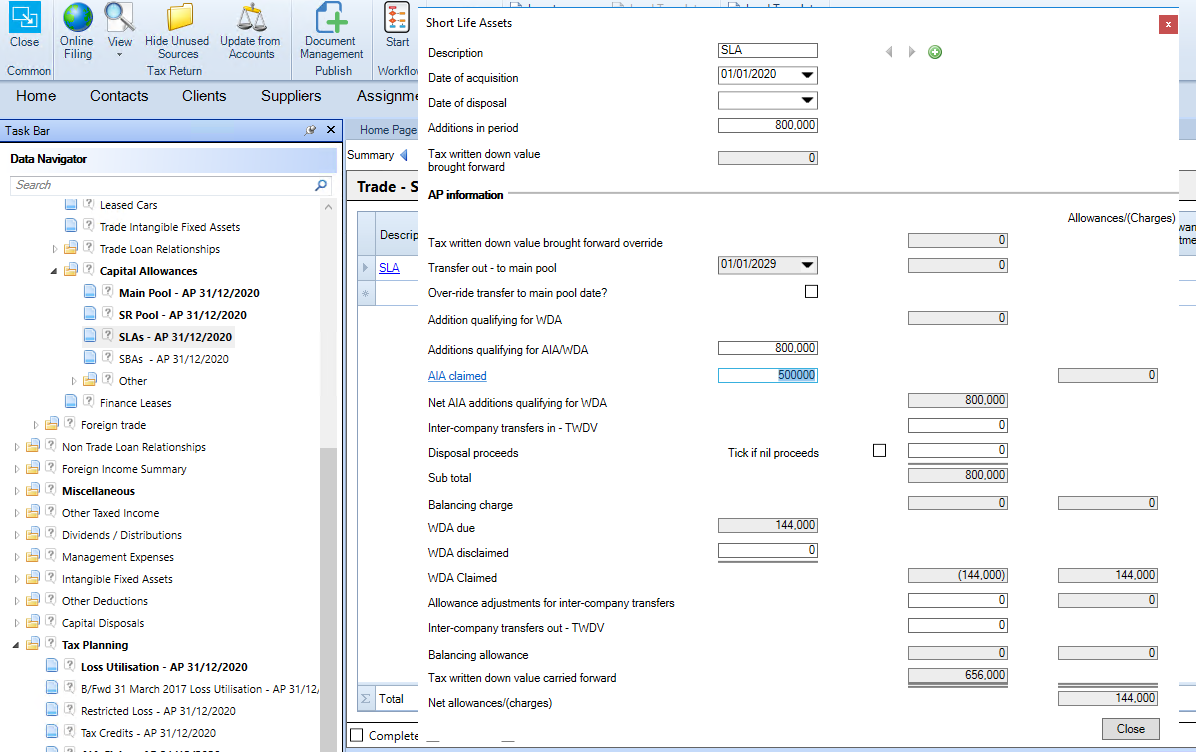
For Short life assets the AIA is claimed in the AIA Claimed cell within the individual short life asset's dialogue box.
clipboard_ef4cbcba8522566e1c505b0ea51d3e71a.png

A Warning will appear if the maximum amounts available is exceeded .

Related documents

CCH Corporation Tax 2026.3: Release Notes
Release Notes for CCH Corporation Tax 2026.3
CCH Corporation Tax 2026.2: Release Notes
Release Notes for CCH Corporation Tax 2026.2
Getting Started
This document provides a quick start guide for using CCH Corporation Tax software. It outlines essential features such as the Data Navigator, which assists in completing clients' Returns, and the use of Breadcrumbs for navigation. Additionally, it explains the functions available in the Ribbon panel located at the top of the screen. Overall, the document aims to streamline the user experience by highlighting key tools and navigation methods within the software.
Non Trade Loan Relationships
This document outlines topics related to Non Trade Loan Relationships in corporate tax computations. It includes links to sections on Non Trade Loan Relationship Summary, Credits, and Debits, detailing how to input and summarize these tax-related items in the Data Navigator. Each section describes the process for entering data and how totals are summarized for reporting purposes. Additionally, it links to related topics like Foreign Income and Miscellaneous Income.
Document Publishing
This document outlines the options for electronically storing tax returns and computations using CCH Document Management and CCH OneClick. It emphasizes that access to these tools requires appropriate licenses and user rights. Users can publish tax returns and computations both in draft form for client review and at various stages in the submission process to HMRC. The document includes specific links to guides on how to publish documents using both systems.