This section explains how to create a customised layout for the Profit & Loss within a period of account in CCH Corporation Tax.

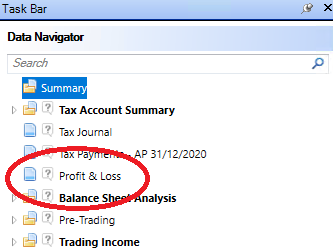
Select Insert  from the Profit & Loss section of the top ribbon.

clipboard_e87b08072573aa2576ca529bc1ca189f5.png

This inserts the Profit & Loss input statement in the Data Navigator
clipboard_ea80164e4a307e4a884276090a9ae99ae.png

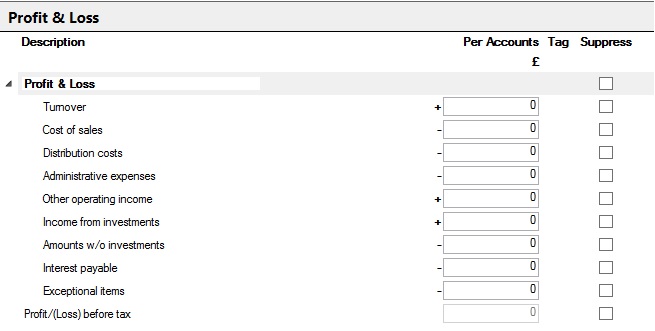
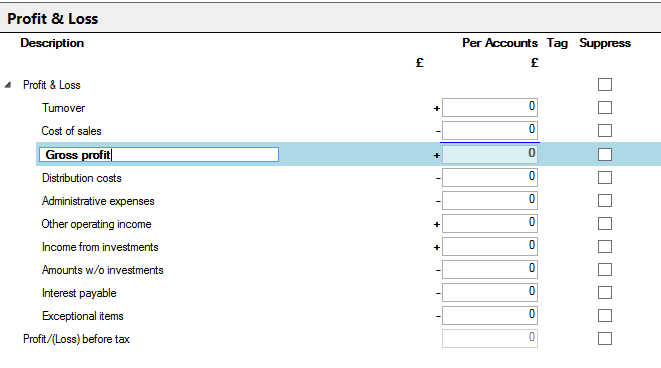
The Profit & Loss is made of four columns.
P&LLayout.jpg

Description - the descriptions can be edited.

Per Accounts - Credits are denoted by a + to the left of the Per Accounts column and debits by a -.

Tag  - will denote if the value is tagged if the Enable Tagging option is selected in Profit & Loss section of the top Ribbon.

Suppress - will exclude a row and any underlying analysis from the printed computation.

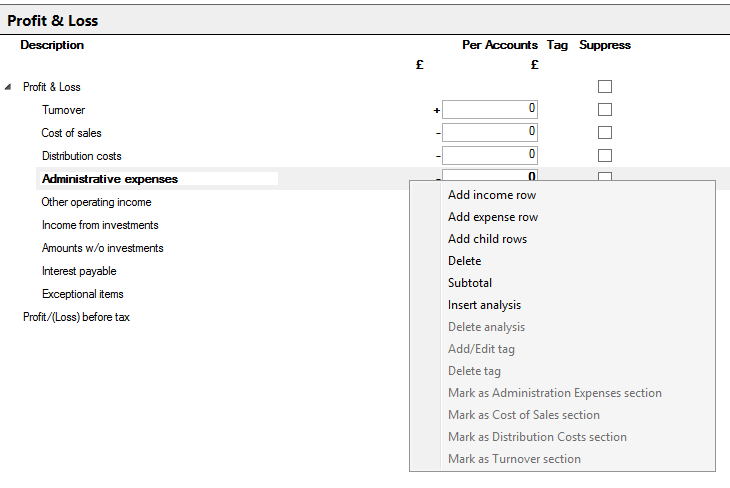
Rows and indented rows (child rows) can be added, sub-totalled, analysed and deleted by right clicking.
clipboard_edb181835f0e40d8d0758b22aa51b6735.png 

Select Add income row to add a row immediately below the one highlighted and the value entered will be added to arrive at the Profit/(loss) before tax.

Select Add expense row to add a row immediately below the one highlighted and the value will be deducted to arrive at the Profit/(loss) before tax.

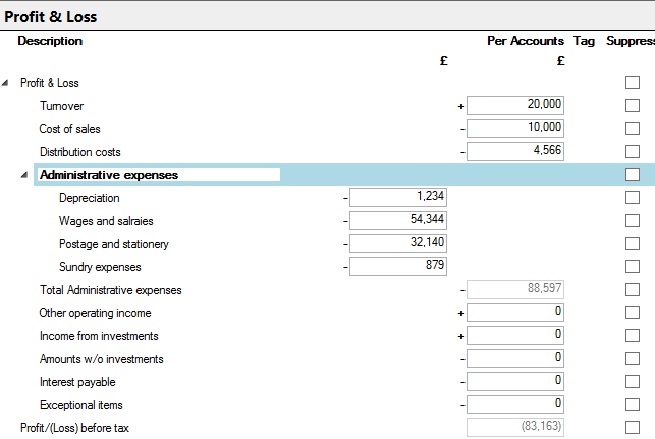
Select Add child rows to add any number of rows indented immediately below the row highlighted. The rows added will be totalled.
P&LChild.jpg

Select Subtotal to create a new row which subtotals the rows above. A description can be added to inserted and sub-totalled rows.
clipboard_e435dccf729c7b563ca9917644178c1f7.png

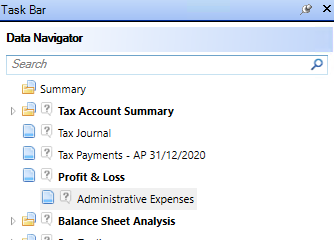
To create analysis for a row select Insert analysis. A sub analysis input will appear under the Profit and Loss in the Data Navigator.
clipboard_e4267a634ef9bf16a8274144c51d4b4b3.png

The layout is preserved and will be rolled forward each time a new period of account is created.

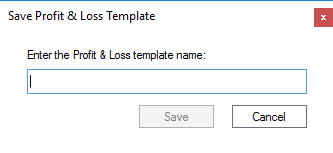
The customised layout can be saved as a template and used for other clients. Select Save P&L template in the Profit & Loss section of the top Ribbon 

clipboard_eed42f7a578a9fa60432291149bb0afee.png

Give the template a name and Click Save.
clipboard_e72489122cfd649f5576450a799704556.png

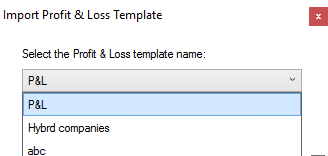
This template can now be loaded into Tax returns for other clients by selecting Load Template.

clipboard_e9c6bb1e812e9d53c04416a42cfb90c7b.png

Select the required template to be loaded and click Load.
clipboard_ec83c453cc3eff4fffae3617af6ab44a0.png

Related documents

CCH Corporation Tax 2026.3: Release Notes
Release Notes for CCH Corporation Tax 2026.3
CCH Corporation Tax 2026.2: Release Notes
Release Notes for CCH Corporation Tax 2026.2
Getting Started
This document provides a quick start guide for using CCH Corporation Tax software. It outlines essential features such as the Data Navigator, which assists in completing clients' Returns, and the use of Breadcrumbs for navigation. Additionally, it explains the functions available in the Ribbon panel located at the top of the screen. Overall, the document aims to streamline the user experience by highlighting key tools and navigation methods within the software.
Non Trade Loan Relationships
This document outlines topics related to Non Trade Loan Relationships in corporate tax computations. It includes links to sections on Non Trade Loan Relationship Summary, Credits, and Debits, detailing how to input and summarize these tax-related items in the Data Navigator. Each section describes the process for entering data and how totals are summarized for reporting purposes. Additionally, it links to related topics like Foreign Income and Miscellaneous Income.
Document Publishing
This document outlines the options for electronically storing tax returns and computations using CCH Document Management and CCH OneClick. It emphasizes that access to these tools requires appropriate licenses and user rights. Users can publish tax returns and computations both in draft form for client review and at various stages in the submission process to HMRC. The document includes specific links to guides on how to publish documents using both systems.