
Document Templates Maintenance Screen
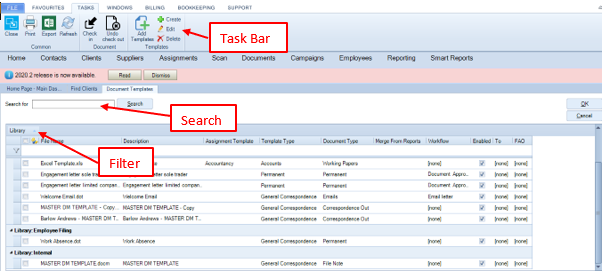
Search
Search will look at the File Name and Description fields. Enter the word that you want to look for and click the Search button.
Expand and Collapse in Select Template window
To enable a user to quickly locate a relevant group of templates, particularly when a search returns a large list, Expand and Collapse options have been added to the Find Templates window, when creating a document.
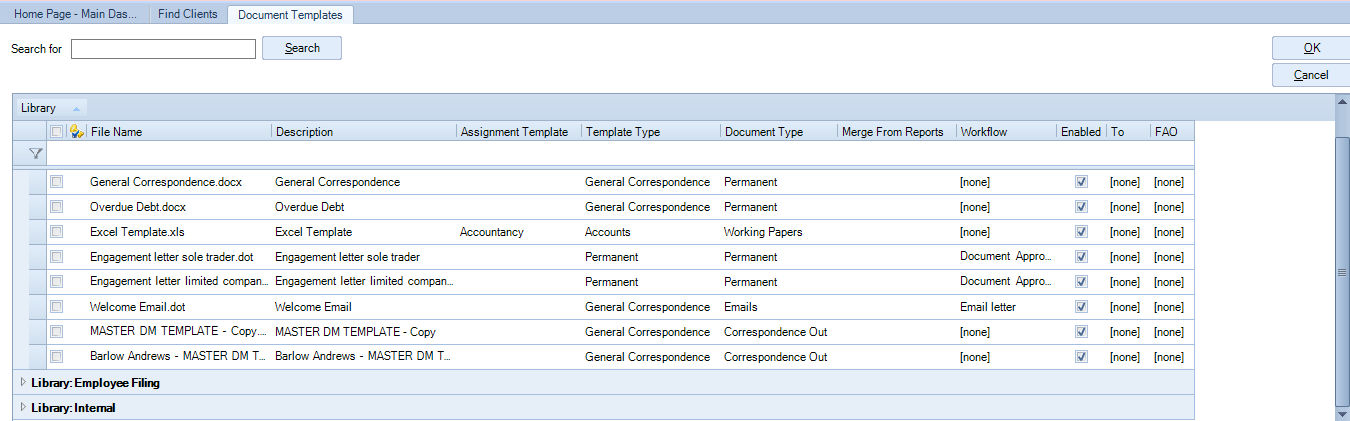
Template Type groups can be Expanded/Collapsed, using thearrow to open and close each group, making it easier to find the template you are looking for.
The views will differ for each Document Centre, e.g. if the user is in the Global Documents Centre, only non-contact library templates will be displayed, if they are in a client, only client library templates will be displayed and so on.
The customised view settings are saved on closing i.e. when the user reopens the Find Templates window it displays the previously saved settings.
Filter Row
You can use the filter row to filter by Description, Library, Template Type, Assignment Template, Document Type and Enabled.
The fields provide a dropdown listing the entries that are in the grid for that field. The exceptions are the Description field which allows you to type in the criteria to filter on, and the Enabled check box.
Use * before and after a word as a wildcard.
The Grid
The columns in the grid are as follows.
|
Field |
Note |
|
Selection checkbox |
Used to select a record. |
| Checked out indicator | An icon will be displayed if the template is checked out. |
| File Name | The actual file name of the template. |
| Library | Shows which library the template belongs to. |
| Assignment Template | Shows if the template has been associated with an Assignment Template. This field is editable |
| Document Type |
Shows which Document Type the template relates to, This field is editable. If an Assignment Template has been selected then the dropdown list in this field will be restricted to the types that are associated with the Assignment Template. |
| Template Type |
Displays the Template Type. This field is editable. The dropdown is populated with all of the Template Types that have been added in Maintenance > Document Management > Template Types. |
| Merge From Reports | Shows if a report has been used to provide extra merge fields in the template. |
| Enabled checkbox | Remove the tick if you want to prevent users from using the template to create documents. |
| Workflow | Allows you to select the default workflow to be started when creating a letter using the template. (Only relevant if you have CCH Workflow installed.) |
| To | Allows you to select a default association type to be used in the To field on the Create Document window. |
| FAO |
Where an association is set in To this will default to use the Default Contact for that associate. If nothing is set in the To field then you can set a default association type to be used here. |
Templates can be grouped by dragging a column headed to the grey bar above the column headings.
Task Bar
The options are as follows.
|
Option |
Note |
|
Print results |
Use this option to print a list of templates. |
| Close | Selecting this option will close the maintenance window. |
| Add templates | Use this option to open the Add Templates window and add templates that have been created out of the system. |
| Create template | Use this option to create a new Word or Excel template. |
| Edit template | Use this option to edit a template. The template will be checked out to you. When you have finished editing the template you must check it back in. |
| Delete template | Use the selection checkbox to select one or more templates, then click this option to delete the selected template(s). |
| Check in | Use the selection checkbox to select one or more checked out templates and then click this option to check them in. |
| Undo check out | Use the selection checkbox to select a checked out template, then click this option to revert to the last checked in version of the template. |
| Refresh | This option will refresh the list of templates. |