
Employee Category
Using the Employee Categories window, you can create and maintain different groups or categories of employees in the practice. Employee categories form the basis for managing resources.
Set up Employee Category
- If you select the Search any part of name/code check box, the search results that are returned will contain the search criteria in any part of the record name. When this check box is clear, only records with the search criteria at the beginning of the name will be returned. For example:
- From the main menu, select File > Maintenance > Employee Categories > Employee Categories.
- On the Employee Categories page, in the blank row at the top, enter the employee category Name, e.g. Associate, External Contractor, Partner, etc.
- Enter the Charge Rate for the category.
- Click the Default Homepage field. The Ellipsis
appears.
- Enter the name or other search criteria of the employee who has the Home Page that you want this new category to use as the default.
- Select the box Hide form when only one item found to display the record directly if there is only one that matches your search criteria. The results will be displayed only if the search criteria bring up multiple records.
- Select the box Search any part of name/code if required.
- You enter 'mit' in the Search for field when searching for an employee with the Search any part of name/code check box clear. The results will only contain employees who have 'mit' at the beginning of their first or last name, such as 'Mitchell' or 'Mitch'.
- You enter 'mit' in the Search for field when searching for an employee with the Search any part of name/code check box selected. The results will shown any employee whose name contains 'mit' somewhere within it, such as 'Smith', 'Mitchell' or 'Amit'. - Click Search.
- On the results window, double-click the employee record you want. The employee's name appears in the Default Homepage field in the Employee Categories page.
- Enter the Standard Hours for the employee category.
- Enter any notes you want to make about the employee category in the Notes box.
- To set up additional employee categories, repeat steps 2 to 11.
- When you have finished, click OK to save the information and close the window.
Auto Fill Homepages
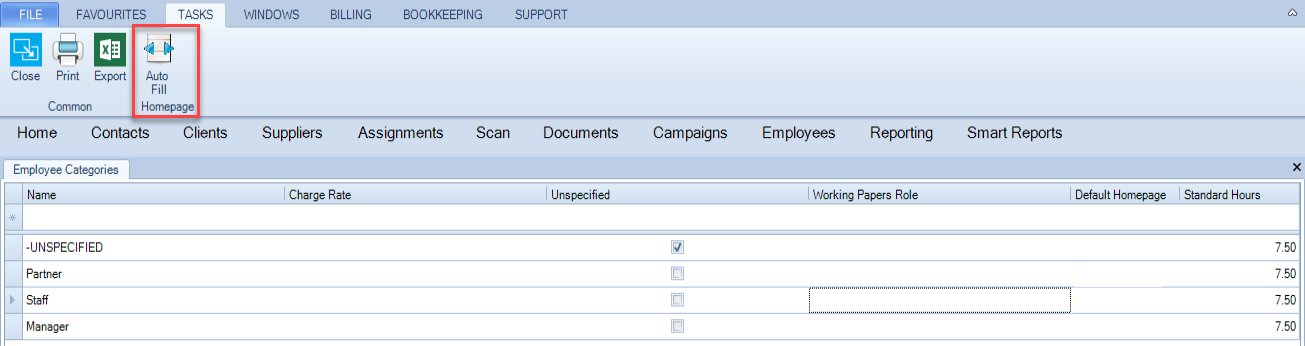
You can deploy the homepages of one employee to the entire Employee category since the employee is selected as per step 7 above. To Auto Fill Homepages, highlight the line of the employee category until it is blue and from the task bar click Auto Fill Homeages.
Using the Employee Leave Type window you can add and maintain leave types for employees. Leave types might include Annual, Sick, Maternity or Study.
How to delete an Employee Category
- On the main menu, click File > Maintenance > Employee Categories > Employee Category.
- In the Employee Category window, click the row you want to delete and then press the [Delete] key.
- On the prompt, click Yes to confirm the delete action.
- To delete additional categories, repeat steps 2 to 3.
- When you have finished, click OK to save the changes and close the window.
Note: You cannot delete categories that are being used by the database. If you try to delete a category that is associated with clients or employees, an error message is displayed.