
How To
Extra Field Security
CCH Central
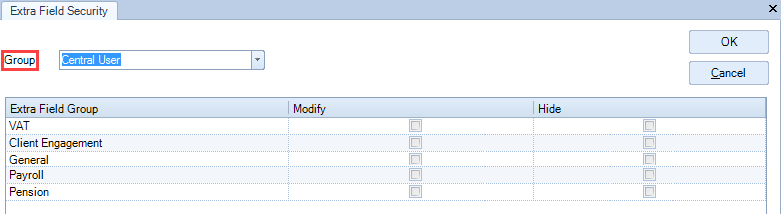
The Extra Field Security allows the system administrator to restrict the edition or even hide the extra field group from a security group.
- On the main menu, click File > Maintenance > Security > Extra Field Security.
-
On the field Group, from the drop-down list, choose the Security Group, for example Central User or Accounts Production User.
-
The column Extra Field Group shows the Extra Field Groups existent on the system.
-
Check the box to Modify (second column) or Hide (third column) for each Extra Field Group line.
-
Repeat steps 1 to 4 to setup the security for each Security Group.
-
When you have finished click
to save and close the window.
The extra fields that belong to a group that was set as hidden, are no longer displayed in the following areas:
- Extra tab from Client/Contact/Employee/Assignment/Supplier screen.
- Extra Fields tab from Add New Client/Contact/Employee/Supplier Wizard.
- Values tab from Bulk Update Wizard within Find Clients or Find Contacts screen.
- Bulk Update Extra Fields dialog within Find Clients or Find Contacts screen.
- CCH Reporting
The extra fields from an Extra Field Group that has the Hide option ticked for a user group in the Extra Fields Security screen are still available in the following areas:
- CCH Smart Reports
- CCH Workflow
- CCH Document Management
- Insert Merge Field from Mail Merge Wizard when editing or creating a new template on Find Clients or Find Contacts screen.
- Merge Fields section from Email Templates when editing or creating a new email template on Find Clients or Find Contacts screen.
Note 1
Where a user is allocated to a security group that has the Hide option ticked for any Extra Field Group, they will not be able to view the Extra Fields for that Extra Field Group.
Note 2
The Extra Fields that belong to the Extra Field Group NONE are visible to all security groups.
Related documents
CCH Central Suite Update Guide (Latest Offline Version)
The document outlines the process for using the Central Suite Installer Offline (CSI Offline) for customers with specific IT requirements that prevent internet updates. It provides detailed instructions for installing updates to the Central Suite, including necessary prerequisites, folder structure, and the installation steps. Key points include ensuring Microsoft SQL Server is supported, confirming .NET Framework requirements, and the importance of backups before starting the update. The document also highlights the need for administrator rights, handling database upgrades, and checking for office plugin updates, particularly for users of CCH Document Management.
CCH Central Suite 2026.3 Update Guide
This guide explains how to update an existing install of the CCH Central Suite to the latest version 2026.3 (including Service Packs and Hotfixes) using the Central Suite Installer (CSI).
CCH Central 2026.3 Release Notes
CCH Central 2026.3 Release Notes
Central Suite Installer (CSI) instructions
The document announces the update of the Central Suite Installer (CSI) for the CCH Central Suite, now compatible with the latest releases and service packs and hotfixes of various CCH applications. Key points include prerequisites for installation, compatibility information, and the necessity for proper backup before proceeding with the update. It highlights specific requirements for Microsoft components, and it warns users of CCH Accounts Production regarding regional settings for date format. Support options are mentioned for users seeking assistance during the update process. Release notes are accessible for detailed information on the updates.
CCH Central 2026.210 Service Pack
CCH Central 2026.210 Service Pack