How to remove an Audit Pack for a client.

It is possible that you may wish to delete an audit pack and recover the space for another data set or application. CCH Audit Automation provides a routine to enable you to remove clients from the index that it maintains and the associated database record. 

Deleting a client from CCH Audit Automation

To remove a client from the index, select Remove pack from system maintenance.

Remove pack.PNG

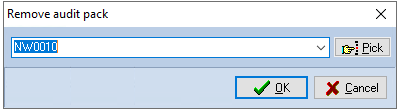
The system will request the code of the pack to be removed by displaying the Remove audit pack dialog:

Remove audit pack dialog.PNG
Remove audit pack dialog

Enter the code of the pack you wish to be removed and click on [OK]. If the code you have entered does not exist, or the data held in the work area is current, the system will inform you of this fact before returning to the Main window.

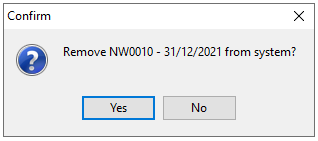
If you entered a valid code, and the directory contained backup data, the system will ask you to confirm that you wish to proceed before carrying out your instructions.
Confirm1.PNG

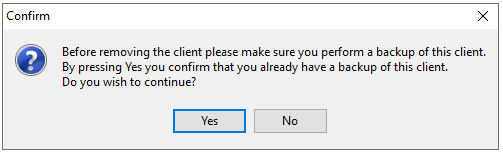
The system will ask for a final confirmation that a backup has been taken of the client.
Confirm2.PNG

A progress report will be displayed while the files are deleted and, on completing the task, the system will return to the Main window.
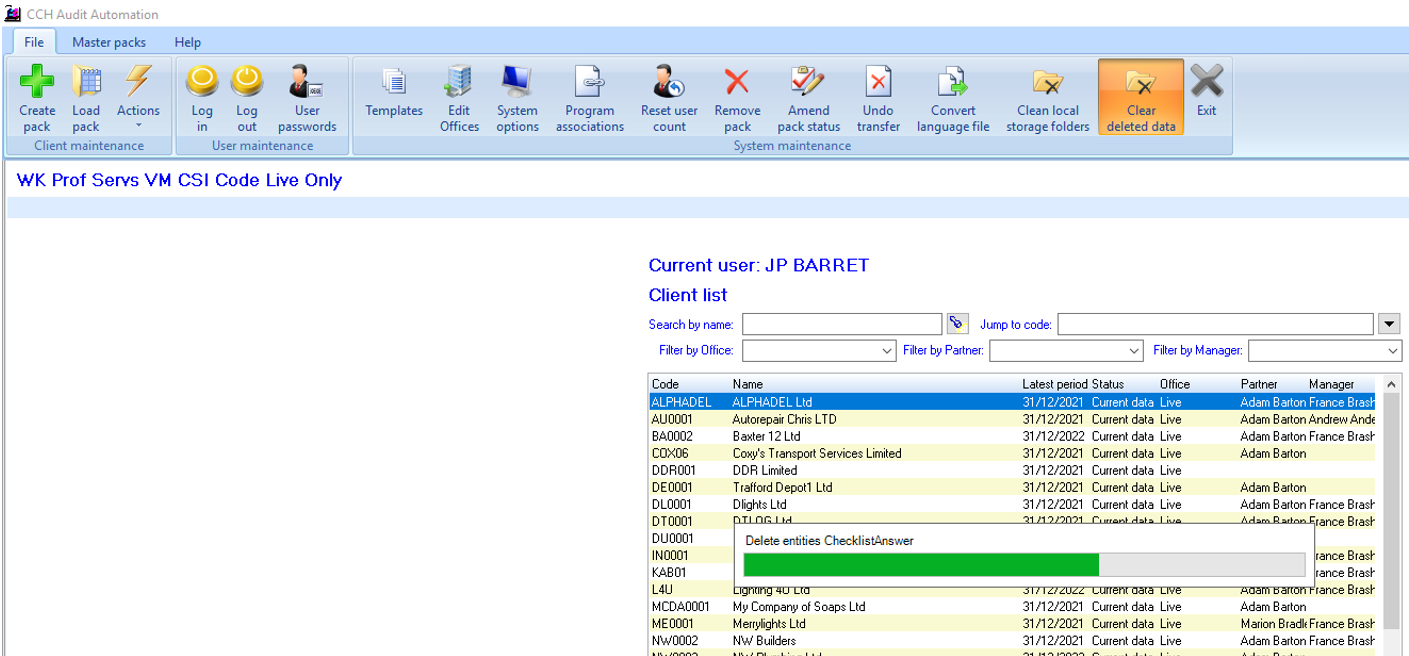
After deleting the client file the Clear deleted data routine needs to be run from toolbar:  
Clear Deleted Data2.png

A progress report will be displayed while data are deleted and, on completing the task, the system will return this dialog:
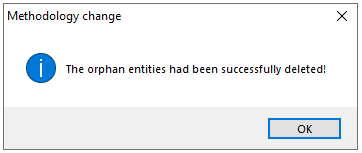
After clear deleted data.PNG

Information! This clears all deleted data from the database. This option is only available to the System Manager.

Note! The logic behind the Clear Deleted Data option has been redesigned and should no longer cause a timeout error. 

Deleting a client from CCH Central

When using the delete client option from CCH Central the documents attached to the audit periods are left as orphaned entries in the document database. When removing a client from CCH Central the audit periods should be removed first from audit as this will correctly delete the audit documents.

Those clients deleted from Central but not yet removed from audit can be displayed by ticking the 'Include Closed Client' checkbox.

When this checkbox is checked, Closed clients with a Strike through will display in the client list and when this checkbox is uncheck then Closed clients won’t be shown on list.
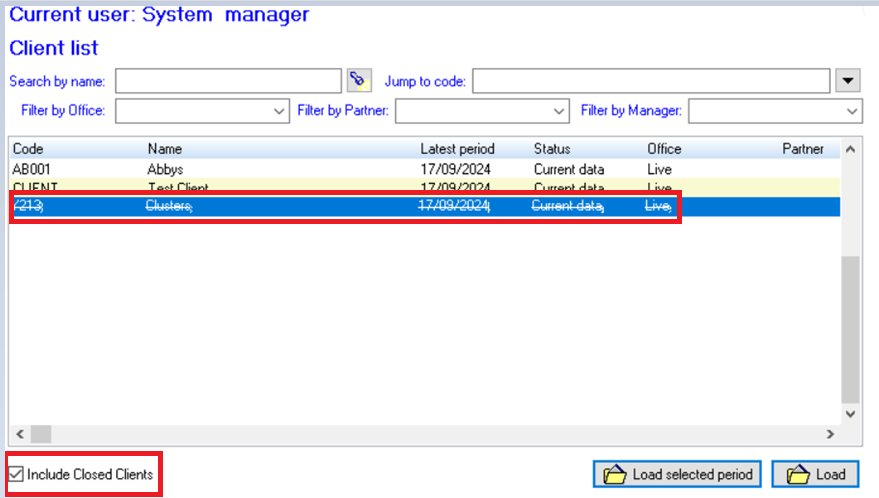
clipboard_e2fc4584b8601fb4a4d1147c82ec137e8.png

Related documents

Inherent Risk Questions
This document outlines the process for assessing inherent risk in clients through a systematic approach of questions. The system can store up to 99 risk areas, each containing 99 questions, which are assigned point scores for "Yes" and "No" answers. It details steps for editing, adding, and deleting risk areas and questions, including interface navigation and confirmation prompts. Additionally, it emphasizes that once numbers are assigned to risk areas or questions, they cannot be changed. The document serves as a guide for managing inherent risk assessments effectively.
Audit Risks
This document details the functionality of CCH Audit Automation for recording Identified Audit Risks, also referred to as Significant Business Risks. It provides instructions for users to add, edit, and manage risks, including features for maintaining risks for future audits, assessing their significance, and linking them to assertions. The system includes tools for risk assessment, audit response, and documenting conclusions. Other functionalities encompass risk summarization, printing options, and risk linkage across multiple sources, enhancing the audit process's efficiency and accountability.
Default Specific Risk Questions
CCH Audit Automation allows users to define specific risk questions for audit areas, although it's not mandatory. If no specific questions are set, default questions will be used. Users can edit the default questions through the "Specific risk questions" option in the Risk Model section. Up to 99 default questions can be defined, similar to inherent risk questions. The system utilizes a lookup table that combines specific and inherent risks for audits, with editing instructions provided in the manual.
Risk/Sample Selection
This document outlines the concept of audit risk, defined as the likelihood of undetected material errors during an audit. It introduces a risk model used in Audit Automation that requires total audit risk to remain below acceptable levels across various audit areas. The risks are broken down into inherent risk, control risk, and detection risk, with further subdivisions for detection risk. It emphasizes the importance of understanding these concepts to design effective audit procedures and assess risk at different levels. Additionally, it discusses general and control environments, and the calculation of residual risk, alongside a risk scoring system.
Inherent Risks
The document outlines the procedure for addressing inherent risk questions in an audit context. Users can access a dedicated window to view up to 99 risk areas, answer questions, and modify responses as necessary. The system prompts users to validate changes to ensure proper risk assessments. It includes functionalities for viewing prior comments, copying text, and overriding calculated risk levels, emphasizing that auditor judgment is crucial. Comments on overrides must be provided to rationalize any adjustments made. The document serves as a guide for navigating and utilizing the auditing software effectively.