
Inherent Risks
To answer the questions relating to general inherent risk, click on [Inherent risk questions] and the Inherent risk questions window will be displayed.
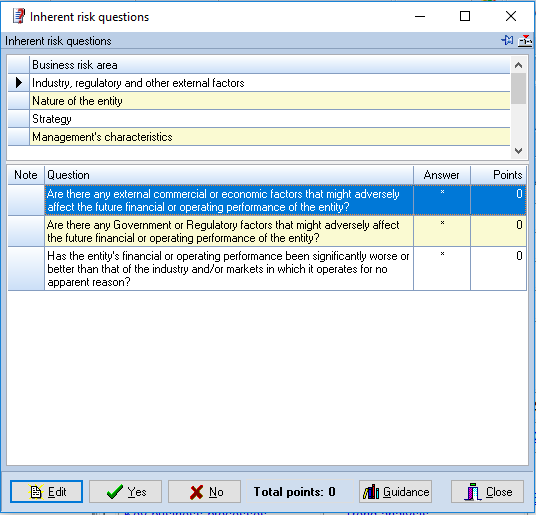
Inherent risk questions window
This lists up to 99 general risk areas in the top grid and the questions relating to the selected area in the lower grid. Selecting an area in the top grid, either by scrolling the list using the scroll bar, or clicking on an area name when it is displayed, will cause the questions relating to the area to be displayed.
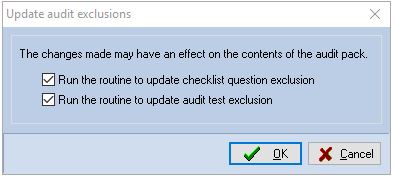
To change the answer to a question, either highlight it and click on [Yes] or [No], or on [Edit] to display the Risk questions dialog.
If any answers to the inherent risk questions are changed the user will be prompted to run the checklist question exclusion and audit test exclusion routine, as the answers to these questions can be linked elsewhere.
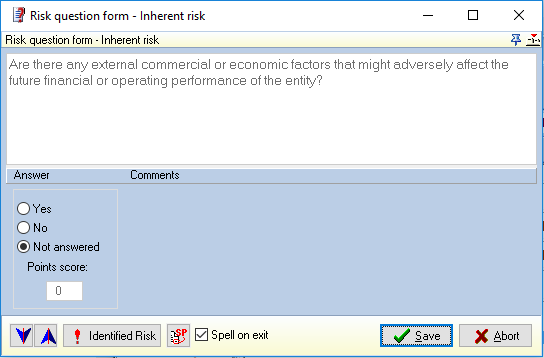
The Answer dialog
If the risk model has been set up to allow auditor’s judgment in the point scoring, the dialog will also be shown if you select [Yes] or [No] and the points associated with the answer are the higher of the yes/no points.
With this dialog displayed, you may change the answer by clicking on the relevant radio button and enter a comment to explain why you have answered the question in this way, if this is appropriate. If the judgmental options is turned on for the pack, you may also edit the points score within the limits set in the pack. To save your answers and comments, click on [Save], clicking on [Abort] will close the dialog leaving the data unchanged.
Alternatively, if you wish to move to the next or previous questions and keep the Risk question form open, click on the blue up and down arrow buttons. This will save any changes that you have made and move in the direction selected. You may also click on a question in the Inherent risk question window and its details will be displayed in the Risk question form. If you had edited the displayed details before selecting the question, they will be saved before the new question is displayed.
When a client is created, and after it has been balanced forward, all risk model answers are reset to Not answered. The system will not allow you to proceed to the next stage of the audit until all questions have been answered.
Risk model comments
If you wish to view the comments made in the prior period in respect of the question, click on the [Prior comment] button. This button will only be present if a comment was made in the prior period. Clicking this will result in the display of a dialog showing the comment that we made in the previous period:
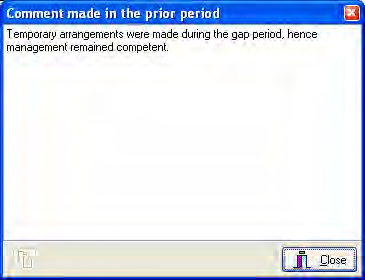
If you wish to copy any of the text to the Windows clipboard, highlight the text by dragging the mouse over it and the [Copy] button will become active. Click on this and the text will be copied and the dialog will be closed. If you do not wish to copy the text, click on [Close] to close the dialog.
Inherent risk override
When you have answered all the questions, exit from the Inherent risk questions window using the [Close] button. The system will total the points in each area, calculate the overall total and, by reference to a look-up table in the Master Audit Pack, work out the client’s Risk Level. It will then display the Inherent risk override dialog:
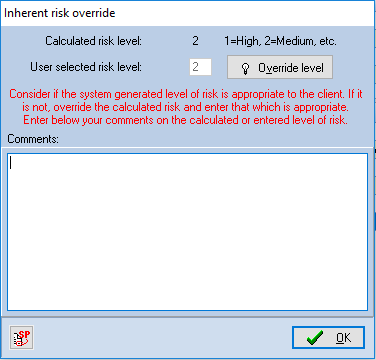
Inherent risk override dialog
This shows the level of risk calculated by the system and allows you to override it if you do not think that it is appropriate to the client.
To override the calculated risk, click on the [Override level] button and enter the level that you consider appropriate. The override button will become a [Use calculated] button and if you click this the risk level will revert to that calculated by the system. On selecting one of these buttons, the system will invite you to enter your comments on the reason for the change. These will be appended to any comments which already exist in the Override dialog.
It should be emphasized that Audit Automation is a tool and is not seeking to replace the auditor’s judgment. You must therefore consider the level of risk selected and either indicate why it is appropriate or override it and explain your choice.
To proceed click on [OK] and, provided that you have entered a comment, the system will close the dialog.