
Land and Property
Once a trade Type has been set as a property business in Trading Income, a Land and Property input statement appears within the data navigator;
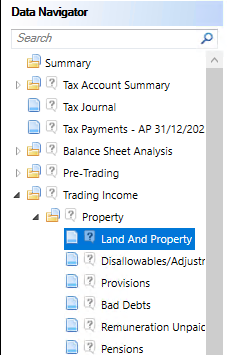
Enter details of property and income expenses.

The choice of the Type of property income determines whether any losses made from the particular property are subject to restrictions for their relief.
The default entry is for no Type shown.
If the default choice of Type is changed to Non Commercial, Furnished Holiday Letting or Other Loss Restricted then an additional screen within Tax Planning for Restricted Loss will be populated.
If an analysis of the details of the expenditure are required, click the Details link to the right of the row.
A dialogue box is displayed.
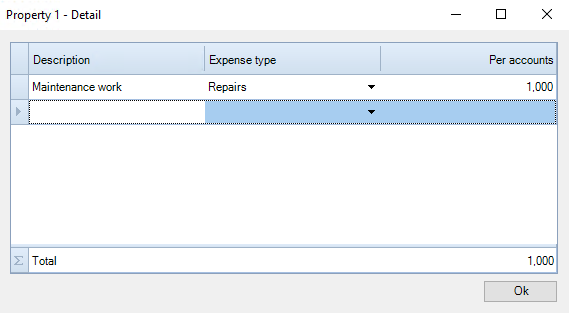
Enter all the relevant expenses and click on OK.
The Per accounts value of the expenses will populate the 'Expenses' field in the Land and Property grid for the relevant property.
The total of the expenses entered into the Details window will over-write any values manually entered into the 'Expenses' field in the main Land and property summary grid.
A checkbox is available if a Rental income and expenses report is preferred to an Adjusted trade report.
A checkbox to populate the Profit/(loss) before tax per accounts field in the property business summary statement;

If the choice is made to Prepare Rental income and expenses report and not Adjusted trade report then the usual adjusted trade profit report will not be prepared and separate report will be prepared and the Primary Trade Box will be removed for the Property Trade.
A message will appear if this box is ticked requesting confirmation the Primary Trade tick will be removed. This report cannot be produced if the Property Income is selected as the Primary Trade.
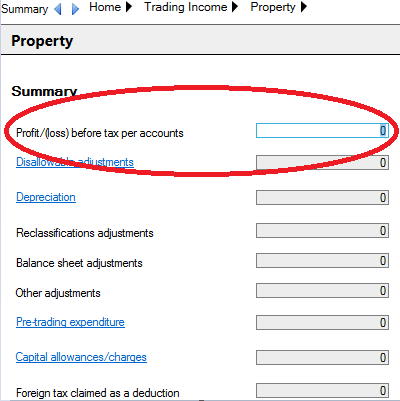
If the Populate the Profit/(loss) before tax per accounts is left unticked then you are able to manually enter a figure in the Summary screen for the Profit/(loss) before tax per accounts. If the box is ticked then the total of the Net profit/(loss) will populate this entry.
Wear and Tear Allowance for Furnished Accommodation
To claim 10% wear and tear allowance for furnished accommodation, go to Disallowables/Adjustments and enter in the description '10% Wear and Tear' along with the calculated relief as a negative disallowable