
Mercia Company Packs: CCH Accounts Production FRS 102 Chart of Accounts and Working Papers
Existing clients
Note: that updating a master to this chart will not automatically change the chart of accounts for existing clients that are attached to the master. When you switch from one master to another, you are given the option to clear the current TB and import a new chart of accounts, so it will be possible to automatically update the chart for any existing clients that are changed to the master that you have updated. If IFULL08 is updated then the lead schedules for any existing clients attached to it will no longer work.
If you wish to update the chart of existing clients without changing the master pack to which they are attached, this must be done with care, especially if they contain released audit journals as doing so would clear the trial balance. You would then need to import the TB from CCH and this may already have been updated for the released journals thereby duplicating their effect in the audit pack. If you wish to update the chart of an existing client linked to the pack, please contact support for assistance.
It is recommended that a copy of the latest master pack is taken and that this update is applied to the new master pack, this will allow the use of the FRS102 chart of accounts with the new master pack and the existing pack can still be used for audits using the UKGAAP chart of accounts.
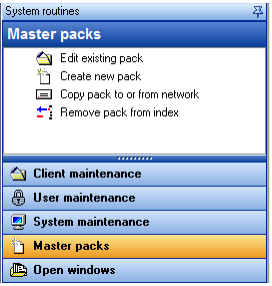
To create a copy of the existing master pack the Create new pack option can be used from the master pack menu.
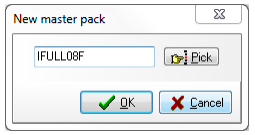
Enter a new code for the master pack.
Click 'OK'
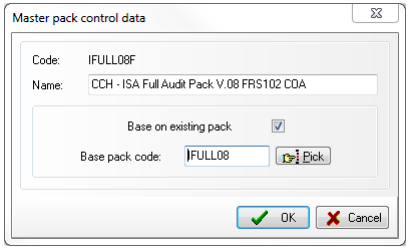
Enter the name for the new master pack and select the Base on existing pack option, select the pack that the new pack is to be based on using the Pick button and click OK. The new master pack will now be created and the FRS102 chart of account can now be installed into this pack.
Downloading the installation routine
Create a temporary folder to hold the downloaded file. Download the installation executable from the download page identified in the email and save it to the temporary folder.
Installation
Note: you will need to install the chart in each company master pack. Hence you must run the following procedure on each standard company pack installed on your system. If the master packs are installed locally this will have to be done on each local master pack copy.
After the download is complete, browse to the temporary folder and double-click to open it. Double-click the file CCH AP FRS102 chart setup CCH.EXE and proceed as follows: If you see the following User Account Control dialog, click on Yes to proceed. You will be presented with a series of screen:
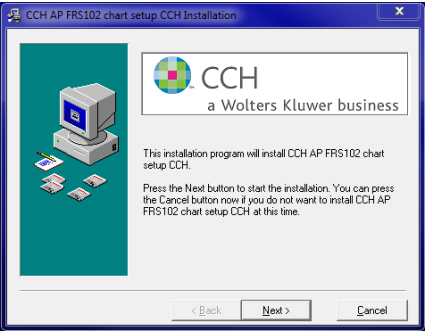
Click 'Next'
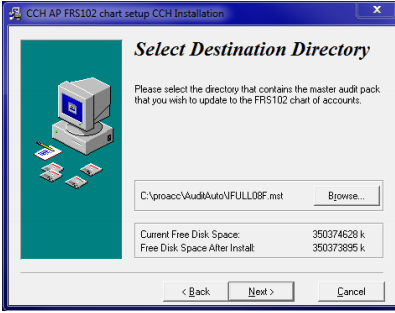
The installation program will offer you our standard default directory on Drive C. Click on Browse and select the folder in which your master packs are stored. Within the folder will be listed the directories containing the master audit packs used on your system - these will be shown with an extension of “.MST”. Select the directory relating to the pack to be updated and then Click 'Next'.
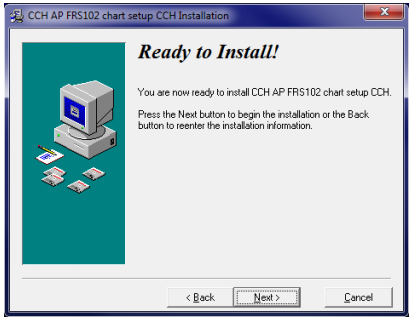
Click 'Next'
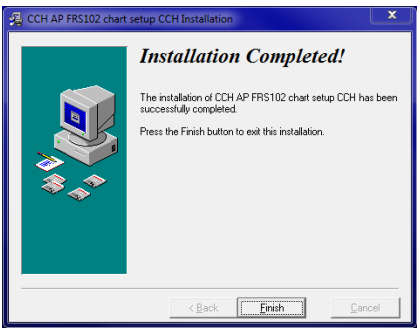
Click 'Finish'
Provided the directory selected contains a master pack, the nominal chart and associated data will be updated, otherwise you will be informed that the installation cannot proceed and the process will abort. Repeat the above process on each company master pack present on the system.
Note: When we issue pack updates they will contain the original chart and you will need to repeat this procedure to update them to the CCH Accounts Production chart so please retain the installation EXE for future use.
The CCH Accounts Production chart
This installation contains a chart of accounts designed to match the chart used in the CCH Accounts Production FRS102 master pack and allows a one-step transfer of data both from and to that program. The installation also includes new lead schedules to work with the new chart of account.
The audit programmes, checklists and planning schedules remain exactly the same as those supplied in the standard packs, as set out in the Master Audit Pack manual.