
Patent Box
This is located atTrading Income,Trade Name,Patent Box.
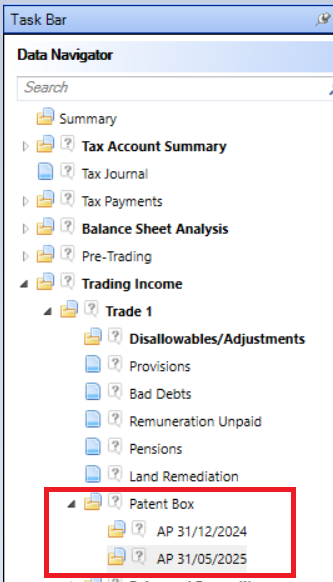
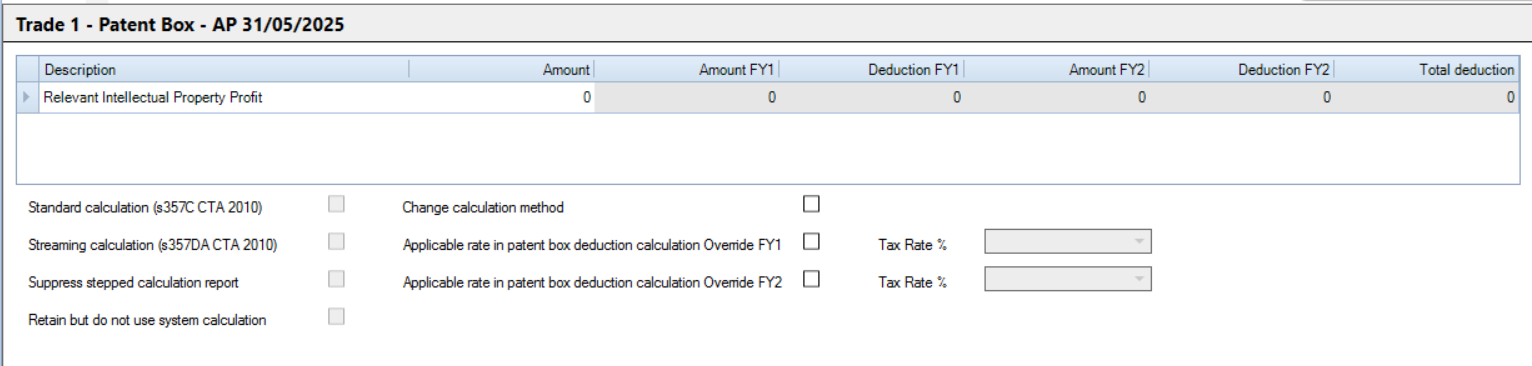
The Patent Box claim amount can be made manually or completed by the application by using the stepped calculation.
Navigate to the Patent Box node in the relevant trade under Trading Income.
Complete the relevant IP profit amount using one of the following methods:
- Manually enter the amount of the Relevant Intellectual Property Profit.
- Complete the standard calculation steps.
- Complete the streaming calculation steps.
The application automatically calculates the deduction.
Patent Box is given as a deduction against the company's profits and is reflected in the adjusted trading profit.
The enhanced deduction is included in Other adjustments in the summary window for the trade.
If an accounting period straddles 2 financial years as shown above, an override checkbox is available for both financial years.
Patent Box checkbox options
Suppress stepped calculation report
Select this option if you do not want the detailed reports, i.e. the summary and individual steps, to be included in the tax computation. Only the main Patent Box report which calculates the deduction is then included.
Retain but do not use system calculation
Select this option if you have completed the stepped calculation but do not want to use the calculated value, for example where the details were entered to check the result but a Patent Box claim is not worthwhile, but you wish to retain the details of the calculation for your records.
When you select this, the Suppress stepped calculation report option is automatically selected. However this can be deselected if you wish to include the detailed in the tax computation, for example to print a copy for your records.
Change calculation method
Following the first accounting period in which a Patent Box claim is made, the calculation method will automatically be selected in future periods.
To change from one method to the other (e.g. from standard to streaming) in a future period, select the Change calculation method option. You can then deselect the automatically selected option and select the method you wish to use, or leave both options blank to use manual entry or make no claim.
If the accounting period straddles more than one financial year then the amount will be time apportioned between the financial years.