
Printing the Audit Pack
The papers making up the audit pack can be printed at any time by selecting File menu > [Print] > Print audit pack.
On selecting the option, the system will display the Print selected schedules window.
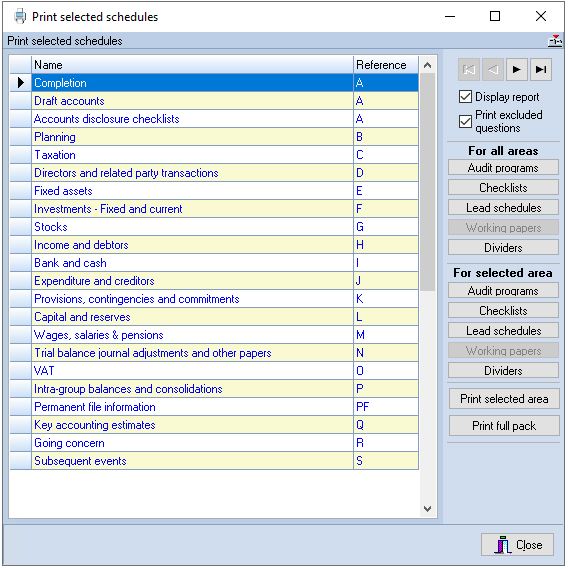
Print selected schedules window
This window contains a list of all the audit areas defined for the pack and the following buttons:
Print for all areas
- Audit programmes
- Checklists
- Lead schedules
- Working papers
- Dividers
Print for selected area
- Audit programmes
- Checklists
- Lead schedules
- Working papers
- Dividers
Any Audit Automation generated schedule may be printed or displayed on the screen but working papers can only be printed from this dialog. To display a report on the screen, check the Display report check box. If this check box is not checked, the report will be sent to the printer.
To produce the selected schedules for all audit areas, click on the appropriate button in the top group. To print a selected schedule for a single audit area, highlight the area in the list and click on the appropriate button in the lower group. You may use the scroll bar or the navigation buttons to scroll through the list of audit areas.
On making your selection, the system will either display the Windows Print dialog to allow you to confirm that you wish to continue, or select a different printer, or compile the report and display it in View mode. After printing, or you have finished viewing the report, the system will return to the Print selected schedules dialog.
The schedules printed will reflect all completion data entered at the time of printing. This same printing routine can therefore be used to print schedules for manual completion, or for archive purposes at the end of the audit.
If you select the button to print working papers, the system will print them using the program that was used to generate them, i.e. Word, Excel or the internal word processor or scanning routines. It therefore follows that to print a Word or Excel document the relevant program must be present on the system from which the option is selected.
Print selected area and print full pack
These options allow you to print, or display, the contents of a selected area or the full audit pack in order. If you wish to display the information, first check the Display report checkbox. To print the selection, make sure that it is not checked.
To produce a selected area, highlight the area and click on the [Print selected area] button. To produce the full pack, click on the [Print full pack] button. In both cases the system will display the Print components dialog.
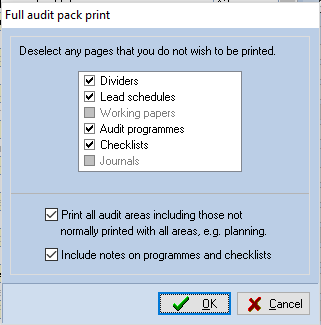
Print components dialog
All options will be ticked when the dialog is displayed. Note that if you are displaying the schedules the Working papers checkbox will not be available. If you do not wish to include all schedules delete those not required before clicking on [OK]. The system will process your request and either print the schedules or compile them to view. See page 56 for details on how to view reports.
If you selected the options to print the full pack, the checkbox allowing you to print all areas will be active. If this is ticked the system will include all audit areas in the pack including those not normally printed when you request an all area print. The areas that are not normally included are defined in the master pack and are normally the planning and checklist sections. In addition, it will also print the following at the end of the full audit pack, if you have ticked the option to include all audit areas:
- All audit point notes
- All audit review notes
- All planning documents
Changing the print order
It is possible to change the order in which sections are printed when you print an audit area, or the full audit pack. The Print components dialog shows the 5 sections that make up each area in a list box. The order of the sections may be changed by dragging the items up or down the list, and the resulting pack will be printed in the order selected. If you have logged in as a system manager, the system will remember the order selected in the master pack to which the client is attached and all subsequent prints will be offered in the new order.
Suppressing notes in printouts
There may be occasions when you would like to print the documents without audit notes that have been raised. To do this, remove the tick from the checkbox Include notes on programmes and checklists and they will not be included on these schedules.
Print excluded questions
There may be occasions when you would like to print the documents with all the questions including the excluded questions. Put a tick in this checkbox to include the excluded tests and questions in the printed pack.