
As indicated in the section describing how to customise the audit procedures, it is possible to allocate tests to staff members. This allows the system to produce a summary of the tests to be carried out by each member of staff and also to calculate staff budgets, if times have been entered at test level. On a balance forward you may ask the system to leave these allocations unaltered, or set the allocation for the next year to the member of staff who actually carried out the test in the previous year. The situation may therefore arise where tests are allocated to members of staff who are not allocated to the audit in the current year. Audit Automation includes a facility to automate the reallocation of such tests to a different member of the team, and to allocate any unallocated tests to staff at audit area level. This routine is accessed when you select automatic budget calculation, but can also be called manually to reallocate tests without affecting the budget, this caters for situations where allocation of budgets has been carried out manually.
To carry out test reallocation, select [Budgets] from the Planning menu to display the Budget entry and calculation window and click on [Reallocate test]. The system will check for unallocated tests and tests allocated to staff not on the audit, and invite you to reallocate these by presenting the Reallocate tests dialog. If no unallocated or misallocate tests were found, a message will be displayed and the system will return to the Budget entry and calculation window.
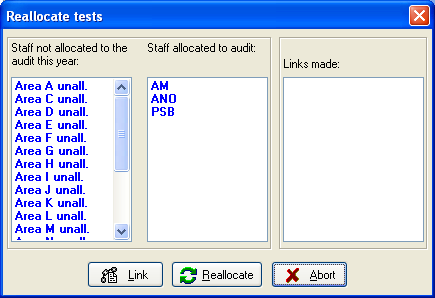
Reallocate tests dialog
This dialog contains three lists:
1. Staff not allocated to the audit this year
2. Staff allocated to the audit
3. Links made
The system will include in the first column the initials of any staff that are recorded to carry out tests, but do not appear in the list of staff allocated to the audit, together with the audit area reference for any areas where it has found tests that are not allocated to audit staff.
The second column contains a list of staff allocated to the audit, and the third will initially be blank.
You may request Audit Automation to reallocate the tests for the staff members in the first column, or the unallocated tests, to a member of staff in the second column. To do this either:
1. Click on the entry in the first column, and keep the mouse button held down while dragging it to point to the initials of the staff member to allocate the tests to. Release the button while pointing to the staff member and the system will make the link and remove the item from the first list. Details of the link will appear in the third column, Or
2. Highlight the item in the first column, by clicking on it, then highlight the initials of the staff member to be allocated in the second column, and click on [Link]. Details of the link will appear in the third column and the item will be removed from the first column.
Using this facility, it is therefore possible to, say, reallocate all the tests which were performed by the junior on the audit last year to the junior who has been allocated for the current year.
If you have made a link in error, it is possible to remove the link by double clicking on it in the third column.
When you have allocated, or reallocated the required items, click on [Reallocate] and the system will reallocate the audit tests. Alternatively, if you do not wish to proceed with the reallocation and budget calculation, click on [Abort] to return to the Budget entry and calculation window.