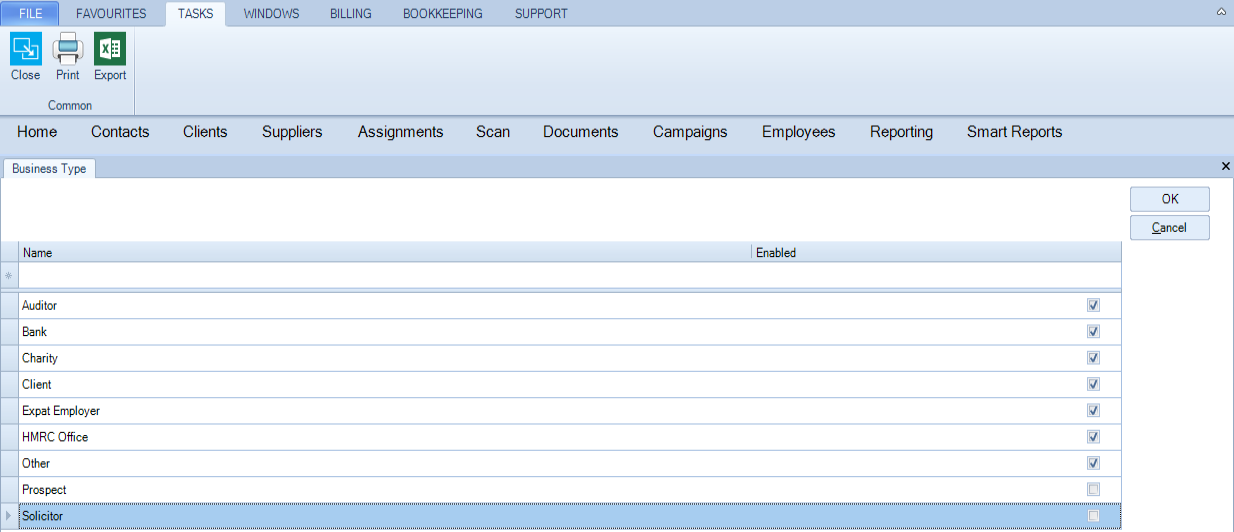
Setting up Business Types
You may want to select a Business Type for a contact during the contact creation process or at a later stage. On the main menu File > Maintenance > Client/Supplier > Business Type is where you can set up the business type options that users can choose from.
CCH Central allows users to classify a contact or client’s trade by business type. This acts as a filter on the Find window. For example, when a contact or client is attached to the business type 'Bank', the contact or client will be listed when the user searches for Type 'Bank'.
A list of Business Types is included in CCH Central:
- Auditor
- Bank
- Charity
- Expat Employer
- HMRC Office
- Solicitor
- Other
The default Business Type is ‘Other’. All new contacts created in the system will default to ‘Other’.
Each Business Type that is shipped out with CCH Central (apart from ‘Other’) has a specific permission which restricts users from editing records attached to a given Business Type. This permission restricts users from modifying details for a given Business Type.
Any new Business Types created by the user will not have permissions. A new section for Business Type related permissions has been created under Maintenance>SecurityTask Permissions. This can be found under Product Central and group description of Business Type.
Set up a Business Type
- From the main menu, select File > Maintenance > Client/Supplier > Business Type.
- On the Business Type tab, at the top row of the Name column, enter a description for the business type.
- To enter another business type, press [Enter] and then enter details in the blank row at the top of the grid.
- Select the check box to display the type as an option. Enabling the type makes it appear as an option in the Business Type drop down list on the contact creation window. To remove a type from the available options, clear the check box for the type.
- When you have finished, click 'OK'
- to save the business types and close the window.