
Setting up automated Client Codes (Auto Button)
Set up a Client Code algorithm
-
From the main menu, select File > Maintenance > Client/Supplier > Client Creation Settings.
-
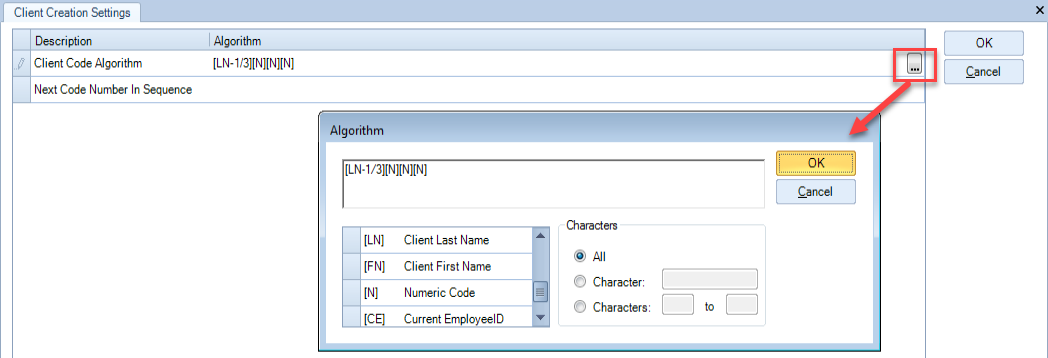
On the Client Creation Settings window click the ellipsis in the Algorithm column.
-
On the right side of the Algorithm window, select from the following options:
-
All: Select All if you want all the available characters to be included in the automatically generated client code. The available characters will depend on the code you select in the left side of the window. For example, if you want to add a numeric code, select All to have the sequential numbers added to the algorithm.
-
Character: Enter the specific characters to be used. For example, if you want the first and third characters of the code to be used, enter 1,3. When you select a code, say Partner Code, from the left side of the window, the block at the top of the window will display the algorithm: [PC - 1,3].
-
Characters: Enter the range of characters to be used and then double click the code to be used. For example, if you enter the range 1-3 and then select the Client Last name, the algorithm [LN – 1/3] is displayed in the block which means that the first three characters of the last name of a client will be added as part of the code.
-
Double click a code option (e.g. Partner Code, Client Last Name, Numeric etc.) to include it as part of the Client Code Algorithm. For the algorithm setup below, the client code is made up of the three first letters of the last name followed by three numeric digits starting on 001.
To set up a sequence algorithm
-
From the main menu, select File > Maintenance > Client/Supplier > Client Creation Settings.
The tab opens. -
In the Client Creation Settings window, in the Algorithm column, in the row for the Next Code Number In Sequence enter the number that will be used for the next client code.
For example, if you enter 1001, the next client code will be 1001 when you click Auto in the client creation wizard. The number will be incremented by one every time the Auto button is clicked, and the next client code generated will be 1002.
Note
You will not be able to pad the client code with zeros as the zeros will be discarded and the next client code to be created will be the number supplied in the Algorithm column, without the zeros.