
How To
The Report Toolbox
CCH Central
Using the Report Toolbox
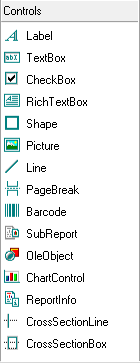
To use the design tools, click the selected tool in the toolbox and drag in the report designer area to add the item to the report. The cursor changes when you are at a location where the item can be placed.
|
Tool name |
Use |
| Label | Allows you to attach a label to a text box. This may be used, for example, to name a column within a report using something other than the field name. |
| TextBox | Allows you to insert a text box. |
| CheckBox | Allows you to insert a check box. |
| RichTextBox | Allows you to add enhanced formatting, for example, you can bold just one word within a full sentence in a rich text box. |
| Shape | Allows you to insert a geometric shape in a report. |
| Picture | Allows you to insert a graphic, for example a company logo. |
| Line | Allows you to insert a line in a report. Note that lines associated with subtotals and totals are generally added using the Format Border menu option (see below). |
| PageBreak | Use to include a page break within the report. |
| Barcode | Use to include a barcode graphic within the report. |
| Subreport | Use to include a sub report within the report. |
| OleObject | Use to insert an object from another application. |
| ChartControl | Use to insert a chart. |
| ReportInfo | Use to summarise the information, for example when using grouping. |
| CrossSectionLine | Use to insert a vertical line across the report. |
| CrossSectionBox | Use to insert a box across the report. |
Related documents
CCH Central Suite Update Guide (Latest Offline Version)
The document outlines the process for using the Central Suite Installer Offline (CSI Offline) for customers with specific IT requirements that prevent internet updates. It provides detailed instructions for installing updates to the Central Suite, including necessary prerequisites, folder structure, and the installation steps. Key points include ensuring Microsoft SQL Server is supported, confirming .NET Framework requirements, and the importance of backups before starting the update. The document also highlights the need for administrator rights, handling database upgrades, and checking for office plugin updates, particularly for users of CCH Document Management.
CCH Central Suite 2026.3 Update Guide
This guide explains how to update an existing install of the CCH Central Suite to the latest version 2026.3 (including Service Packs and Hotfixes) using the Central Suite Installer (CSI).
CCH Central 2026.3 Release Notes
CCH Central 2026.3 Release Notes
Central Suite Installer (CSI) instructions
The document announces the update of the Central Suite Installer (CSI) for the CCH Central Suite, now compatible with the latest releases and service packs and hotfixes of various CCH applications. Key points include prerequisites for installation, compatibility information, and the necessity for proper backup before proceeding with the update. It highlights specific requirements for Microsoft components, and it warns users of CCH Accounts Production regarding regional settings for date format. Support options are mentioned for users seeking assistance during the update process. Release notes are accessible for detailed information on the updates.
CCH Central 2026.210 Service Pack
CCH Central 2026.210 Service Pack