
User Overrides
There are 3 types of user overrides available:
1) Manual override of active audit areas
2) Override materiality
3) Override sample sizes
These options are available on the Overrides menu and options to override materiality and sample sizes are also included on the Planning options dialog.
Manual override of audit areas
When Audit Automation initialises the audit programmes and checklists, it excludes audit areas where no figures are stored in the trial balance and also excludes audit tests and questions where no figures are present in the accounts which are relevant to the test area. For example, if there are no additions to fixed assets within the trial balance then the section of the audit programme dealing with additions to fixed assets will be omitted, if there are no fixed assets at all, then the whole of the fixed assets section will be omitted.
Using this set of rules Audit Automation can customise the audit programmes and checklists quickly and efficiently without the user having to go through each test laboriously indicating whether it is to be included or excluded for the client. However, it is then open to the planner to review the customisation carried out by the program and make further amendments to the wording of tests and include or exclude tests as appropriate.
There may be some circumstances where the automatic exclusion of an audit area or group of tests may not be desirable. For example, if you are working on a projected trial balance and you know that the client has had additions to fixed assets, or you would like to include the addition to fixed asset tests so that checks can be carried out, you will want to override the automatic exclusion of the audit area or test.
To carry out this override, select [Active Areas] from the Overrides menu and the Class type overrides list will be displayed.
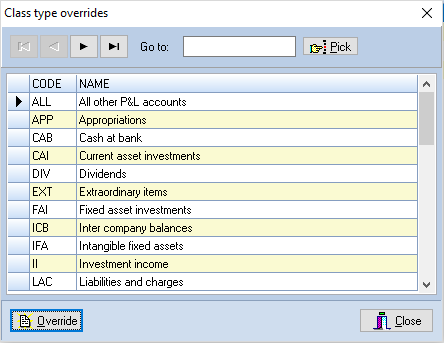
Class type overrides list
You can jump to a code by entering it in the Go to edit box, or use the pick list.
Either double click on the name of the classification to be overridden, or highlight it and click on [Override] and the Overrides window will be displayed.
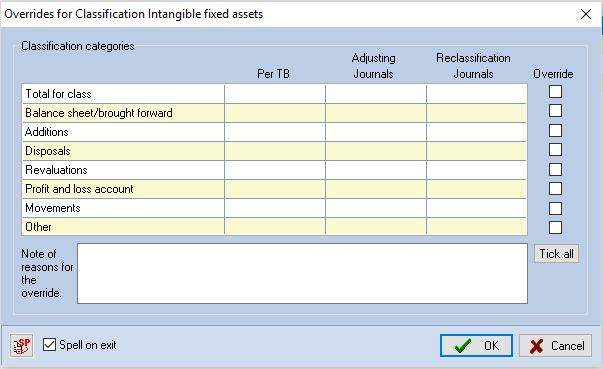
Overrides window
In this window are listed the figures for the classification as taken from the clients TB and any audit journals recorded. To override an area, check the box to the right of the data.
The eight categories are as follows:
- Total for class
- Balance sheet and brought forward
- Additions
- Disposals
- Revaluations
- Profit and loss account
- Movements
- Other
Overriding the Total for class will cause the system to override the fact that there is no value for the classification, and hence include the section of the audit pack to which the classification relates. Entering an override for each of the other sections will cause the system to ignore the fact that there is a nil value and include any audit tests which are dependent upon a value being present within the category. For example, if the classification selected was tangible fixed assets, entering an override to the Revaluation category will cause the tests relating to fixed asset revaluations to appear in the audit programme.
A note box is provided to allow you to record your reasons for any overrides that you have entered.
When you have finished entering the overrides for the class selected, click on [OK] and the system will return to the Class type overrides list.
You may now select another class to override, or exit by clicking on [Close].
Active audit areas
As indicated, the inclusion of an audit area in the current audit file is, for those relating to balance sheet and profit and loss account areas, dependent upon there being data in the trial balance to trigger the area. Where an area was active at planning, either because it had been overridden or there was data in the TB, but later in the audit the override is removed or a journal entered that made the balance in the TB zero, the audit area logic would dictate that the area should disappear from the audit file. However, if programmes had been created for the area, there could still be tests that required clearing. The system therefore records whether or not an audit area was active when planning was signed off and, if it was, the area will always show in the current audit file for the year.
Materiality
Refer to click here for details on how the Materiality override dialog operates.
Calculate materiality review figures
During the course of the audit, adjustments may be discovered and entered as audit journals, or the TB amended. When carrying out planning, the system will have based the materiality figures on the TB available at the time, and if this changes substantially during the course of the audit the figures calculated for materiality may no longer be relevant. This option is provided to enable you to review the materiality figures based on the current data, to check that it is still valid. The schedule showing the materiality calculations, which can be viewed and printed via Print planning section on the Planning menu, shows the original calculation, the user overrides and any review calculation together with the date that each was calculated or entered.
To update the review figure, select [Materiality review figures] from the Completion menu. The system will recalculate the figures and provide a progress report as it does this. It will then display the materiality schedule from the planning schedule containing details of the original and review calculations.
Review of materiality
Clarity ISAs require that the auditor reviews materiality as the audit progresses and considers the impact of any change on the level and type of procedures being carried out. To ensure that the auditor is aware that there has been a change in the level of materiality, the system calculates review materiality whenever audit journals are marked as agreed with the client and advises the user of any change that has resulted from the journals via the following dialog:
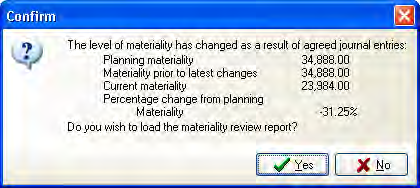
If the user then selects [Yes] the materiality report will be displayed allowing the user to review the changes and comment on the impact of the change on the level of audit work.
When the manager or partner signs off from the Completion menu the system will check if anything has been entered in the Materiality review comments field and, if not, the sign off will not be allowed with a message stating that materiality has not been reviewed.
Override sample sizes
Refer to page Error! Bookmark not defined. for details on how the Sample size override dialog operates.