VAT Codes

VAT codes and rates define the percentage of VAT charged and rules for where the VAT values are posted to the trial balance and appear on the VAT return boxes, therefore, it is essential to have these set correctly before transactions are posted using the codes.

Accessing VAT settings
  1. Click on the settings Icon clipboard_e00dc1150f560bfa2f9616686020023ae.png
  2. Select company settings from the menu
  3. Select the VAT tile

clipboard_e8c398f8200d0b4dead6bd38fd7f41cc5.png

Existing VAT Codes

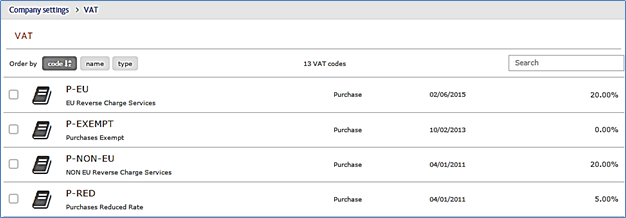
A list of existing codes is displayed
clipboard_e349ab248b20c718dfef4100ae179a066.png

Editing an existing code

Click on the VAT code in the table to open the existing settings

Adding a new VAT code

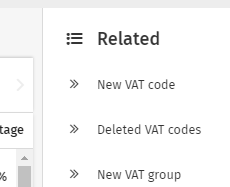
Click the related option to add a new code
clipboard_e1006404c67be974711a9addd68f604c1.png

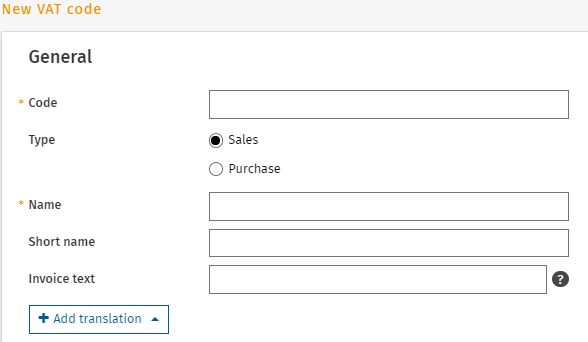
Complete the new code information

clipboard_ef1bd64b5bf94d30f1331d4a28b5b2e48.png

  • Code: This appears on data entry screens and reports
  • Type: Sales or Purchase, ensure the purpose of the code is set correctly
  • Name: Enter the name of this VAT code
  • Short Name: Enter the short name of the VAT code - this is displayed in Basecone, therefore, it is important that this field is completed.
  • Invoice text: used to display specific text in the footer of a Sales invoice when this VAT code is used.
VAT Rates

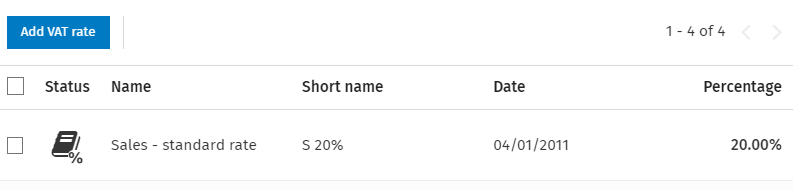
Against each VAT code you may see multiple VAT rates.  VAT rates are added if the VAT rules or percentage charged is changed and have an effective from date.
clipboard_eeeb35cc30d2396de2e3c6433ddf21f6c.png

Editing existing VAT rates

A rate can be edited by clicking on the name.  Once transactions have been posted using a VAT code which fall after the effective from date, the rate can not be edited.

Adding a new rate

Click Add VAT rate above the existing rates table

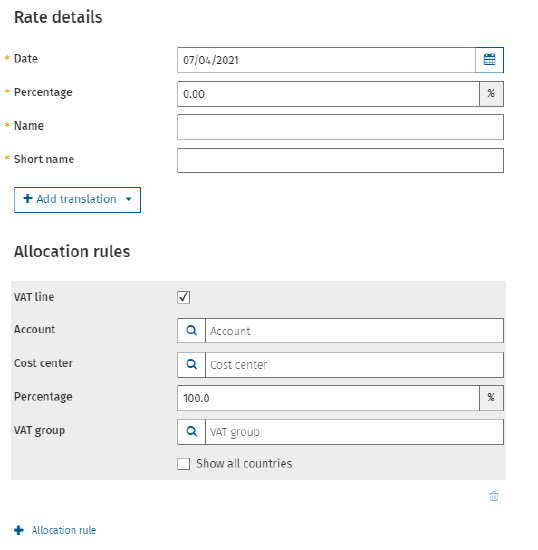
VAT Rate details
clipboard_e2e44d1f2ede542f0ceb16fc494ce8745.png

Information required for the create of a VAT rate

VAT Rate Details

  • Date: Effective from date
  • Percentage: The percentage amount of VAT to charge
  • Name: This appears on data entry screens and Basecone
  • Short Name: This appears on data entry screens and Basecone

Allocation rules

  • Account: Nominal code for VAT control
  • Percentage: This is normally 100%, however, certain VAT schemes require a reduced rate of VAT to be calculated
  • VAT Group: This sets which boxes on the VAT return the values are reported in, ensure that the correct type of Sales or Purchase is selected.  If this value is left empty, any transactions posted using this VAT rate will not be included on a VAT return.

Show all countries

  1. Tick this option to view all VAT groups.
  2. Click Save to store any changes.

Related documents

Cheques and Paying-in slips
Cheques and Paying-in slips.
Twinfield: Twinfield Analysis Consultancy (10091307)
This document outlines a training course on Twinfield accounting software, designed for Twinfield partners and subscribers. The course, lasting up to 3 hours, focuses on enabling participants to leverage their Excel expertise to manipulate TwinCube data for creating comprehensive financial reports. Key objectives include processing transactions and searching via the reporting module. The session covers various topics such as data cube management, Excel formula building, and conditional formatting. Attendees must have advanced Excel skills and their own devices to join the session, as the course is tailored for Microsoft Windows users.
Twinfield Consultancy (10093303/10080551)
This document outlines a consultancy service for Twinfield users, targeting both partners and subscribers. It emphasizes collaborative sessions aimed at improving operational efficiencies and best practices through tailored advice and process reviews. Conducted online or onsite over two 3-hour sessions, the consultancy covers topics such as reporting, VAT reporting, and reconciliations. Attendees are expected to have a solid grasp of double entry bookkeeping. Additional resources, including eLearning courses, videos, and webinars, are provided for further learning.
Twinfield: Integration Consultancy (10095230/10095228)
This document outlines a consultancy-led course focused on the Twinfield accounting software, designed to assist businesses in managing their financials effectively. The course consists of four interactive sessions—each lasting three hours—covering navigation, invoicing, credit management, transactions, and reporting. Aimed at Twinfield partners and subscribers, participants are expected to have a good understanding of bookkeeping principles. Additional resources such as eLearning courses, videos, and webinars are also provided to enhance learning. The maximum group size is six delegates.
Twinfield: PM Integration Consultancy (10091304/10091303)
This document outlines a training course for Twinfield accounting software users, focusing on its integration with CCH Central. The course consists of four sessions, each lasting about three hours, aimed at enhancing attendees' bookkeeping skills and knowledge of both systems. Key objectives include familiarization with CCH Practice Management and Twinfield, as well as hands-on experience with financial processes such as invoicing, bank transactions, and VAT reporting. Prerequisites include a good understanding of CCH Central and appropriate permissions. The course is intended for Twinfield partners and subscribers, with a maximum of six delegates per group.