To view the computation, Select View in the top ribbon, then select Computation.
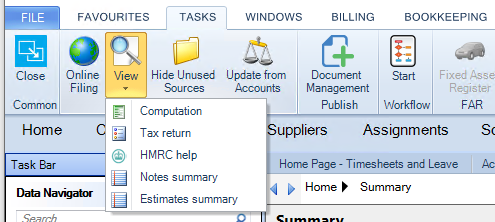
To view the computation, Select View in the top ribbon, then select Computation.

clipboard_e639d79b857c0bf82be57db756faa799e.png.

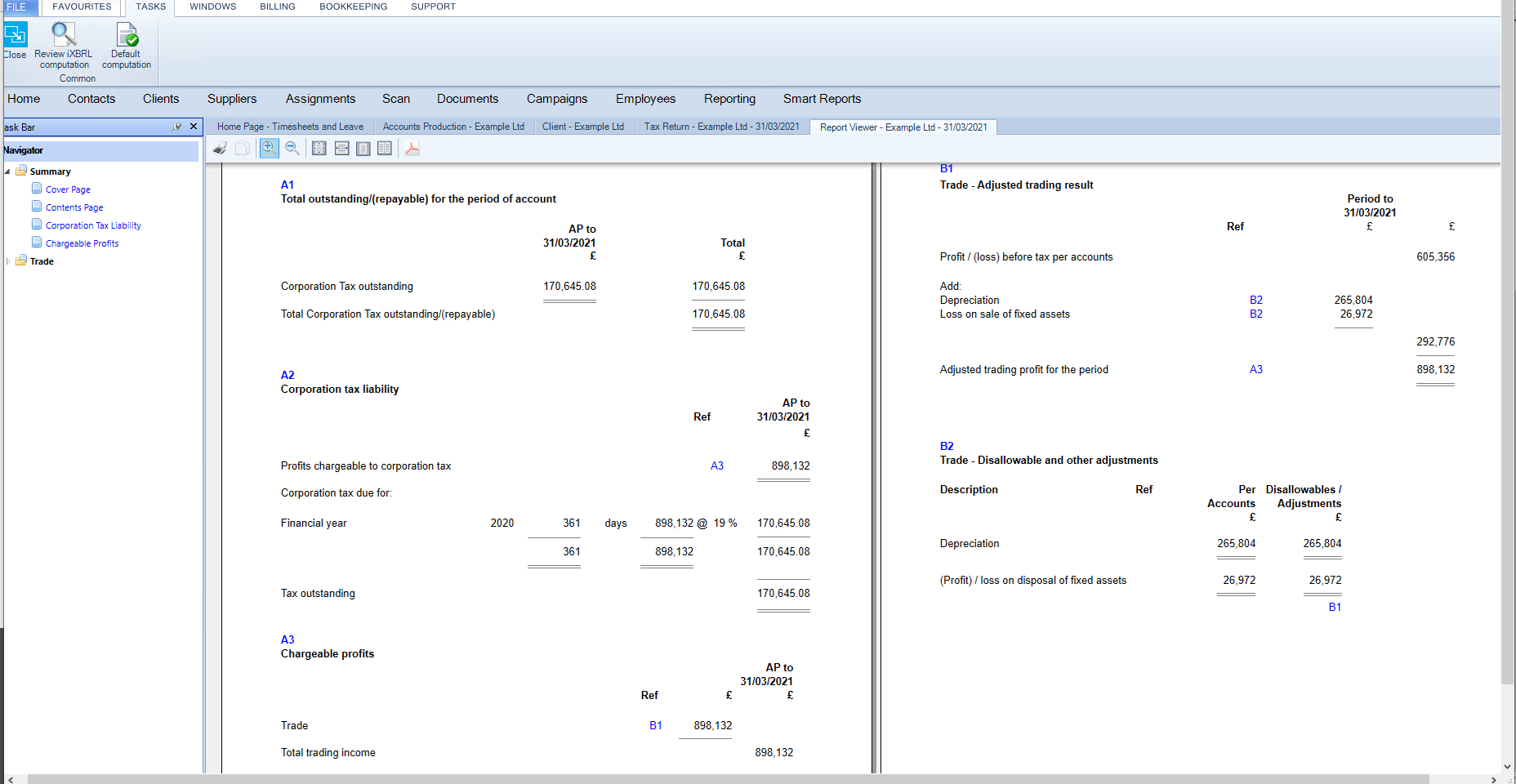
This will open a report of the computation in another tab.
clipboard_e1ea4b1585bb0ba6bd3325d8991f3408c.png 

The  Report Viewer's Task Bar on  the left contains a Navigator containing hyperlinks to the computation pages.

The cross references within the computation are hyperlinks which will take you to the indexed schedule or to the top of the page containing that indexed schedule.

Within the Report Viewer at the top there are a series of icons. Hovering over the icons will display their function along with any keyboard shortcuts.

 clipboard_ea4e83866560795272110b499c47be275.png (Ctrl & P) will print the computation.

 clipboard_e8e4fbfe3a9b29fc9ab2c3d1f69e5c4ed.png (Ctrl & C) will copy the computation.

 clipboard_e73de9bf99d28be0aaffed21dae9134dc.png  (Ctrl & + or -) will zoom in and out of the computation.

 clipboard_e99cb45215ced4a35d9f33ff6053ff2a1.png (Ctrl & 1) will bring the zoom view back to 100%.

clipboard_ef4e00e6cbb32713087b8cef8be4cb759.png(Ctrl & 2) will expand the page width in view to cover the tab.

clipboard_e5528771e0a9ff8d4dad8a225ba0ed669.png (Ctrl & 3) will display a whole single page and use the scroll wheel on a mouse or Navigator in the Task Bar / hyperlinked cross references to move between the pages.

clipboard_ed1eb32d4028a2d1a9202c1cdb28e1ec2.png (Ctrl & 4) will display 2 pages alongside and use the scroll wheel on a mouse or Navigator in the Task Bar and use the scroll wheel on a mouse or Navigator in the Task Bar / hyperlinked cross references to move between the pages.to move between the pages.

clipboard_e6e7e487199eb9fb33c98756b119510c4.png will export the comp to PDF.

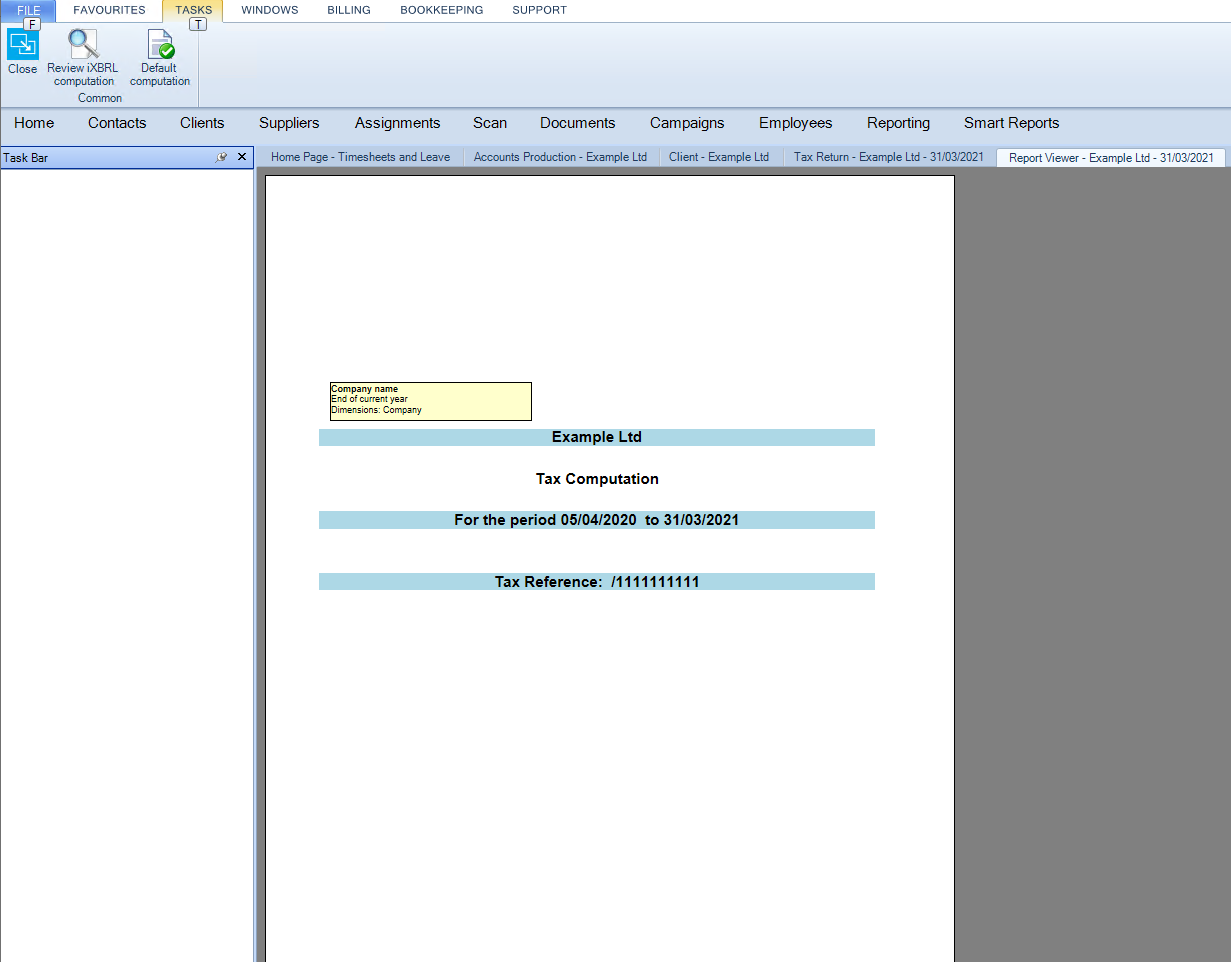
On the Top Ribbon, Review iXBRL computation will showed the compuations iXBRL tagged values.
clipboard_eb88dae0811644142e3885da6863b98fc.png

Items highlighted in blue are tagged. Hover over the tagged value to display the tag details.

Related documents

CCH Corporation Tax 2026.3: Release Notes
Release Notes for CCH Corporation Tax 2026.3
CCH Corporation Tax 2026.2: Release Notes
Release Notes for CCH Corporation Tax 2026.2
Getting Started
This document provides a quick start guide for using CCH Corporation Tax software. It outlines essential features such as the Data Navigator, which assists in completing clients' Returns, and the use of Breadcrumbs for navigation. Additionally, it explains the functions available in the Ribbon panel located at the top of the screen. Overall, the document aims to streamline the user experience by highlighting key tools and navigation methods within the software.
Non Trade Loan Relationships
This document outlines topics related to Non Trade Loan Relationships in corporate tax computations. It includes links to sections on Non Trade Loan Relationship Summary, Credits, and Debits, detailing how to input and summarize these tax-related items in the Data Navigator. Each section describes the process for entering data and how totals are summarized for reporting purposes. Additionally, it links to related topics like Foreign Income and Miscellaneous Income.
Document Publishing
This document outlines the options for electronically storing tax returns and computations using CCH Document Management and CCH OneClick. It emphasizes that access to these tools requires appropriate licenses and user rights. Users can publish tax returns and computations both in draft form for client review and at various stages in the submission process to HMRC. The document includes specific links to guides on how to publish documents using both systems.