
Adding a team for a contact or client
Record a team for the client
- Open the Contact or Client page for the contact that you want to add responsibilities to.
- Click the Responsibilities tab to display Partner Responsibility and the Team.
- In the Team panel, select the Apply Team Security check box, if necessary (see explanation below)
- Click the Ellipsis
in the Employee field.
- In the Find window, enter search criteria in the Search for field, and then click Search.
- From the results list, select a team member.
- Select a Responsibility for that team member and then click OK. The employee's name appears in the Team list.
- Repeat Steps 4 to 7 until you have allocated the required team members to the contact or client.
- On the grid at the bottom, on the left hand side, enter any notes you want.
- At the right hand side click the ellipsis
- In the Find Departments window enter search criteria in the Search for field and then press [Enter].
- From the results list, select the department. and then click OK. The selected department is displayed in the Dept field.
- At the right hand side click the ellipsis
- In the Find Office window enter the search criteria in the Search for field and then press [Enter].
- From the results list select the required office and then click OK. The selected officeis displayed in the Dept field.
- At the right hand side click the ellipsis
- In the Find Company window, enter the search criteria in the Search for field and then press [Enter].
-
From the results list select the required company and then click OK. The selected company is displayed in the Company field.
- Click OK to save and close the Contact or Client page.
Note: The master list of team member responsibilities is set up by the system administrator using Maintenance > Responsibility Types. You can usually only assign one of each team responsibility type per client unless your system administrator has set up that a type can be used more than once.
Note: To amend current responsibilities, simply click the employee name or a selected responsibility and select the new one. To delete an employee from a team, highlight the entry line for the employee and click Delete.
Applying Team Security
This is a feature that ensures the anonymity of theClientorContactoutside the Team. When the box is selected, any employee outside the Team will not find theClientorContacteven from theFind Clients or Contact window. You need sufficient permissions in order to select this check box.
On the example below, only the users: Regina, Lucy, Gabriel and Helena are going to have access to this client or contact.
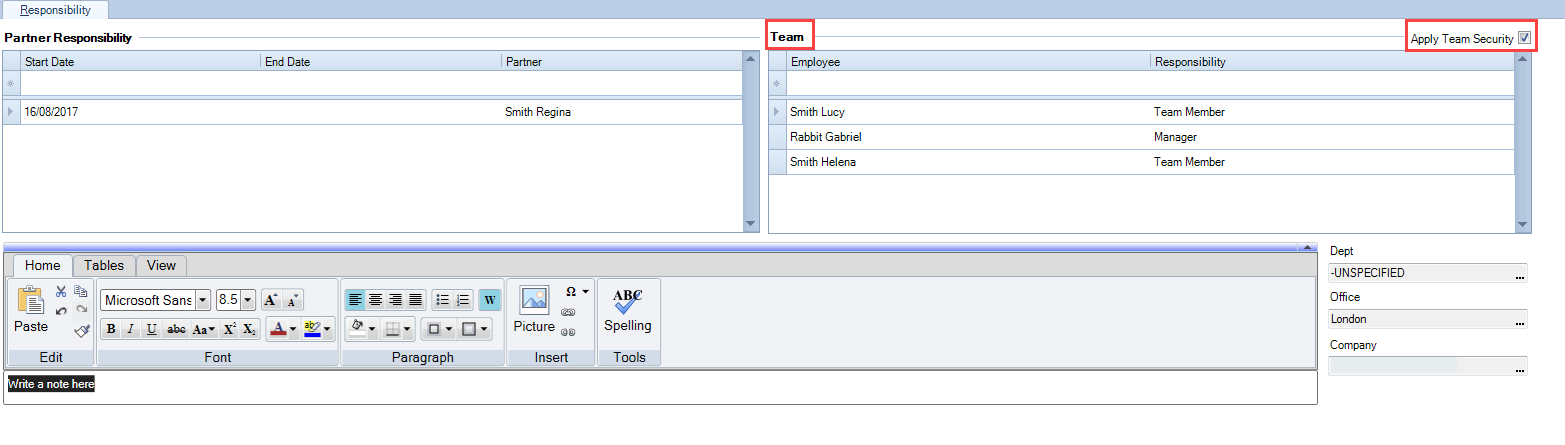
Note: When Apply Team Security check box is selected, only the users Regina, Lucy, Gabriel and Helena are going to have access to this client or contact, even if the user is allocated to the SuperUser security group.