
Applications
Setup access to the third party application
-
On the main menu click File > Maintenance > User Defined > Applications.
-
On the Applications tab, for each third party application, at the blank row at the top of the grid, enter the following fields:
Name: Enter the name of the application to be displayed in the task bar. Note that there is a limit on the number of characters allowed.
E.g. "IE"
Command Line: Enter the actual command line (path) used to run the application.
E.g. "C:\Program Files (x86)\Internet Explorer\iexplore.exe"
3. Repeat step 2 for each application you want to include a link to and then click 

How to access a third party application
After the setup access to a application is completed you can access it via the toolbar option Clients. Under the task bar a menu Applications is created displaying the third party application name and icon.

Note: Please contact your IT administrator to provide you with the command line (path) used to run the application.
You can set up links to a third party applications from within CCH Central since there is a configuration key.
Set up configuration key for third party applications
-
On the main menu, click File > Maintenance > User Defined > Configuration.
-
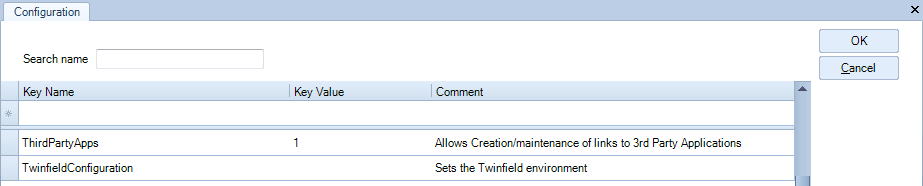
On the Configuration window, in the blank row at the top of the table, enter the following:
Key Name: ThirdPartyApps
Key Value: 1
Comment: Allows the creation/maintenance of Third Party Applications -
The screen shot below shows the configuration key from point 2 and an example of a configuration key from a third party application, Twinfield.
-
Click OK to save and close the window.
Set up access to the third party application
-
On the main menu click File > Maintenance > User Defined > Applications.
-
On the Applications window, for each third party application, enter the following fields:
Name: Enter the name of the application to be displayed in the task bar. Note that there is a limit on the number of characters allowed.
E.g. "MS Word"
Command Line: Enter the actual command line used to run the application.
E.g. "C:\Program Files\Microsoft Office\OFFICE11\WINWORD.EXE"
Icon: Enter the location of the icon to be used in the Task Bar next to the application name. Once loaded it will be available in CCH Central.
E.g. "C:\ Desktop\word.ico" -
Repeat step 2 for each application you want to include a link to and then click OK to save and close the Applications window.
A menu item is created for each application in the Third Party Task Bar menu displaying the third party application name and icon. Click the menu item to start the application.
Removing Links to the third party applications
- On the main menu, click File > Maintenance > User Defined > Applications.
- On the Applications window, click on the left cell of the line of the application you want to delete.
- Press the [Delete] key on your keyboard to delete and click Yes to confirm the deletion.
- Click OK to save and close.
