
Applying a tag
How to apply a tag from within R&T
To apply a tag, simply drag a tag from the Taxonomy onto the item on the face of the accounts.
As you move the mouse pointer over the accounts the pointer will change from a no entry sign if you are pointing to white space, indicating you cannot drop the tag at this position, to a pointer with a “+” sign when you are pointing to text to indicate that you can drop the tag at this position.
When you drop the tag, the system will work out the extent of the data that is relevant to the tag type and apply the tag. The item will be highlighted with the colour relevant to the date
context selected. The system will also change the icon associated with the tag in the taxonomy to indicate how the tag has been used. Blue tick for only used in the current period, green tick
for the prior period and a double tick if it is now used in both periods.
How the system reacts when you drop a tag will depend on the type of tag applied and the text you have dropped it on:
Text tag
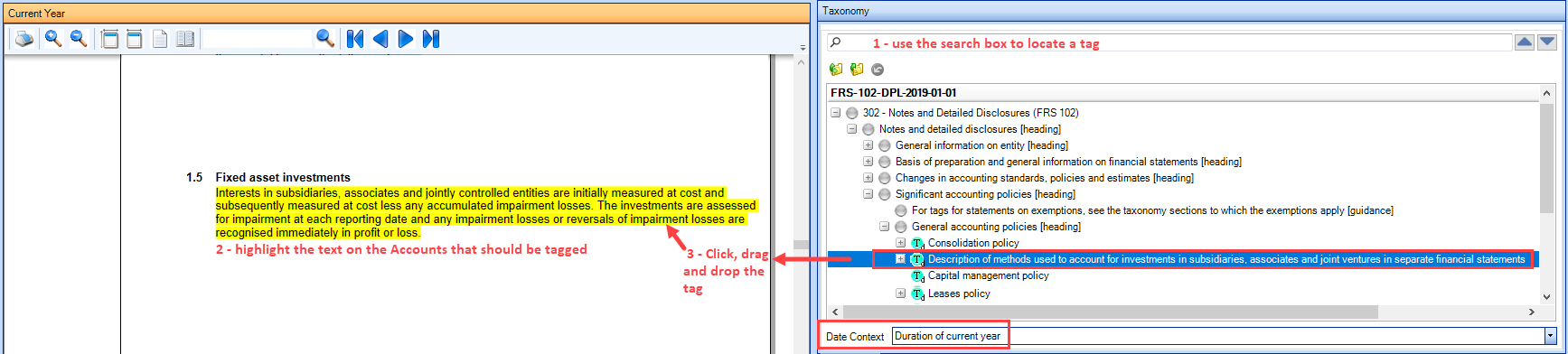
The system will look forward and back from the character on which the tag was dropped to identify the start and end of the paragraph or narrative to be tagged. For text tags it is also possible to select part of a narrative or paragraph to be tagged. To do this:
- Locate the tag, you can use the search box
- Select the text which will be highlighted in yellow
- Click on the tag from the taxonomy, drag the mouse pointer over to the text to which the tag is to be applied and drop it there.
Date tag
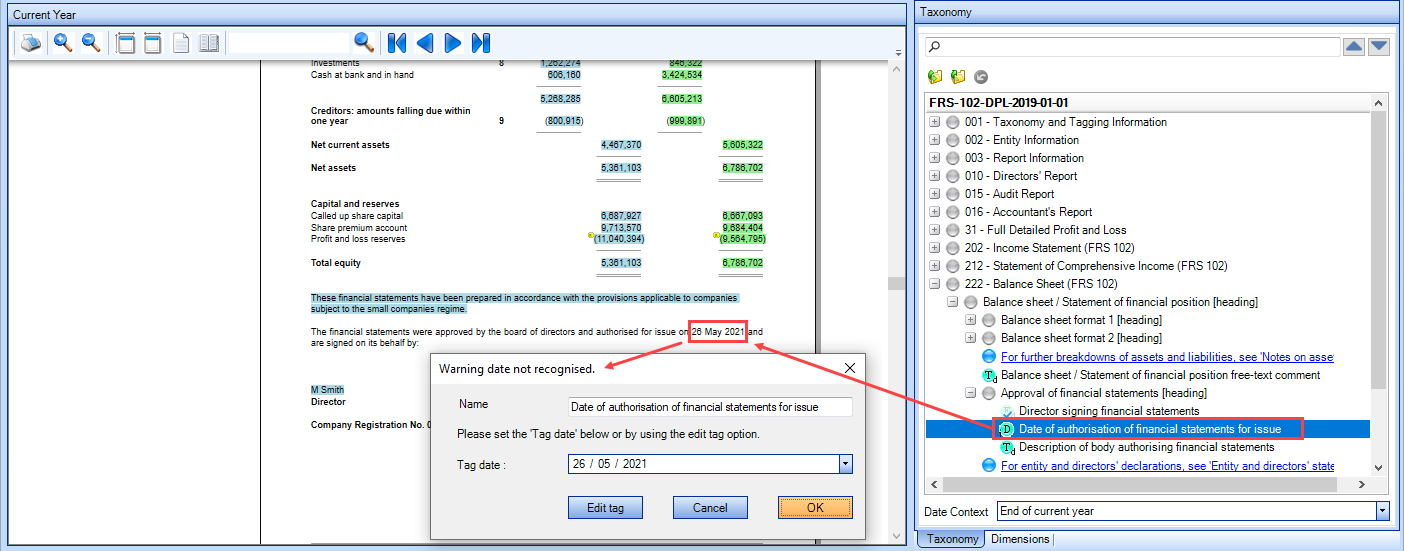
The system will look forward and back from the character on which the tag was dropped to identify the start and end of the date. It will do this by comparing the text to all valid date formats.
- Locate the tag, you can use the search box
- Click on the tag from the taxonomy, drag the mouse pointer over to the date to which the tag is to be applied and drop it there.
- Set the date on the window that pops up.
Number
The system will look forward and back from the character on which the tag Percent and was dropped to identify the start and end of the number. It will do this by Share tags comparing the text to all valid numeric characters, including “.” and “,”. If no valid number is found the system will display the Adjust tag dialog to allow you to select the text to be tagged.
When you are tagging numeric data in tables, if the data being tagged is for the current year and the system identifies that the column to the right of the figure being tagged is a comparative column, it will automatically apply the tag to the comparative figure with the prior year date context. It does this by looking at the heading for the column and assessing if it includes the comparative year end date or year.
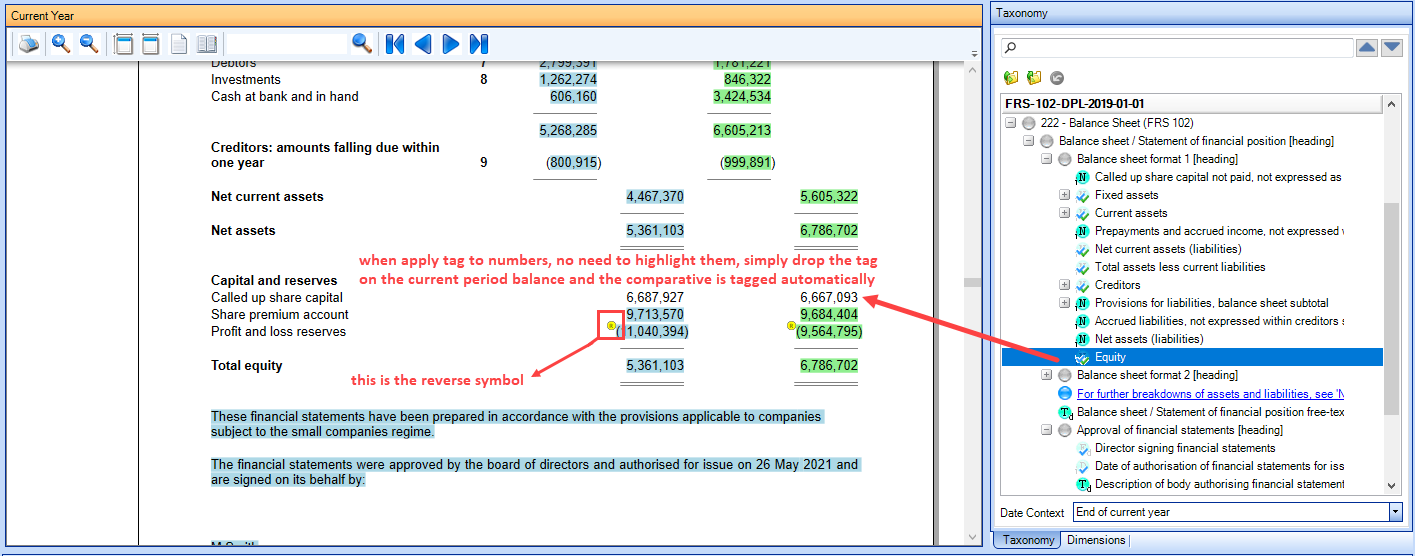
For numbers with surrounding (), the () will not be included as the taxonomy knows if an item is expected to be a debit or a credit and the system considers all () to be for presentational purposes only. If the () are indicating that the figure is the reverse of that expected, e.g. Profit/(Loss) for the period is expected to be a credit and if it is a loss the () represent this, you can reverse the expected sign using the edit facility. As above the reverse symbol is represented by a yellow circle with an R on it.