
CCH Corporation Tax IE 2026.7.1 - Standalone Install
CCH Corporation Tax IE 2026.7.1
Installing the Software
This document is a guide for updating CCH Corporation Tax IE from version 2025.8.2 to 2026.7.1. It is suitable for both standalone and network installation. This document is intended for tax professionals who have some experience with computer technology and have the time available to read it thoroughly and understand the content before proceeding with the upgrade. It is also suitable for IT and support staff tasked with installing the upgrade.
Before you start installing this upgrade:
- Ensure all users are logged out of CCH Corporation Tax IE.
- Either make a backup copy of your Corporation Tax IE database(s) or confirm that you have a backup to which you are able to revert in the unlikely event it is necessary.
- Ensure that your PC(s) meets the minimum hardware and software specifications. Full details can be found in our System Requirements Specification
Prerequisite Version
CCH Corporation Tax IE version 2026.7.1 is an upgrade to version 2025.8.2. Before proceeding to install this update, ensure that CCH Corporation Tax 2025.8.2 is already installed and working correctly.
Downloading the Installer
- Visit our 'Non CCH Central Software Releases' page
- Click on 'CCH Corporation Tax IE'.
Logon to the site using your own account details (If required).
Note: you will need to have previously registered on our Support Portal.
- Click the Download button and note down the account details for System Administrator (these are required to complete this installation) and click OK.
- Proceed with the download and save the CCH_CTIE_2026-7-1.exe file to a convenient location.
Program Installation
Locate and run the CCH_CTIE_2026-7-1.exe installer file.
- The Open menu will appear.
- Click 'Run as Administrator'.
- The WinRAR self-extracting archive window will appear.
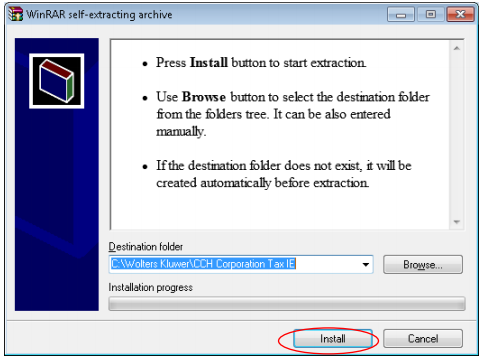
Click Install
The installation will begin. The installation (extraction) will take less than 30 seconds and when complete the WinRAR self-extracting archive window will close. If you have a network installation, proceed to the next PC and run the Program Installation again, repeat this until all PCs have been updated.
Note: it is imperative that all computers running CCH Corporation Tax IE are updated to the new version of the product. Failure to do this will result in a warning message on any computers that have not been updated.
Trouble-shooting
The install should be straight forward, but if you are running Windows 11 you may get a pop up message when trying to install
If you encounter the following screen while trying to install, select Run Anyway. The install will proceed as per normal.

In the case that you get the following screen;

In this case, right-click on the .exe file > Properties > General > Unblock > Apply > OK.
The install will then proceed as normal.
Database Upgrade
A database upgrade is required as a part of the 2025.8.2 to 2026.7.1. update, proceed as follows to carry out the upgrade.
- Select one PC and start CCH Corporation Tax IE 2026.7.1
The CCH Corporation Tax IE window will appear, requiring a database upgrade.
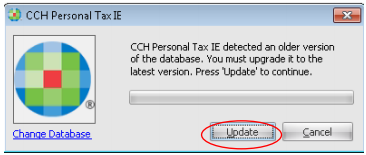
Click Update
When the database upgrade is complete the CCH Corporation Tax IE window will appear with the User ID and Password boxes.
Note: for network installations with a shared database, the upgrade is only carried out once, by the first PC to login to the product.
Completion
Your CCH Corporation Tax IE update is now complete. It is worth spending a few moments to check your work.
To do this, proceed as follows:
- Start CCH Corporation Tax IE as normal.
- From the top tool bar select Help > About CCH Corporation Tax IE to arrive at the About CCH Corporation Tax IE window shown below.

- Confirm that the Version number matches that shown in the image above.
- Finally, it is a good idea to take a post-upgrade backup of your database and store this safely.