
How To
Customising Outlook
CCH Document Management
Colour Coding Filed Emails
Microsoft Outlook lets you use conditional formatting to highlight certain emails. This can be used to set either a colour and/or a font to identify which emails have been filed to Document Management. The steps required to do this are as follows.
- On the View tab click on the View Settings option to open the Advanced View Settings window. Click the Conditional Formatting... button.
- Click Add and type in the name you want for the rule, for example Filed to CCH DM.
- Next, click Font... and select the font, size and colour that you want filed messages to be shown with. Then click OK to return to the Conditional Formatting window.
- Finally, click Condition..., then select the Advanced tab.
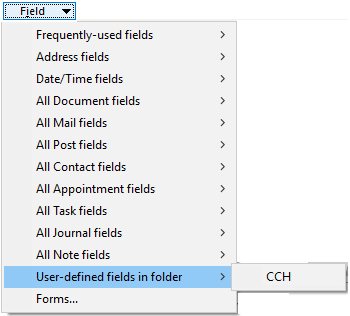
- Use the Field dropdown in the bottom half of the window to select User-defined fields in Inbox > CCH.
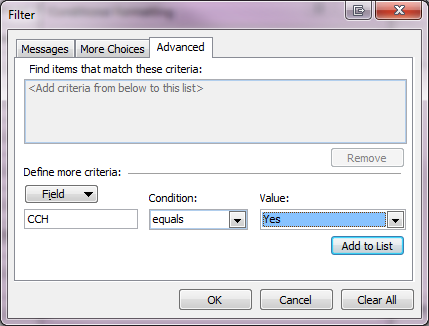
- Use the dropdown in the Condition field to select equals, set the Value field to Yes, then click Add to List.
- Click OK three times to go back to your Inbox.
Related documents
CCH Document Management 2025.1: Release Notes
The CCH Document Management 2025.1 Release Notes detail the installation process using the Central Suite Installer and highlight new software enhancements, particularly for integrating with CCH iFirm's AML, Personal Tax, and Accounts Production products. Key features include enabling document saving, managing document types, setting default assignments, and adjusting monitoring configurations for filing documents. Additionally, troubleshooting tips are provided for issues related to document visibility within a client's Document Centre. The document emphasizes the importance of user permissions and system settings to ensure proper functionality.
CCH Document Management 2026.3: Release Notes
Release Notes for the CCH Document Management 2026.3
CCH Document Management: enhanced training online (10133824)
This document outlines an enhanced training course on CCH Document Management, focused on customization, delegation, and preferences for document handling. Prerequisite completion of the essentials course is required. The course, lasting 3 hours and delivered via the CloudShare platform, aims to deepen participants' understanding of advanced features in document management. It is designed for document-focused roles, covering topics such as document structure, client document centers, and email filing. Resources for further learning are also provided.
CCH Document Management: essentials training online (10133823)
The document outlines a training course for CCH Document Management, a comprehensive system for managing client documentation within CCH Central. Participants will learn to navigate, store, and retrieve documents using a Microsoft plug-in in a GDPR compliant environment. The course is designed for all employees who handle documents, lasts 3 hours, and employs the CloudShare interactive training platform. It includes various topics related to document management structures and offers additional resources for further learning. Completion of CCH Central essentials is a prerequisite for attendees.
CCH Packs: Document Management Implementation Consultancy
This document outlines the structure and objectives of an online consultancy session for implementing a document management system, specifically CCH Document Management. The session, lasting up to 3 hours, aims to refine document management processes, set up security measures, and create a standardized letter template. Participation is encouraged from business decision-makers and administrative staff to facilitate smooth implementation. Attendees should be familiar with existing systems and come prepared with relevant materials. The agenda includes reviewing current systems, understanding CCH functionalities, and discussing document management policies. Resources for additional learning are also provided.