
Document Properties Panel Overview
The Properties panel within Document Center is utilised display detailed information about the currently selected document and carry out specific actions on its configuration
Properties Panel
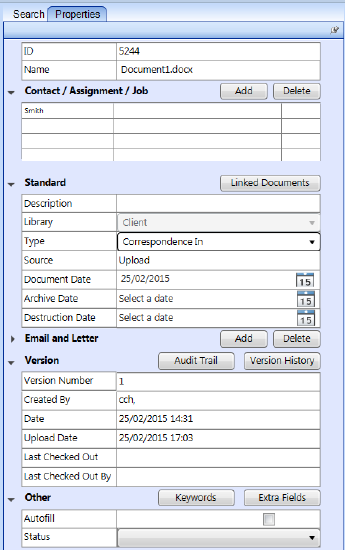
Depending on user permissions and field information can be ameneded and added to alter document clasification.
ID / Filename
| Option | How to Use |
| ID | Fixed Document identified. Cannont be changed and is unique in across entire system |
| FileName | The current file name can be modified at any point. Does not impact document availability. |
Contact / Assignment / Job Options
| Option | How to Use |
| Contact | Shows the name of the contact that the document is linked to. To link the document to additional contacts, the user clicks the Add button to open the Find Contact window. The scroll Bar is enabled if the list contains more than three entries. To remove an existing contact, the user selects the corresponding line and uses the Delete button. If there is only one contact attached, it can only be removed after a new contact has been appended first. |
| Assignment | Shows the assignment that the document is linked to. If a client is selected in the Contact field, then Assignment displays a list of the assignments linked to the client allowing the user to choose one. |
| Job | Shows the job that the document is linked to. To amend the assignment/job for a linked contact, the user clicks on the job which will open a drop down with valid values. |
Standard Options
| Option | How to Use |
| Linked Documents | Shows the number of documents linked to the currently selected document. Click the Linked Documents button to open Linked Documents window, where you can open related documents or unlink them. For details on how to link documents see: Linked Documents. |
| Description | You can add or modify the description. |
| Library | Shows the document library the document is linked to. This can only be changed if moving a document from the Pending to the client filing library. |
| Type | Displays the current document type, which you can change if your permissions allow. |
| Source* | Displays the document's origin, which is categorised according to the following:
|
| Document Date | Displays the date the selected document has been created. The date can be manually amended. Click the calendar icon to change the date. |
| Archive Date | Displays the date the selected document has been highlighted for Archive. The date can be manually amended. Click the calendar icon to change the date. |
| Destruction Date | Displays the date the selected document has been highlighted for Destruction. The date can be manually amended. Click the calendar icon to change the date. |
Email and Letter Options
| Option | How to Use |
| To | Displays who the email or letter is addressed to. Where a document or email has been sent to multiple recipients a separate line appears for each recipient. To add an additional recipient click the Add button to enter the person's name. The scroll option is enabled once the list has more than two entries. |
| From | Displays who the email or letter is from. Letters utilize the From field in the Document Creation wizard. Emails show the contents of the From field as sent/received. |
Version Options
| Option | How to Use |
| Version Number | Displays the document version number. Click the Version History button to open the Version History window. This window displays the following fields: Version No, Check-In Date, Created By, Comments, Published Date, Published by, OneClick Approval. You can revert back to a previous version of the document if needed, by right mouse clicking on the document you want to be the most recent version. |
| Created By | Displays the details of the user that created the document. It is not possible to edit the details of this field. |
| Date | Displays the date created for an electronic file or the received/sent date for emails. |
| Upload Date | Displays the date the document was uploaded to Document Management. |
| Last Modified Date | Shows the date when it was last modified. |
| Last Modified By | This shows the name of the person logged in when the document was last modified. |
| Audit Trail | Displays the history of changes made to the document properties. Click the Audit Trail button to open the Audit Trail window. |
Other Options
| Option | How to Use |
| Keywords | Displays the keywords associated with the selected document. Click the Keywords button to open the Keywords window and amend them. |
| Extra Fields | Displays the extra fields linked to the document. Click the Extra fields button to open the Extra fields window and amend them. |
| Autofill | Indicates whether this document is used with Autofill. |
| Status | Indicates if Autofill has processed the document. |