Users are linked to Roles which define the functionality to which users have access. The roles have different pre-defined levels, where level 1 is the highest level and Sales is the lowest level. 

Within an Organisation there is one Super User. This user has access to everything and can setup, maintain and unlock all levels of users.

Each user can have access to different companies within your environment and may also have a default company assigned upon logging, the superuser  will grant authority for the user to have access to all companies or a selection of companies.

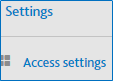
Click the settings icon clipboard_e174448f02509513eeed806545ec73e96.png

Select ‘Access settings.
clipboard_e3f9d4be3d26a1085fb3c21471453cf0c.png

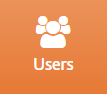
Select the tile ‘Users’.
clipboard_e573fb64323da18520e820e7139978e8b.png 

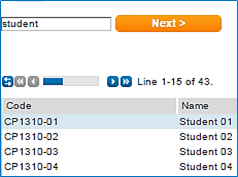
You will see a list of existing users
   clipboard_eb99065ee486928428b413643b2b07af0.png  

Edit an existing user - click on their name in the list, you can search for an existing user by entering their username in the code box
Create a new user - Enter a new username into the code box and click next

User codes can only contain letters and numbers and not include spaces.

   clipboard_e2d86ce20ed0ded8adf7c90967c90a24e.png

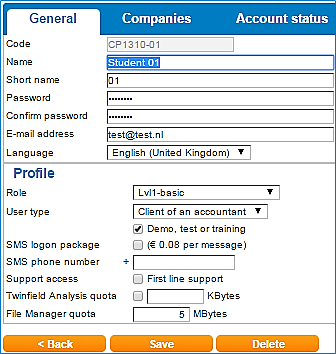
Name & Short Name - Enter the users name

Password - This must be alphanumeric containing at least 2 numbers i.e. Welcome99 and be a minimum of 8 characters

Email - Enter the users email address.

Select the role - Select the required user level to give this user access to the required areas of Twinfield

User type - This option is not available to SME environment. 

  • Accountant - A member of your firms team
  • Client of accountant - A member of your clients team who will be accessing Twinfield for book keeping data entry and reporting

Demo, test or training - This option may only be used for temporary training users

Companies Tab

clipboard_e9821b75c10a358ef49b15e0aa0199f48.png

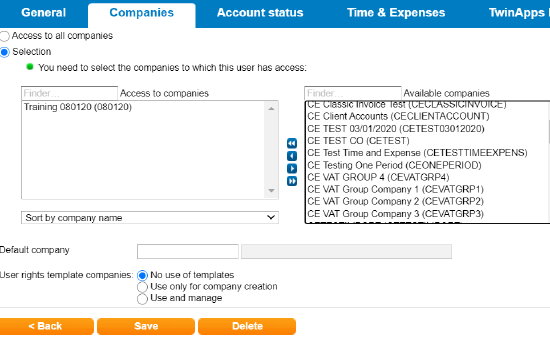
Access to all companies - This user will have access to all existing and future companies created on your Twinfield environment

Selection - This allows you to define which companies this user has access to.  Any future companies created in your Twinfield company will not automatically be available to this user.

Select the companies from the right hand panel and client the button with a single arrow pointing to the left to move into the Access to companies panel

Default Company  - The company selected here will automatically open when this user logins in rather than displaying the company selection list.

User rights template companies - Set this users access to template companies

  • No use of templates - Templates are hidden
  • Use only for company creation - Template companies can not be seen in the company selection list but are available when using the create new company options
  • Use and manage - Template companies can be see in the company selection list and can be edited in addition to being available when using the create new company options

Account Status Tab

  clipboard_e59a0dc0b6d24a613f6e9f189d7725e58.png   

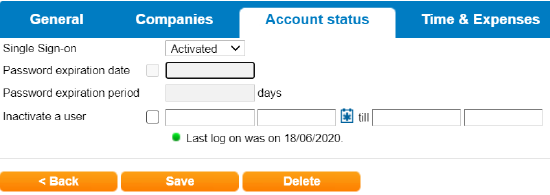
 Single Sign-on - This feature is required for some 3rd party API integration including CCH Accounts Production and should be set to ‘Activated’, this option is only visible on request

Inactivate a user - If a users account is locked, these fields will show when the account is locked from and until when.  To unlock a user immediately, the super user can remove the values from these fields and save the user record.

Deleting Users

Click the delete orange button to remove the user.

Related documents

Cheques and Paying-in slips
Cheques and Paying-in slips.
Twinfield: Twinfield Analysis Consultancy (10091307)
This document outlines a training course on Twinfield accounting software, designed for Twinfield partners and subscribers. The course, lasting up to 3 hours, focuses on enabling participants to leverage their Excel expertise to manipulate TwinCube data for creating comprehensive financial reports. Key objectives include processing transactions and searching via the reporting module. The session covers various topics such as data cube management, Excel formula building, and conditional formatting. Attendees must have advanced Excel skills and their own devices to join the session, as the course is tailored for Microsoft Windows users.
Twinfield Consultancy (10093303/10080551)
This document outlines a consultancy service for Twinfield users, targeting both partners and subscribers. It emphasizes collaborative sessions aimed at improving operational efficiencies and best practices through tailored advice and process reviews. Conducted online or onsite over two 3-hour sessions, the consultancy covers topics such as reporting, VAT reporting, and reconciliations. Attendees are expected to have a solid grasp of double entry bookkeeping. Additional resources, including eLearning courses, videos, and webinars, are provided for further learning.
Twinfield: Integration Consultancy (10095230/10095228)
This document outlines a consultancy-led course focused on the Twinfield accounting software, designed to assist businesses in managing their financials effectively. The course consists of four interactive sessions—each lasting three hours—covering navigation, invoicing, credit management, transactions, and reporting. Aimed at Twinfield partners and subscribers, participants are expected to have a good understanding of bookkeeping principles. Additional resources such as eLearning courses, videos, and webinars are also provided to enhance learning. The maximum group size is six delegates.
Twinfield: PM Integration Consultancy (10091304/10091303)
This document outlines a training course for Twinfield accounting software users, focusing on its integration with CCH Central. The course consists of four sessions, each lasting about three hours, aimed at enhancing attendees' bookkeeping skills and knowledge of both systems. Key objectives include familiarization with CCH Practice Management and Twinfield, as well as hands-on experience with financial processes such as invoicing, bank transactions, and VAT reporting. Prerequisites include a good understanding of CCH Central and appropriate permissions. The course is intended for Twinfield partners and subscribers, with a maximum of six delegates per group.