
Editing Reports
1. On the toolbar click 
2. On the task bar click Edit.
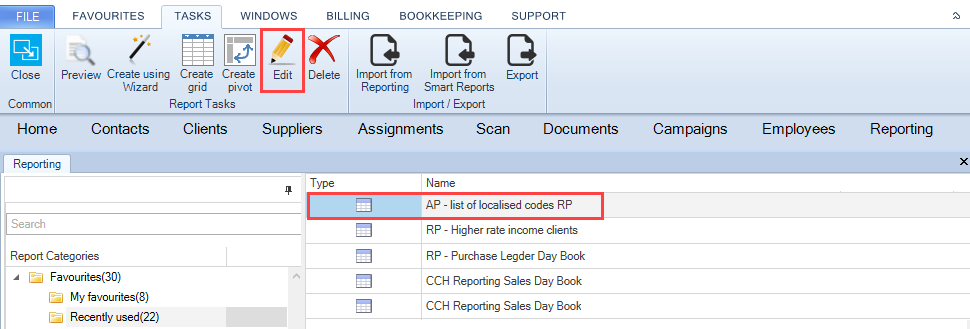
Upon opening a grouped report for editing, the groups are contracted. (See Grouping).
3. The edited report window is opened:
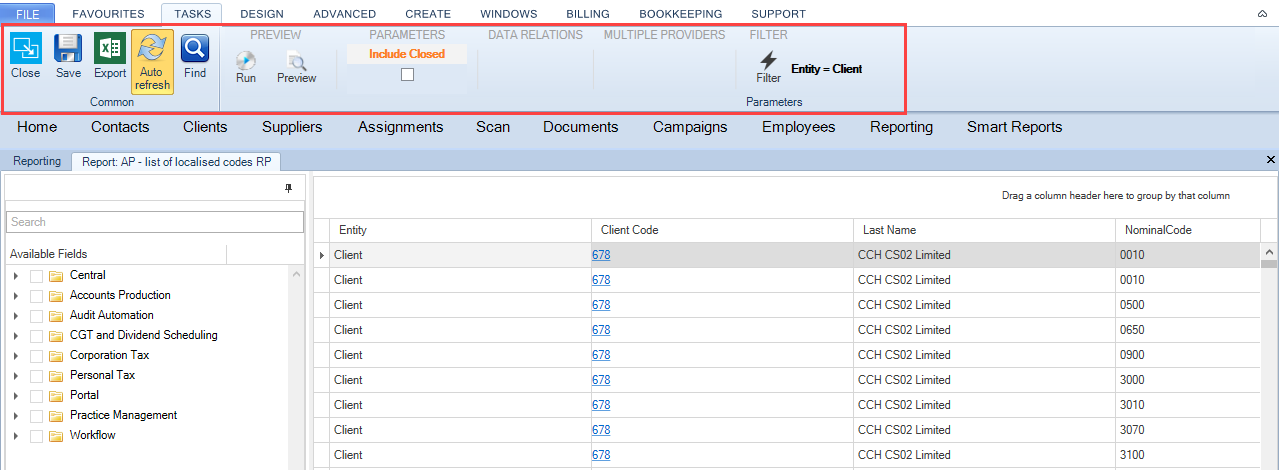
Task Bar Actions
|
Save |
Used to perform either a Save or Save As. |
|
Export to Excel |
Used to export the report into excel. |
|
Auto Refresh |
By default the Auto Refresh is active. (represented by) When adding additional fields to the report, the report automatically displays the values where the Auto Refresh option is enabled. Where the Auto Refresh option is not enabled (represented by) click Run after adding any additional fields. |
|
Find |
Enable to look for any information on the report. |
|
Run |
Run the report on screen. |
|
Preview |
Preview the report in a separate window. |
| Parameters |
Enable to include closed clients when the box is checked. When the report has date parameters, the interval can be chosen. |
| Data relationships | When there are multiple possible relationships between the fields on the report, for examples fees by billing client or fees by billing WIP then a window appears for the user to choose one of the fields. |
| Multiple providers | When there are multiple providers, for example a client supplier type field then a window appears for the user to select one of the providers. |
| Filters | Enable to modify the filters setup when the report was created. |
Where items within a report have been amended, the Run option turns orange to advise you that this option is required to be performed to refresh the data. (see Data Refresh).
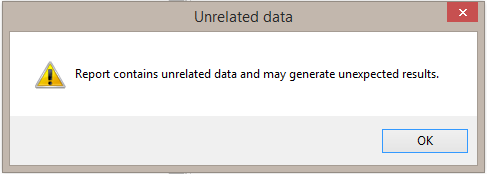
Unrelated Data warning message
When editing a report, you may select fields that are from different report categories and are not related to each other. The following warning message is returned to advise you that the report contains unrelated data.
Find Option
When in edit mode, you are able to use the Find option to search data within a grid report.
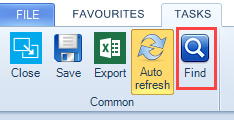
Once selected, a search box is available within the grid.
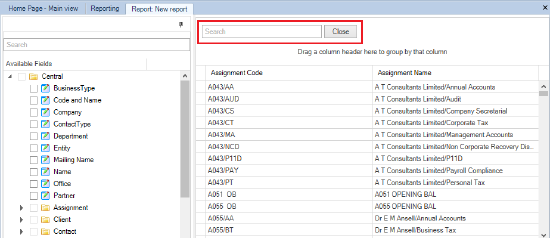
The contents are filtered to return all data containing the entered value. see example below.
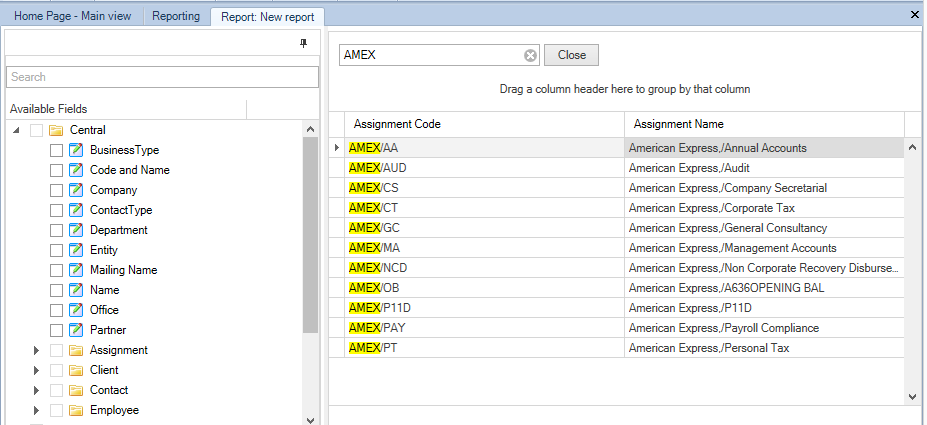
Click Close within search to remove the find option.