
Exchanging data between CCH Accounts Production and Audit Automation
How to configure CCH Accounts Production and CCH Audit Automationto exchange data between them.
To create an export for CCH Audit Automation
Initially both CCH Accounts Production and CCH Audit Automation need to be configured for manual Trial Balance transfer. Once this is done, any Trial Balance can be transferred using the method below and journals can be posted back from CCH Audit Automation as described below.
Create structures for the file that needs to be exported and imported ( One off task in CCH Accounts Production)
Export file structure
- Run CCH Central with CCH Accounts Production and log in.
- Select Maintenance > Accounts > Import/Export definition > File structure
- The radio button Create Mapping Structure should be selected, if it is not, click on it to select it.
- Enter a name for the mapping file "Audit Automation Export".
- Make sure Trial Balance is selected in the Mapping Structure Type and the Comma Separated radio button is selected.
- Enter '7' in the 'Number of fields' box using the scroll buttons.
- Select the CCH Accounts Production Field Names from the drop down for each column so that they match those shown in the following screen shot.
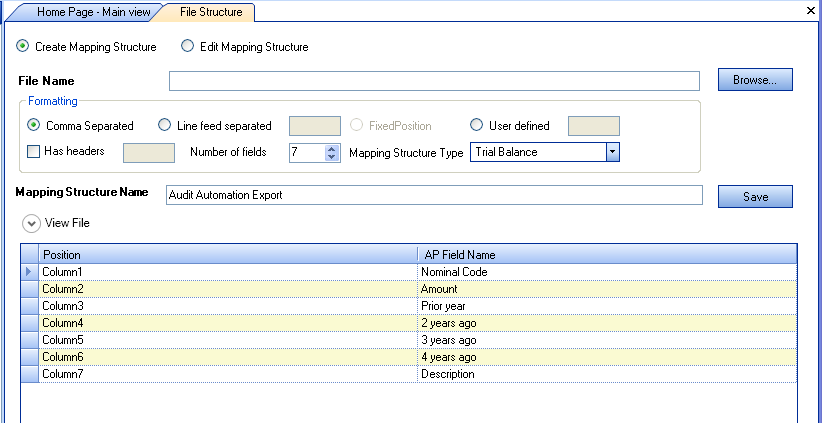
- Once the screen appears with the same information as above, click on 'Save' and then close the screen.
Import file structure
- Enter a name for the mapping file "Audit Automation Import".
- Ensure that Transactions is selected in the Mapping Structure Type and the Comma Separated radio button is selected.
- Tick the 'Has headers' checkbox and enter '1' in the edit box to the right of this.
- Enter 6 in the Number of fields box using the scroll buttons.
- Select the CCH Accounts Production Field Names from the drop down for each column so that they match those shown in the following screen shot.
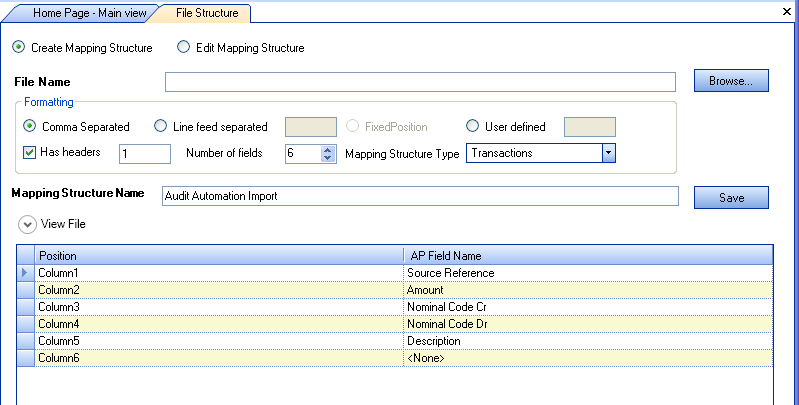
- Once the screen appears with the same information as above, click on [Save] and then close the screen.
CCH Audit Automation (One off Task)
- Load CCH Audit Automation and log in as a system manager.
- Select File > System options then the complete the third party import options as follows:
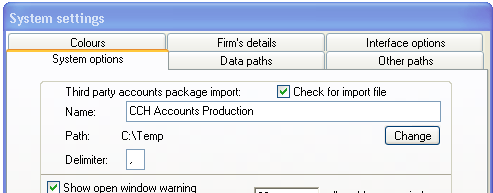
- The Path is the link path that you will use to store the Trial Balance and journals to be transferred between CCH Accounts Production and and CCH Audit Automation and should be a path all users can access.
- Click on 'OK'.
When you wish to export a Trial Balance to CCH Audit Automation
In CCH Accounts Production
- Open the client to be exported in CCH Accounts Production. Select the current accounting period.
- Click on Export in the functions panel.
- Click in File to Export, browse to the path provided for the link "C:\Temp" in the above example. Enter the code of the client in the File name. CCHTUTOR1 in the screenshot example below and click 'Save'.
- Enter "Audit Automation Export" in Structure name by selecting it from the drop down.
- The details of the file that will be created will be displayed. Click on [Export] and the file will be created.
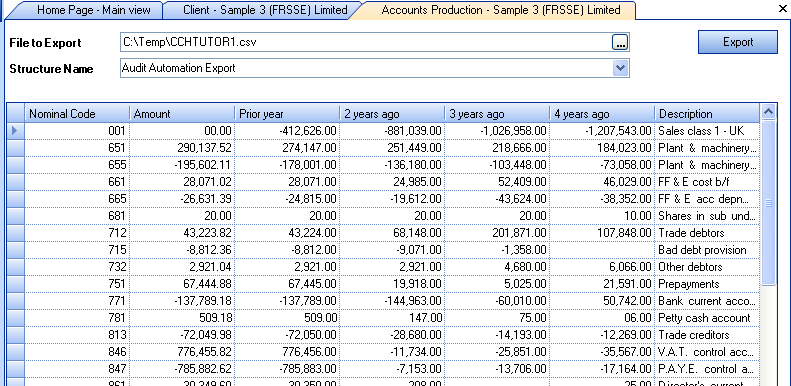
- Click on Add CCH Audit Lock in Actions to lock data entry.
In CCH Audit Automation
- Open the client for which the data has been exported and the system will display:
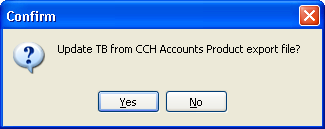
- Click on 'Yes' and the Trial Balance will be imported.
- Once the Trial Balance has been imported the Trial Balance transfer file will be renamed so that it will not be offered again.
Note: If there are any errors during the import, you will be advised of these and any difference will be taken to suspense. You may then correct the error and either manually reallocate suspense, or repeat the export/import process.
Transferring journals from CCH Audit Automation to CCH Accounts Production
In CCH Audit Automation
- Enter the journals and mark them as agreed with the client.
- In the Utilities menu select 3rd option CCH Accounts Production journal posting file. This option is named using the third party product entered in CCH Audit Automation - one off task (so if you entered a different name there this option will be named accordingly.)
- The system will create the export file and ask you to confirm that you are happy to mark the entries as exported. Provided that you did not receive any errors click on 'Yes'.
- This process will create a file in the link folder, C:\TEMP, in our example in CCH Audit Automation - one off task above, named with the code of the client and an extension of ".PRO".
In CCH Accounts Production
- Load the client and accounting period to which the journals are to be posted.
- Click Import in the functions panel.
Select Transactions as the import type.
Note: This is very important as importing transactions appends the entries to those that currently exist. If you leave this as Trial Balance then running the import would clear the trail balance, deleting all existing transactions, before importing the journals.
- Leave Mapping name as <None>.
- By Structure Name select Audit Automation Import from the drop down.
- Click on the 'Browse' button to the right of File to Import and select the file that you have exported from CCH Audit Automation. This will be in the link folder and named with the code of the client and a suffix of “.PRO”. The file will be loaded and displayed in the grid.
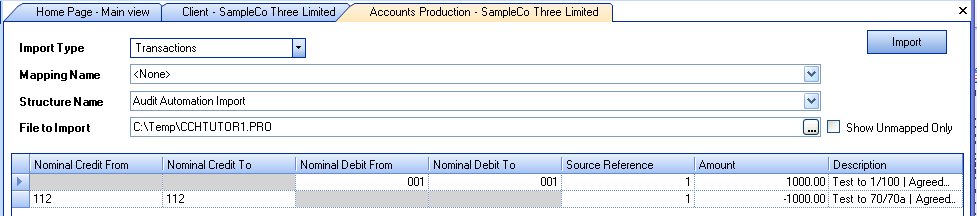
- If any codes using the export file to do match existing codes in CCH Accounts Production, the Nominal Credit To or Nominal Debit To will be blank and you can ether enter an existing code that the amount should be posted to, or abort the process, create the missing codes and run the import again.
- Finally, click on 'Import' to complete the process.