
Finding an Assignment
Finding an assignment:
-
Click either the Assignments button
or the Clients button
. The Find Assignment or Find Clients page is displayed.

You can open an assignment in one of the two ways. You can either:
-
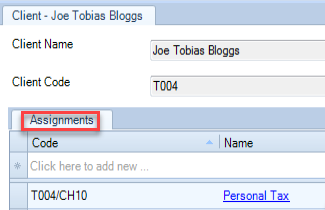
access it from the Client page and view all assignments attached to a particular client in the Assignments tab and open the one you want to work on.
OR
-
go straight to the Assignment page by selecting the required assignment in the Find Assignments window.
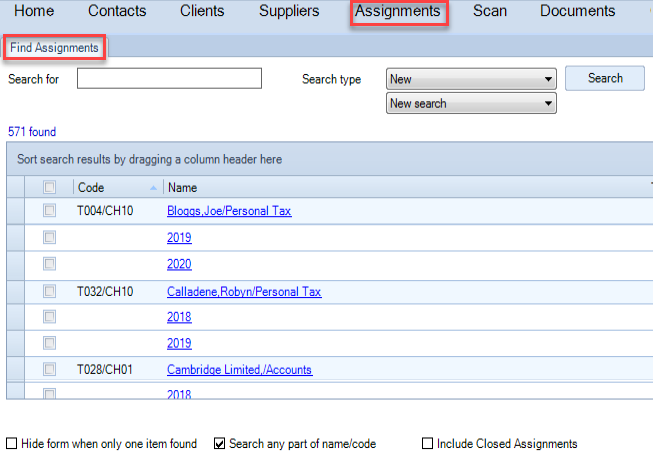
If you are searching for an assignment in the Find Assignments page (as above).
1. In the Search for field, type in the name (or part of the name) of the record that you want to search for.
2. Select the Hide form when only one item found check box if required.
- If you check the Hide form when only one item found check box, if there is only one record that matches your search criteria, the relevant page for that record will open automatically rather than being listed in the search results where you would have to click it to open the record.
3. Select the Search any part of name/code check box.
- If you check the Search any part of name/code check box then the search results that are returned will contain the search criteria you have entered in any part of the record name. When this check box is unchecked, only records with the search criteria at the beginning of the name will be returned. For example:
- if you you enter 'mit' in the Search for field when searching for a client. The Search any part of name/code check box is unchecked. The results will only contain clients that have 'mit' at the beginning of their first or last name, such as 'Mitchell' or 'Mitch'.
- if you you enter 'mit' in the Search for field when searching for a client. The Search any part of name/code check box is checked. The results will shown any client whose name contains 'mit' somewhere within it, such as 'Smith', 'Mitchell' or 'Amit'.
4. Click the Search button. The results that match your search criteria are listed in the window.
5. Double-click the contact or client assignment record you want to open. (You can double-click any information on the client name other than the email address). The Assignment page appears.