
Flagging items as Estimated, Completed and Reviewed
Subject to Task Permissions, users can flag input statements and sections of the Data Navigator can be marked or unmarked as Estimated, Complete and/or Reviewed.
Estimated
Input statements or entire sections of the Data Navigator can be marked as estimated by checking the Estimated flag or by right clicking on the input statement / folder in the Data Navigator and selecting Estimated.
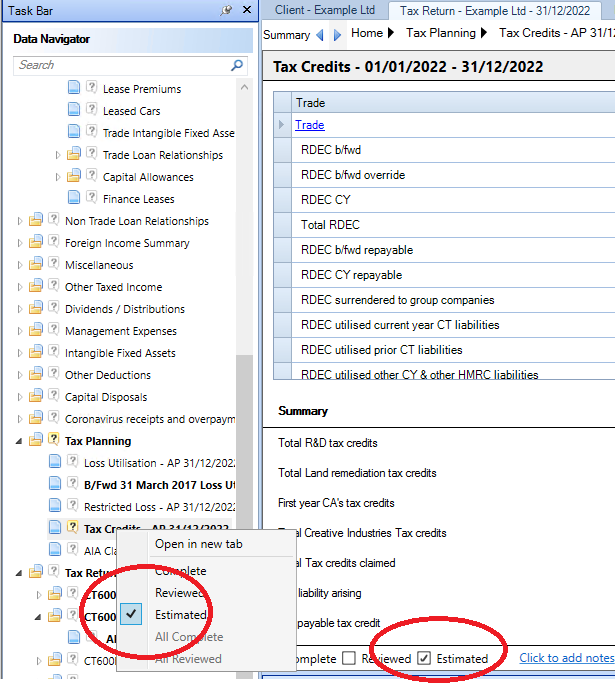
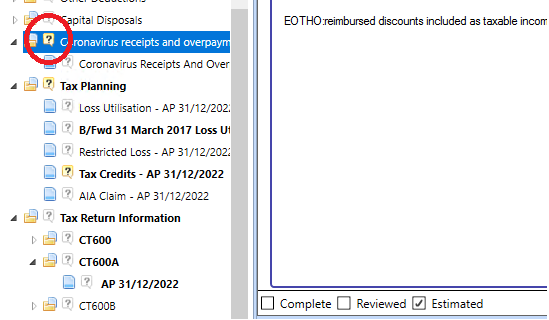
When an input statement or folder in the Data Navigator is marked as Estimated, the question mark icon will show as bold
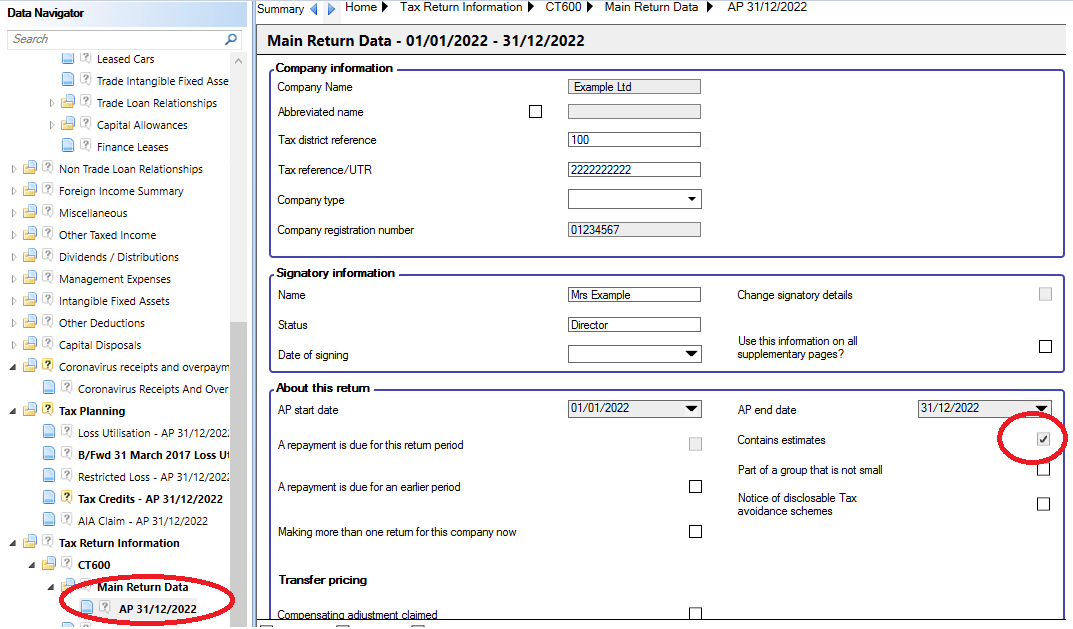
If a period contains estimated input statements, a greyed out flag will be displayed under Contains Estimates within the Main Return Data input statement.
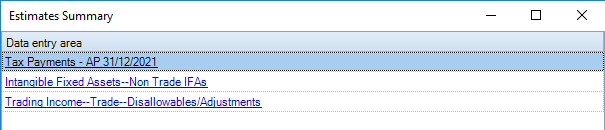
Toggle between the estimated values by selecting View in the top Ribbon, then Estimates Summary.
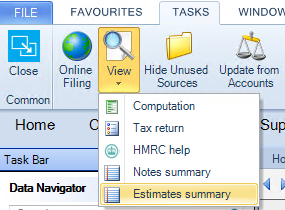
The Estimates Summary will display hyperlinks to any input statements flagged as estimated.
Complete
Input statements or entire sections of the Data Navigator can be marked as complete by checking the Complete flag or by right clicking on the input statement / folder in the Data Navigator and selecting Complete.
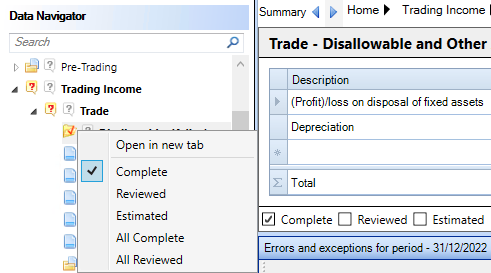
Flagging an input statement as Complete will put a red tick to the left of the input statement in the Data Navigator and a Red question mark next to the parent folder until all the statements within that folder are marked as Complete, which will in turn but a red tick next to the folder.
There is an option when you right click on a statement or section All Complete which will mark all the statement within that folder as complete and put a red tick next to the folder and every statement within it.
Reviewed
Input statements or entire sections of the Data Navigator can be marked as reviewed by checking the Reviewed flag or by right clicking on the input statement / folder in the Data Navigator and selecting Reviewed.
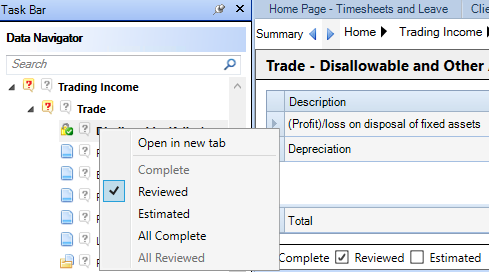
Flagging an input statement as Reviewed will put a green tick and a padlock to the left of the input statement in the Data Navigator and will render the statement read-only.
There is an option when you right click on a statement or section All Reviewed which will mark all the statement within that folder as complete and put a green tick and padlock next to the folder and every statement within it, renderring them read only.