GDPR Deletion
Details
The client and contact deletion routine has been enhanced, so that the deletion process is displayed in a new dialog, called Delete Client Data, which pops up after the user confirms the client or contact deletion.
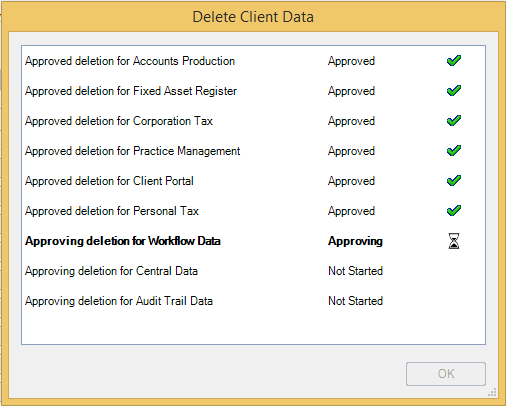
In the first stage of the client or contact deletion process, CCH Central checks if the deletion validation rules are met to delete the client or the contact for all the products for which the practice is licensed for:
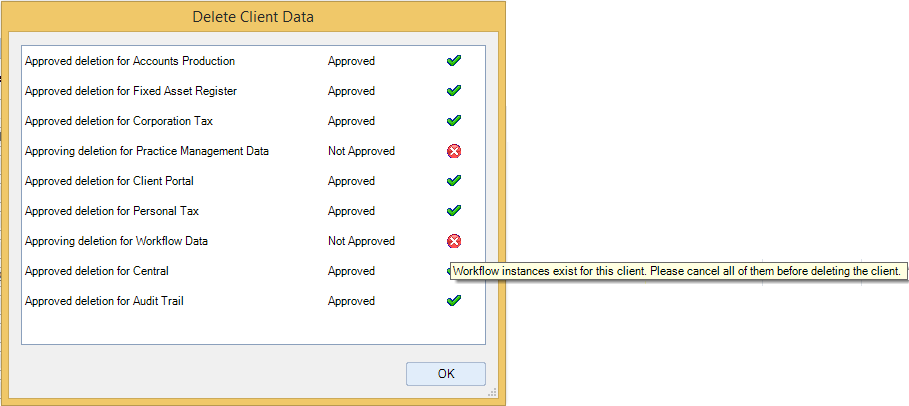
If the client cannot be deleted, the deletion routine is stopped and a tooltip with the reason the client or contact could not be deleted is displayed for the products which prevented the deletion:
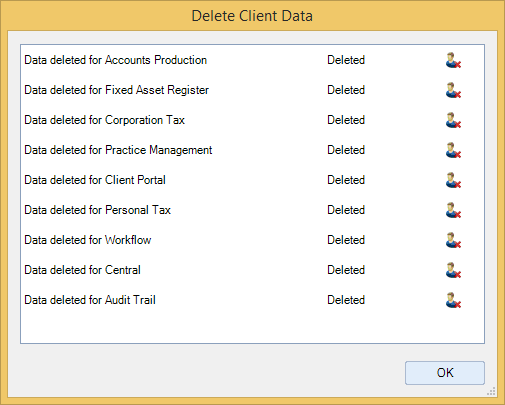
If the deletion is approved for all the products, the client or contact data is deleted on all products for which the practice is licensed for:
Deletion Date
The GDPR Deletion Date is an editable date field available on the Main tab from either the Client or Contact screen and by default is blank.
If the client or contact deletion routine is not approved, the user is prompt to enter a GDPR Deletion Date. In the example below, the client cannot be deleted as it has unpaid WIP and running workflow instances.
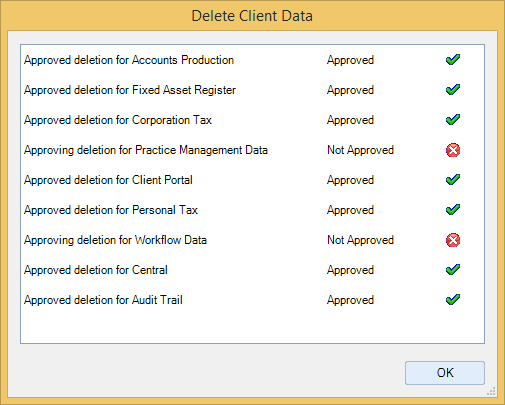
When the user clicks OK on the Delete Client Data dialog, he is prompt to enter a GDPR Deletion Date:
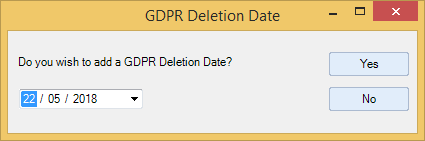
If the user selects Yes, then the GDPR Deletion Date field from the client’s Main tab will be updated with the date entered in the GDPR Deletion Date dialog.
If the user selects No, then the GDPR Deletion Date field from the client’s Main tab will not be updated.
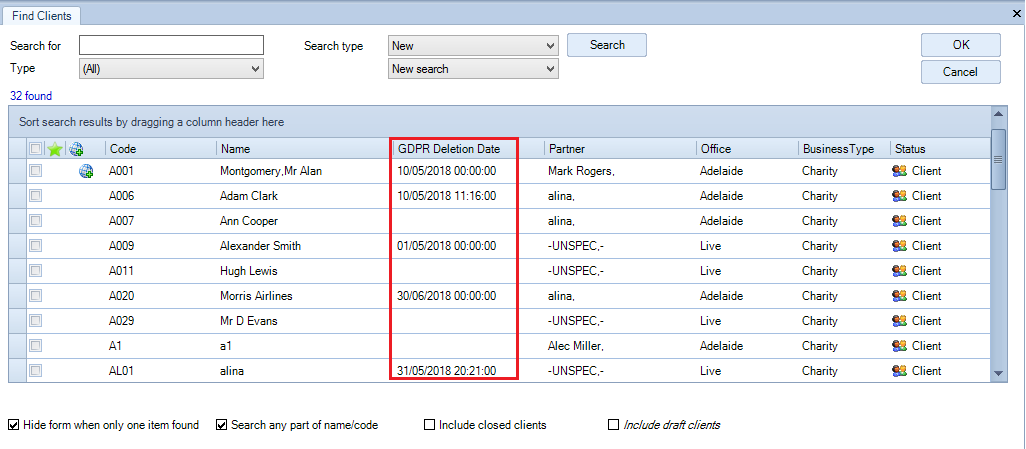
Users can view the GDPR Deletion Date set on clients or contacts on the Find Clients or Find Contacts screen:
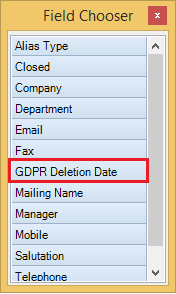
By default, GDPR Deletion Date is available in the Field Chooser and it can be placed near any other column header from the Find Clients or Find Contacts grid.
Delete Audit Trail
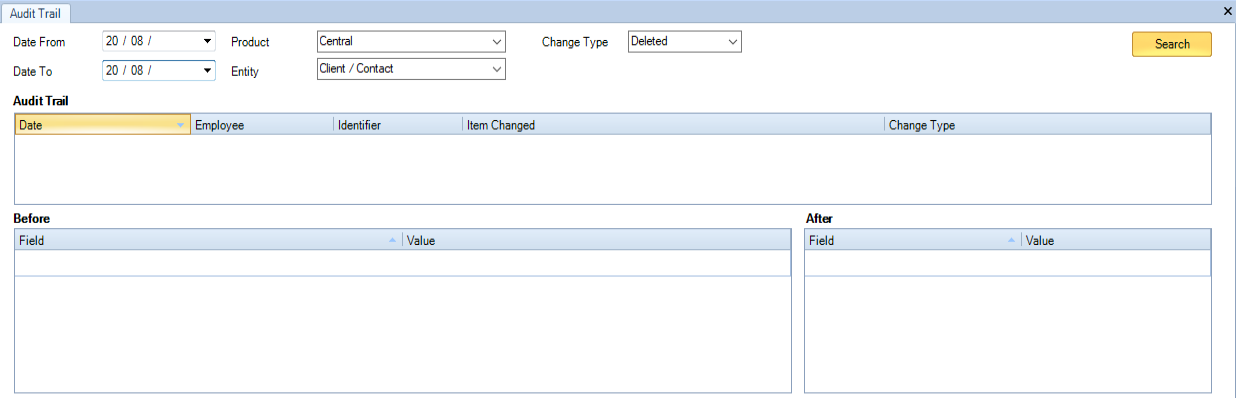
CCH Central allows practices to delete all user data, including any traces in the Audit Trail. When a client or contact is deleted, all the records related to that client or contact are removed from the Audit Trail.
CCH Central allows practices to delete all user data, including any traces in the Audit Trail. When a client or contact is deleted, all the records related to that client or contact are removed from the Audit Trail.
Click on main menu File > Audit trail > View Audit trail, when a contact or client is deleted, their details are not going to be shown on this screen:
Deleting the GDPR Folder
For users that do not have CCH Document Management, the personal data files generated for clients or contacts are saved in the folder set within the GDPR Path from File > Maintenance> Documents > Mailing Settings screen.
When a client or contact is deleted, then the corresponding subfolder with the personal data files is removed from the folder set within the GDPR Path. For users that have CCH Document Management, the personal data files generated for clients or contacts are saved in their Document Centre tab. When the files are generated, a subfolder with the name of the client or contact is created within the GDPR Path location as the personal data files are kept there until they are uploaded in Document Centre. When a client or contact is deleted, the corresponding subfolder is removed from the folder set within the GDPR Path.
Note: For CCH Document Management users if the Document service is not running, the folder contents are also held within the GDPR Path location until the service is back running.
GDPR Deletion Date
The GDPR Deletion Date field in the Contact section within Reporting, allows users the ability to view in reports the GDPR Deletion Date set on clients or contacts. When creating a reporting from the option Reporting on the toolbar, the GDPR deletion date field is under the section Contact.
Employees' records - disable login
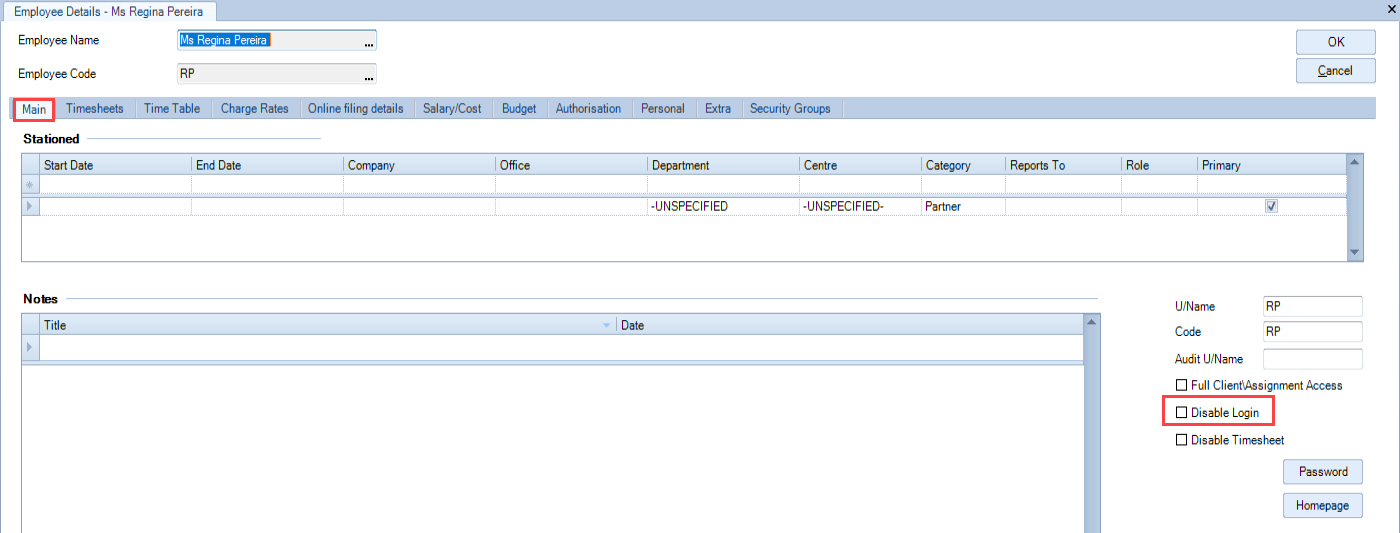
The purpose of this option is to disable the login for the selected employee.
On the toolbar click on Employees, search for the employee and access the record. Under Main tab, check the box Disable login.
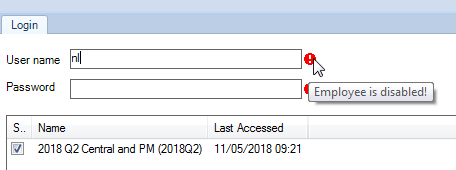
If a user then tries to access CCH Central as an employee who has been mark as disabled, then on the CCH Central logon screen the following message is returned.