
How To
Grouping
CCH Central
In CCH Reporting, it is possible to group reports within the Reporting tab.
Full Expand
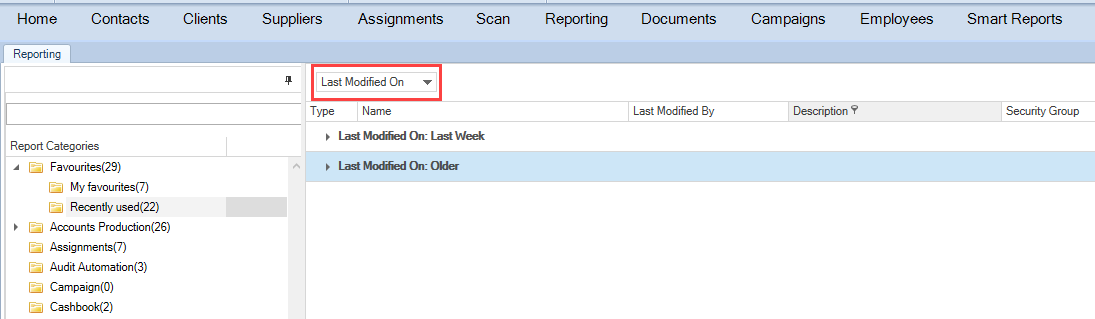
By default when a group is created, a single line is returned per group.
You can group the reports by any column header, dragging it to just above the headers.
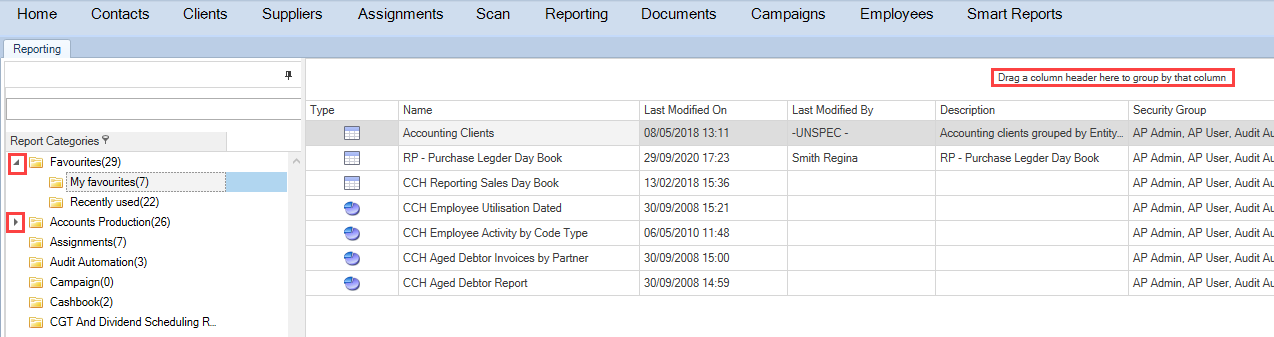
In the example below, the reports are grouped by the Last Modified By column.
Options
Right-click on the heading group column to return a full list of options.
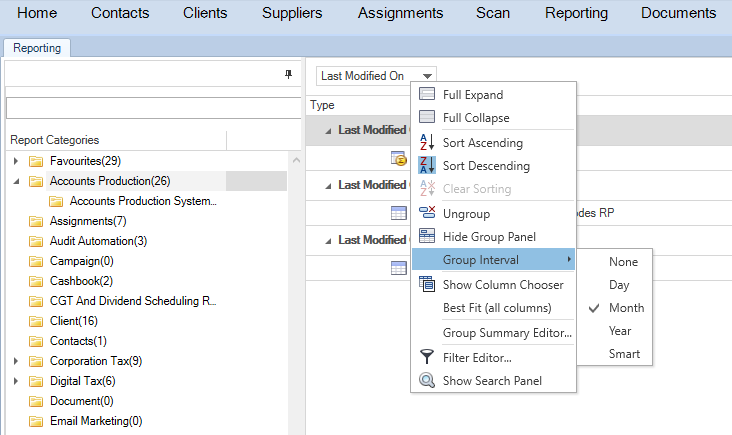
| Full Expand | This returns the underlying group details |
| Full Collapse | This collapses all details back to a single line. |
| Sort Ascending | This sorts reports ascending. |
| Sort Descending | This sorts reports descending. |
| Ungroup/Group By This Column | Groups can be created/removed by dragging and dropping heading columns. Alternatively, right click on a column header and select Group By this Column to create the group, or Ungroup to remove the grouping. |
| Hide Group Panel/Show Group Panel | The Hide Group Panel suppresses the group header, leaving the grouping intact. Alternatively Show Group Panel reveals the group heading. |
| Group Interval | Group the reports by dates or type of report (Smart Reports or not). |
| Show Column Chooser | Add a column or columns to the Column Chooser window to customise layout. This is similar option to Field Chooser. |
| Best Fit/Best Fit (all columns) | These extend or reduce the columns width. |
| Group Summary Editor |
Allows the grand total to be expressed as Max, Min, Average and Sum and to define the display order. This can be accessed by right clicking and selecting ‘Customise’ for any total. |
| Filter Editor | This allows to filtering of the grid |
| Show Search Panel | The Search Panel will show above the grouped header. |
Alert: Once one of these options is selected within Reporting, it remains set for all groups until it is changed.
Related documents
CCH Central Suite Update Guide (Latest Offline Version)
The document outlines the process for using the Central Suite Installer Offline (CSI Offline) for customers with specific IT requirements that prevent internet updates. It provides detailed instructions for installing updates to the Central Suite, including necessary prerequisites, folder structure, and the installation steps. Key points include ensuring Microsoft SQL Server is supported, confirming .NET Framework requirements, and the importance of backups before starting the update. The document also highlights the need for administrator rights, handling database upgrades, and checking for office plugin updates, particularly for users of CCH Document Management.
CCH Central Suite 2026.3 Update Guide
This guide explains how to update an existing install of the CCH Central Suite to the latest version 2026.3 (including Service Packs and Hotfixes) using the Central Suite Installer (CSI).
CCH Central 2026.3 Release Notes
CCH Central 2026.3 Release Notes
Central Suite Installer (CSI) instructions
The document announces the update of the Central Suite Installer (CSI) for the CCH Central Suite, now compatible with the latest releases and service packs and hotfixes of various CCH applications. Key points include prerequisites for installation, compatibility information, and the necessity for proper backup before proceeding with the update. It highlights specific requirements for Microsoft components, and it warns users of CCH Accounts Production regarding regional settings for date format. Support options are mentioned for users seeking assistance during the update process. Release notes are accessible for detailed information on the updates.
CCH Central 2026.210 Service Pack
CCH Central 2026.210 Service Pack