
How to create a CCH iFirm MTD for Income Tax Return and Submissions
How to create a CCH iFirm MTD for Income Tax Return
Note: The starting tax year that CCH iFirm supports for MTD for Income will be 2025/26. You will not be able to create an MTD client for any previous years.
Please note:
Ensure that the 'CCH iFirm Console' service is running before creating tax return. The CCH iFirm console allows firms to authenticate and monitor the syncing of edited Contact and Client records from CCH Central to CCH iFirm.
Users must have Latest version of CCH Central installed and .Net runtime version 8.
These applications are essential for CCH iFirm and must be installed on the SQL Server and all Workstations wherever CCH Central is run from.
All empolyees require permission to access CCH iFirm Personal Tax and CCH iFirm for MTDfIT in CCH Central > Task Permission and CCH iFirm.
The NINO and Post code are mandatory fields for MTD for Income Tax, they must be present in the client record. Otherwise, an error will be shown and you won't be able to create that client in MTD for Income Tax, as these fields are used get the quarterly submission obligation from HMRC into CCH iFirm
(Note: Ensure that the primary address (i.e. Main) is present in Central, as this must match the corresponding address for the taxpayer in HMRC.)
- In CCH Central, click on Create a new tax year within Tax Return
- In the 'Create a new tax return' panel, select a tax year e.g 2026
- Select the return type of MTD for IT in the Tax Year drop-down list.
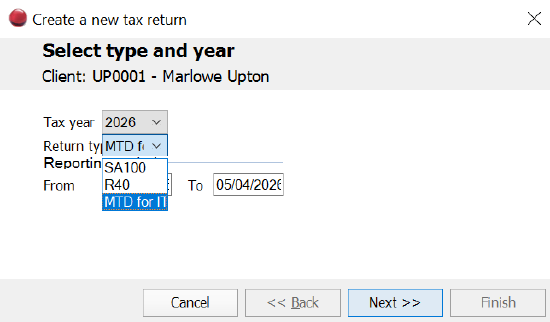
- Click Next >>
- Link to the appropriate CCH Central Workflow or Tax flow (or click next if you don't use CCH Central Workflow)
- Click Finish
- You will be redirected to the CCH iFirm webpage. Log-in using your email address that is registered in CCH iFirm.
(Note: this email address here should match your employee email address in CCH Central)
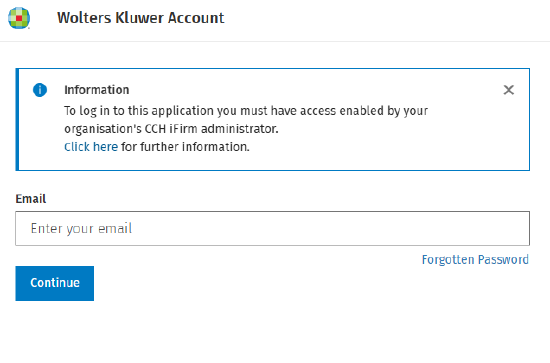
- Once logged in, you will see the MTD for Income Tax quarterly submissions screen for your client.
Important Note: Ensure that your practice has obtained the authorisation token before proceeding to the next step.
This is a one-time authorisation with HMRC and is valid for an 18-month period.
See the steps above under " How to Authorise CCH iFirm MTD for Income Tax with HMRC"
9. If your Practice doesn't have authorisation to act on the clients behalf for MTD for Income Tax, then you can click 'Request Authorisation'

- Click on

Now, share that link with the Client
Note: The Client will need to grant you authorisation by logging into their online service account.
- Once authorisation has been granted by the client, CCH iFirm MTDfIT will retrieve the quarterly submission obligations for the client, this is based on the previous years tax submission.
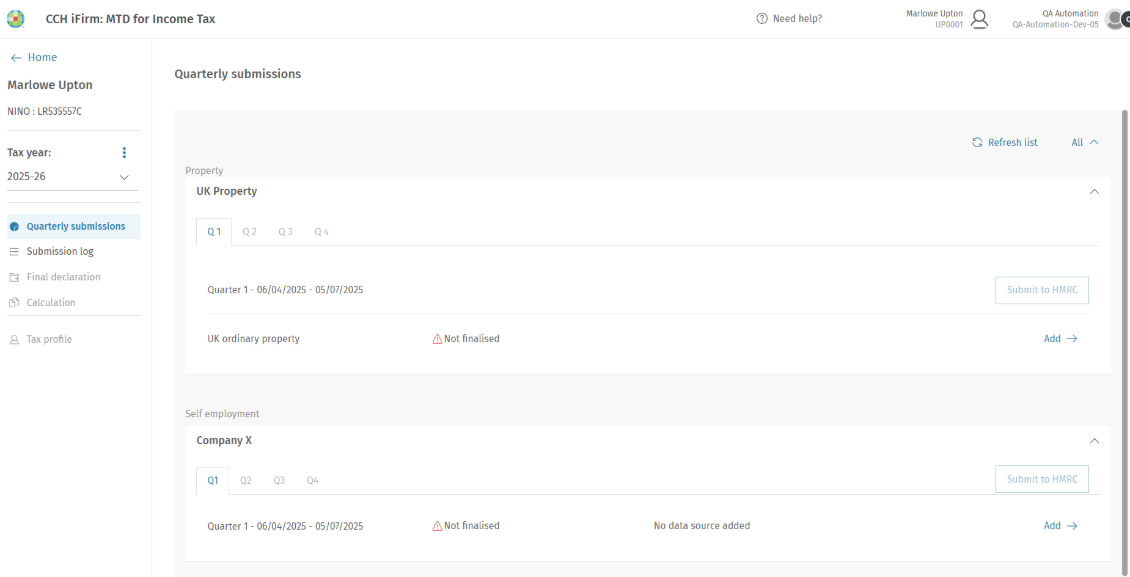
Adding income and expenses data
- Click 'Add'

- Click Add income and expenses

- Click Upload Excel File
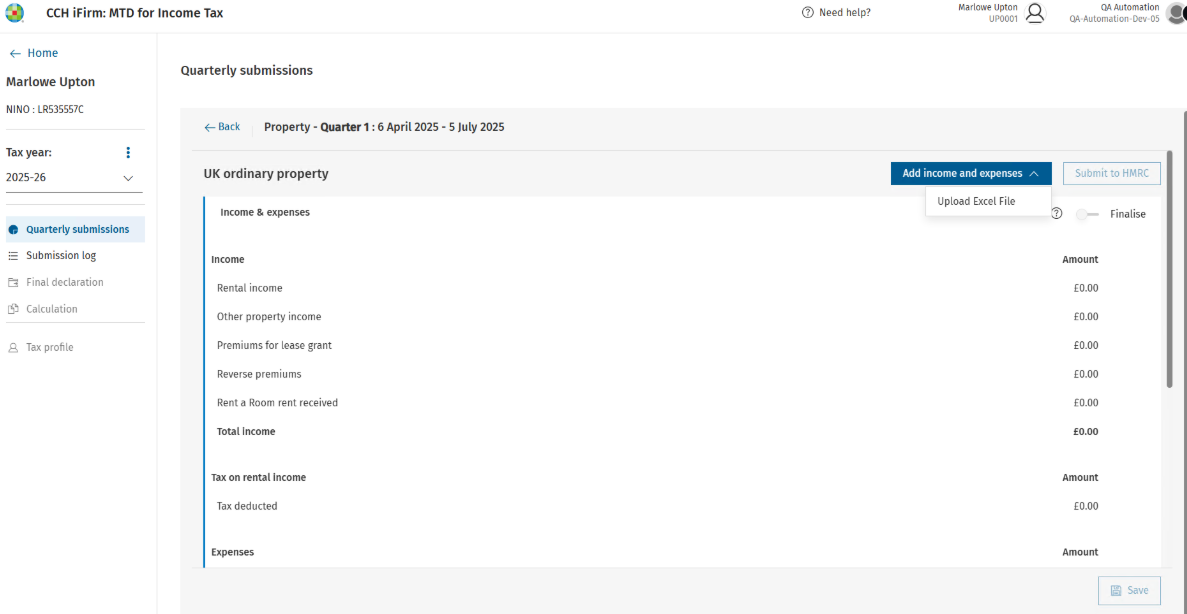
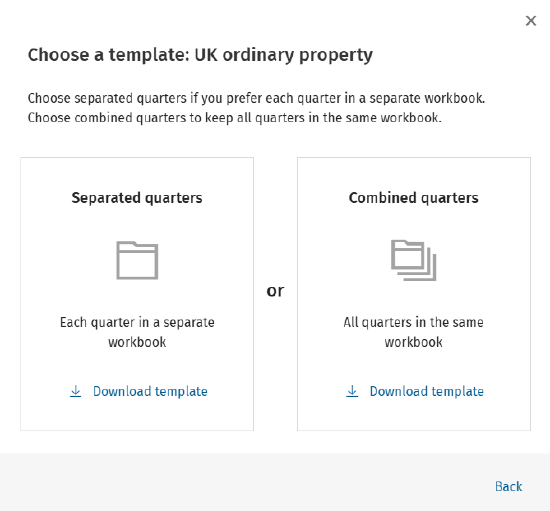
4. Click Choose a template
5. Select to download either 'Separated quarters' or 'Combined quarters'
6. Open the spreadsheet for each of your obligations
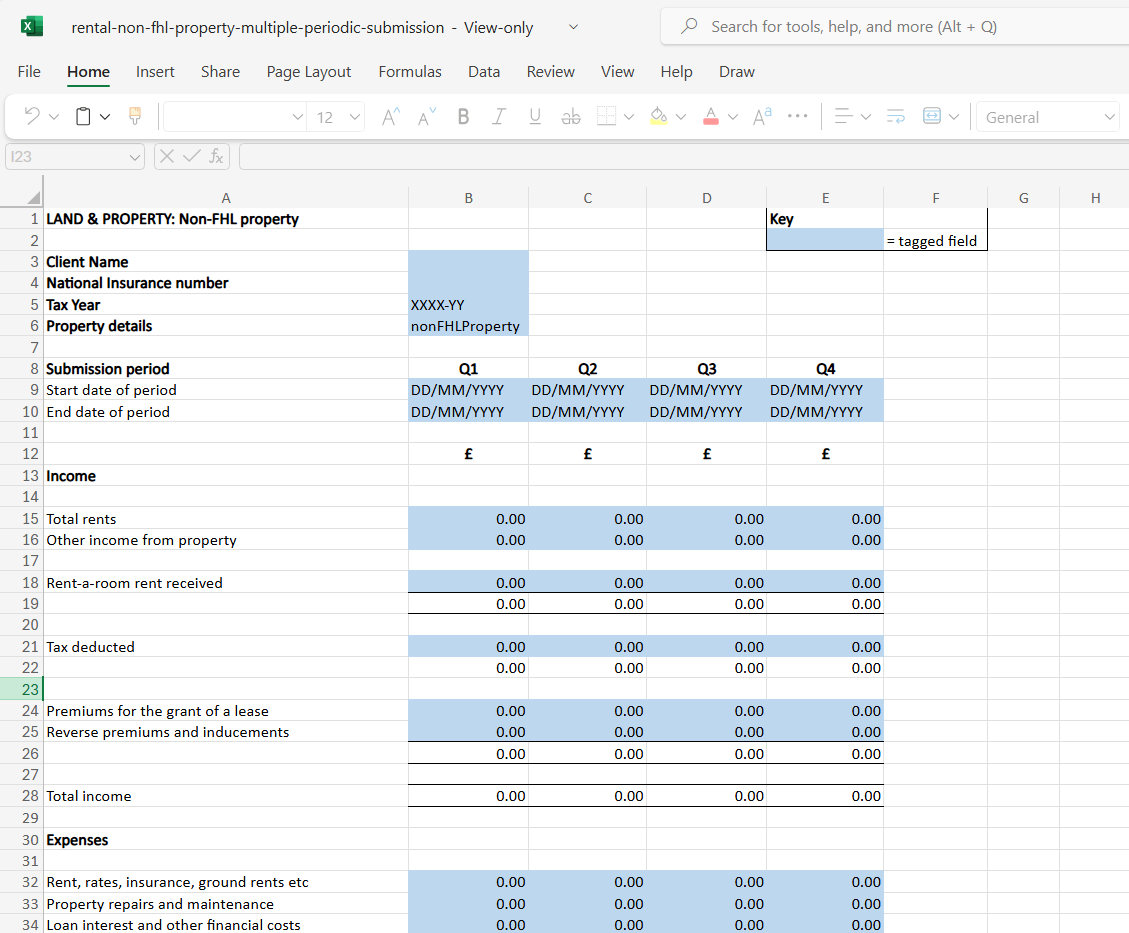
Note: If you have existing workbooks that you use to capture your clients income and expenses for example, you can include the MTD for Income Tax spreadsheet into your existing workbook and link the figures using macros or formulas so that it populates the tagged fields.
As long as the CCH iFirm spreadsheet is the first tab in the workbook, the data will be injected into CCH iFirm MTD for Income Tax. This is still a valid digital link from a MTD requirement point of view.
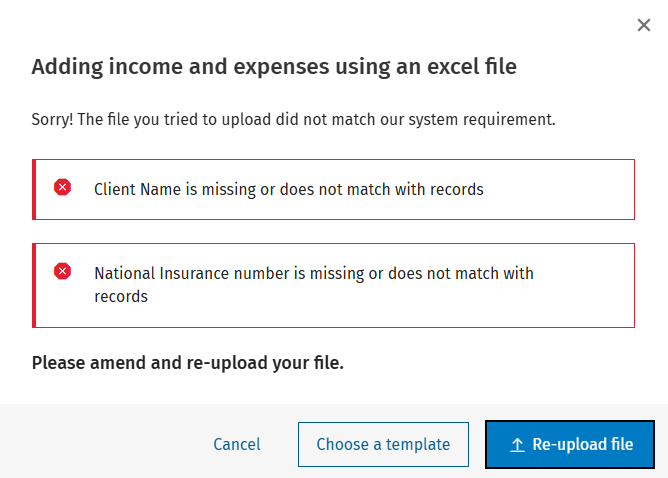
Please note: The client name, NINO, tax year and property/self employed details in the spreadsheet need to match what is in CCH iFirm for the client and obligation that you are uploading.
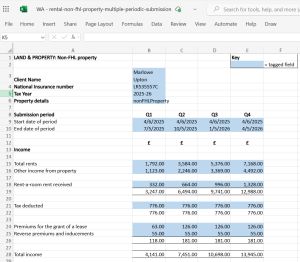
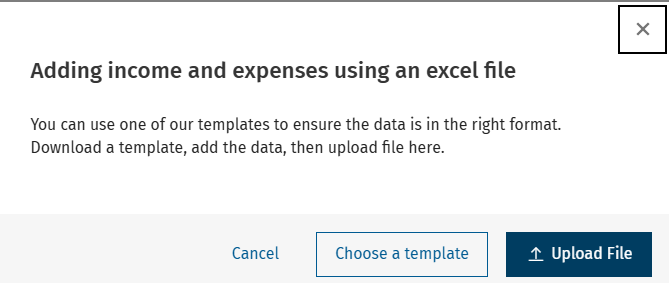
7. When you are ready to upload the file, select Add income and expenses and click upload from MS Excel
8. Click Upload File
- If the client name, National Insurance Number (NINO), tax year and property/self employed details in the spreadsheet do not match what is CCH iFirm for the client and obligation you are uploading, then the error below is shown .
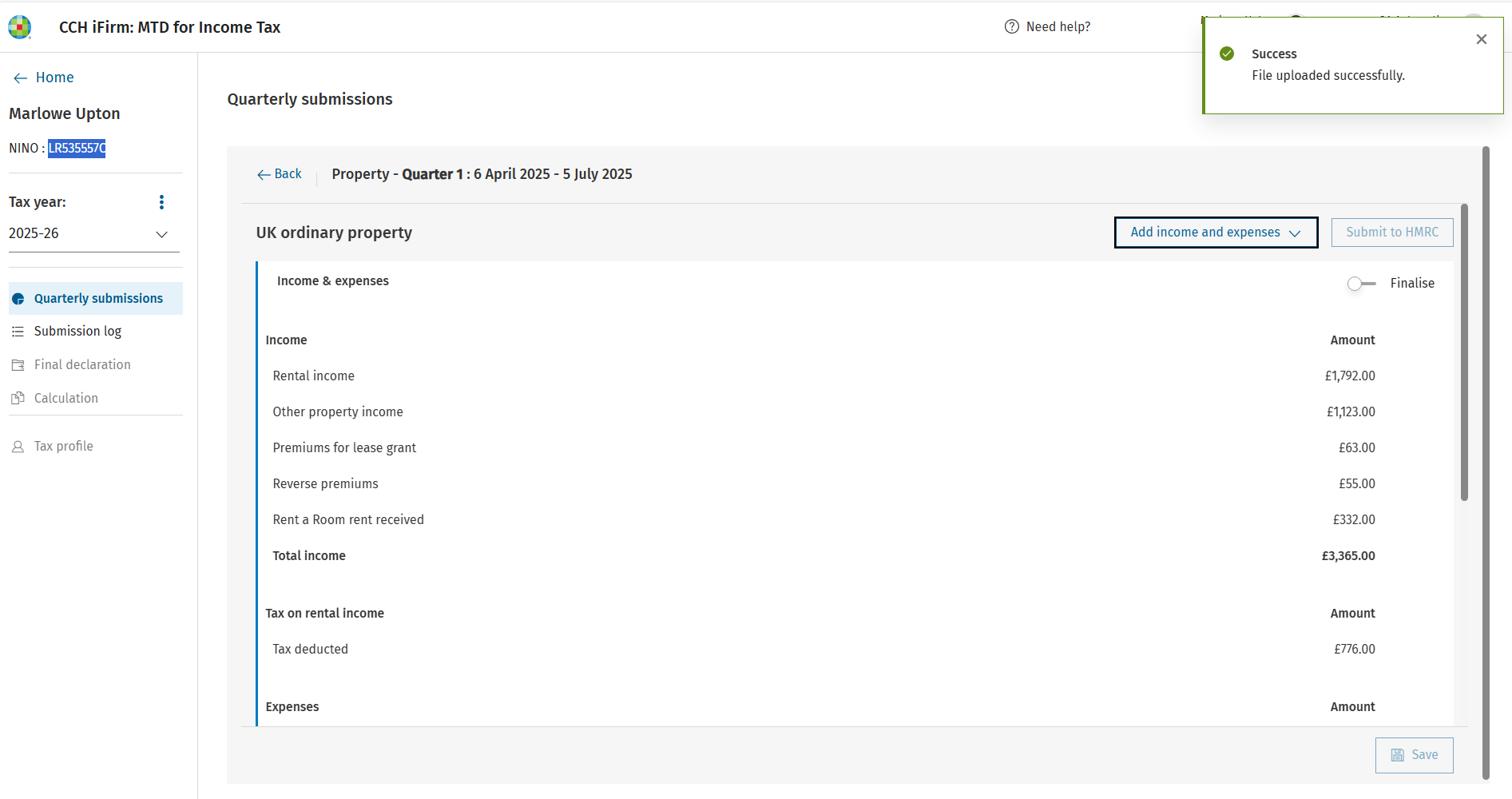
- If the information matches, you will see a 'Success - File uploaded successfully' message
Filing the quarterly submission
- Click on the Finalised toggle

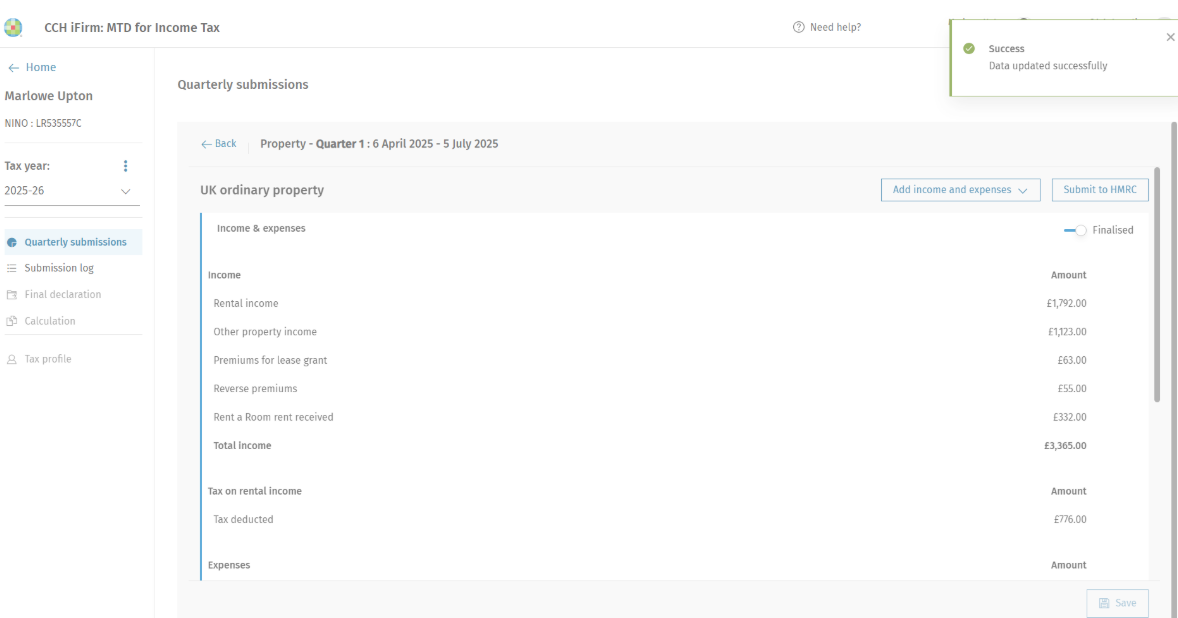
2. Click on the Submit to HMRC button
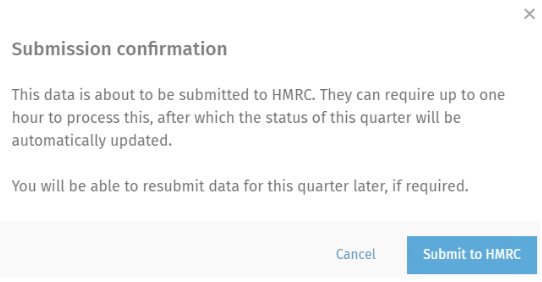
3. Confirm submission
Appendix:
How to Authorise CCH iFirm MTD for Income Tax with HMRC
- Your practice must obtain an authorisation token from HMRC within the software before you can submit the Quarterly Updates and Final Declaration.
- You can obtain the authorisation token via Product Settings or Organisation Management. To navigate to the this page Select your profile on the top right of the page and click Product Settings or Organisation Management.

3. Click on Products and select MTD for Income Tax
4. Click Product Settings


5. Enter the Agent Reference Number (ARN)
6. Click Authorise (underneath Authorisation)
7. You will be redirected to the HMRC website ( Government Gateway Sign-In required)
8. Click on 'Continue'

9. Enter your HMRC user ID and Password
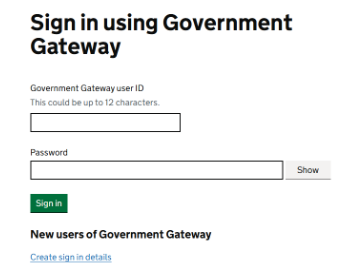
10. Click on 'Sign in'
11. Click on 'Give permission'

Note: Your credentials used to sign into HMRC’s page, in order to grant permission for CCH iFirm MTD for Income Tax to be your compatible software of choice with HMRC must be the same credentials as your online services account that HMRC require all agents to have.
Your credentials will be used to utilise all of the API-based services that HMRC provide.
The authorisation with HMRC is expected to last for an 18-month period, so should not need to be repeated frequently.
11. Once you have granted permission, your authorisation status should now be Active

Signing up for MTD
HMRC has provided a step-by-step guide and video to help you set up the relevant accounts for MTD.
Making Tax Digital for Income Tax as an agent: step by step - GOV.UK and Sign up your client for Making Tax Digital for Income Tax - GOV.UK
Note:
- Create a Government Gateway Account: If you don't already have one, you'll need to create a Government Gateway user ID and password. You can do this on the HMRC website.
- Gather Your Information: Make sure you have your National Insurance number and Unique Taxpayer Reference (UTR) ready. These are required during the registration process.
Authorised as an Agent
The guidance serves as a reminder to both agents and taxpayers that it is the client’s responsibility to designate a main agent. Clients will receive consent statements outlining what information a main or supporting agent can access.
While clients can appoint multiple supporting agents to act on their behalf, only one main agent can be assigned at a time. If a new main agent is chosen, the previous one will lose access.
Supporting agents, however, will retain their authorisation even if additional supporting agents are added.
Useful Information! “If there is no need for a supporting agent, the process is very straightforward – HMRC has confirmed that those currently authorised as agents for Self Assessment will automatically become ‘main agents’ once the client is signed up to MTD.”
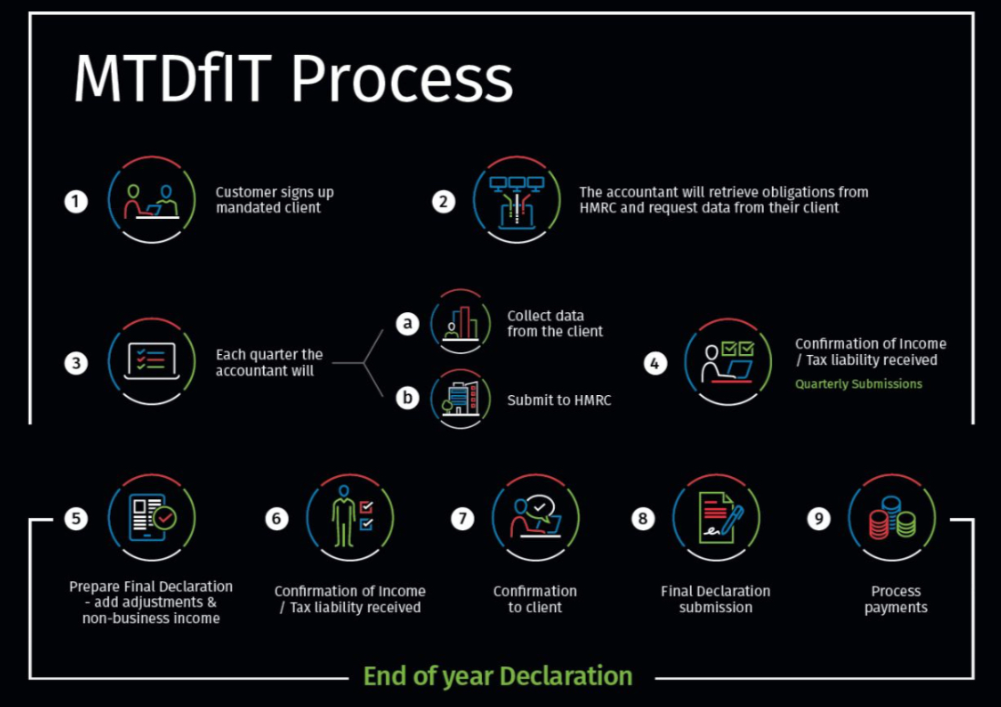
Process of Making Tax Digital for Income Tax
Functional Limitations
- Roll forward from prior years tax return
- Cover letter / transmittal letter
- Relationship and association linking
- Direct import from 3rd party software
- Audit trail
Known Issues! Submission log