
Introduction to Formulae used in CCH Accounts Production
Overview
The CCH Accounts Production the formatter, used to produce a page or note, contains a mix of formulae to bring through references from CCH Central, the Accounts Production Statutory Database, Nominal Codes from the entity's Chart of Accounts, Name Ranges, and a number of standard MS Excel commands, for example: =AVERAGE(), =IF(), =SUM(), etc.
CCH basic formula 'shell' and examples of #references from the statutory database
The most common formula 'shell' within CCH Accounts Production is =AP (" ..."), where ... within the shell is the executable part of the formula.
Each field, also referred to as a #reference, in the statutory database is preceded with # and may be included within a formula in the Accounts Production formatter.
Useful Information! Pressing F11 on the computer keypad will bring up this formula shell (this may be F11 or Ctrl F11 depending upon the laptop/keypad).
As an example listed below are the #references found within the General Information screen from the Limited (FRS 102) entity, there are too many #references to list for every statutory database for every entity.
To lookup the #reference, within the statutory database, click into the relevant cell and the #reference is displayed in the greyed out box top left of the top ribbon, or if known (from viewing a format or paragraph) search using the search box above the greyed out box. Example below searching for #cd2, returning #CD2 in greyed out box and blue arrow showing cell #cd2 Company name.
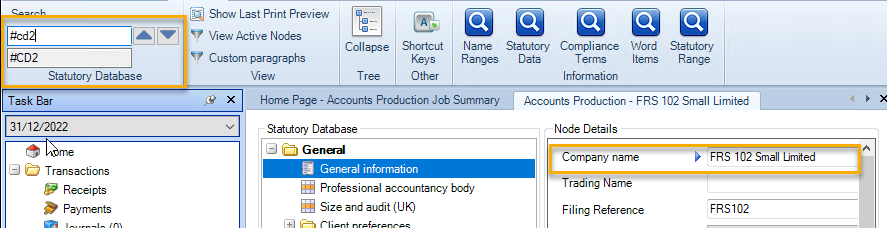
The #references listed below are shown inside the basic AP (Accounts Production) formula shell.
| #reference embedded in =AP("...") formulae | Description of #reference from Statutory Database |
| =AP("#cd2") | Company name (Name of entity) - will not override name entered in Central but will appear on financial statements |
| =AP("#cd3") | Trading Name |
| =AP("#cd194") | Filing Reference (Client Code ) |
| =AP("#cd26") | Country of Incorporation |
| =AP("#cd25") | Registration Number |
| =AP("#cd59") | Period |
| =AP("#cd9") | Period Description (data entry box will open when text is entered in period field #cd59). Use for uneven periods of account |
| =AP("#cd61") | Period end for current year, for prior year enter b, before the # e.g. =AP("b,#cd61") |
| =AP("#cd62") | Year for current year, for prior year enter b, before the # e.g. =AP("b,#cd62") |
| =AP("#cd63") | Display Currency (used as a column header) |
| =AP("#cd280") | Actual Currency (usually appears in a paragraph) |
| =AP("#cd10") | Year End. To show the date in full, e.g. 31 December 2022, use =AP("#cd10'd mmmm yyyy") |
| =AP("#cd12") | Year Start. To show the date in full, e.g. 1 January 2022, use =AP("#cd12'd mmmm yyyy") |
Decimal places and Rounding units do not have references | Enter number of decimal places, usually used when reporting in £m Will round actual TB figures imported/entered, select from the drop down options (note when using rounding, enter rounded figures into analysis fields in the statutory database |
| =AP("#dormant") | Select from the drop down options |
| =AP("#cd14") | First year, tick if applicable |
| =AP("#cd227") | Use page names - default is ticked used within audit report and accountants report to show page names |
| =AP("#cd8") | Draft message on, if ticked |
| =AP("#cd154") | Draft message text, no need to remove just untick box #cd8 |
| Twinfield section | Complete if a user of Twinfield online bookkeeping |
Nominal codes within the basic AP formula
| Formulae | returns: |
| =AP("a,0010") | the balance on a single nominal code for the current year, to show the prior year change the a to b |
| =AP(“{a,0010+a,0020}”) | adds together the current year balances on nominal codes 0010 and 0020 |
| =AP(“{a,0010-b,0010}”) | subtracts the previous year's balance on code 0010 from this year's balance on code 0010 |
| =AP(“a,0010..049Z”) | the total posted for the current year to the nominal codes in the range 0010 to 049Z |
| =AP(“{(a,0010-b,0010)/b,0010}”) | the current year's figure less the previous year's figure divided by the previous year's figure |
| =AP(“#ld0010”) | the nominal code AND description, in this example being "0010 - Sales of goods" |
Within a formula a = this year, b = last year, c = the year before that and so on up to f.
Name Ranges within the basic AP formula
Range names exist for every nominal account and can be viewed from the File > Maintenance > Accounts > Name Range menu option. A Name Range in a formula will always be preceded with an asterisk * and presented with square brackets []. Name Ranges are retrieved in formulae as follows:
Warning: Please be aware that the CCH Accounts Production Name Ranges should not be changed, you may create your own name ranges but it is not advisable to change the standard CCH Name Ranges.
The following are some examples of name range formulae within the basic AP =AP("...") shell:
| Formulae | returns |
| =AP(“[a,*TOTREV]”) | Turnover (current year) |
| =AP(“[b,*AE]”) | Administrative expenses (comparative year) |
| =AP(“[a,*AE]+[a,*DIS]”) | Total of administrative and distribution expenses |
| =AP(“[a,*TOTREV]-[b,*TOTREV]”) | Difference between current and comparative turnover |