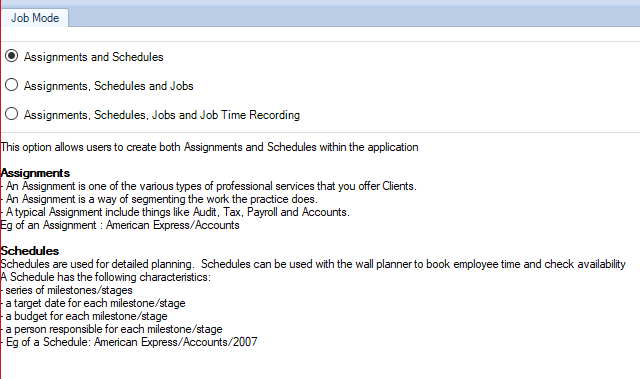
The Job Mode window is available via File > Maintenance > Assignment > Job Mode. A practice will be able to select a configuration setting that they wish to apply within the application. This window displays the three available options that a practice can use.

Job Mode

The Job Mode window is available via File > Maintenance > Assignment > Job Mode. A practice will be able to select a configuration setting that they wish to apply within the application.
This window displays the three available options that a practice can use. The three available configuration options are listed as follows:
clipboard_e97acefdaf6a3317f83ff64238b0e219a.png

This configuration setting is applicable practice wide and therefore the selected mode should be decided at implementation. It is not advisable to change the setting once Timesheet and Billing entries have been posted to the system.

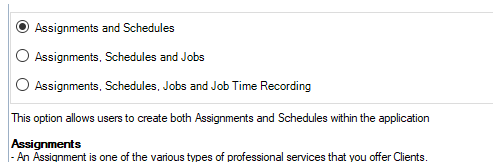
Assignment and Schedules

This mode uses assignments only. If this mode is selected then Jobs will be prevented from being added to an Assignment, therefore Job Management is not available.
clipboard_e567c11d422ab3a7d6a0744b009fe1193.png

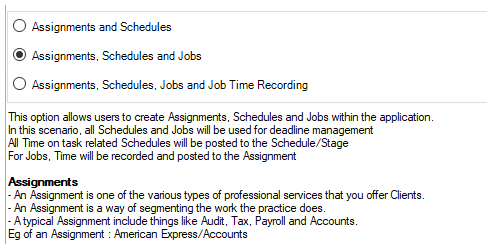
Assignment, Schedules and Jobs

This option allows a Practice to create Jobs and attach them to an Assignment.
In this mode, all WIP for a Job is posted to the Assignment. This mode is seen as being used by Practices who wish to track Jobs solely for deadline management purposes.
clipboard_e2a7c326d399ecb8b8847263925490a37.png

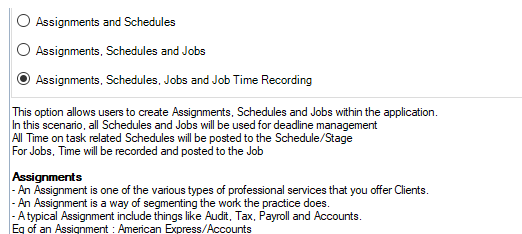
Assignment, Schedules, Jobs and Job Time Recording

This mode is similar to the second mode discussed above, in that a combination of Jobs can be used on an Assignment.
The difference between the two modes is that in this mode, all WIP on Jobs is posted to the Job as opposed to the Assignment resulting in users being required to select the client/assignment details as well as the job details in timesheets.
clipboard_e49706a3af6770a61c48367d7957b8374.png

Related documents

CCH Central Suite Update Guide (Latest Offline Version)
The document outlines the process for using the Central Suite Installer Offline (CSI Offline) for customers with specific IT requirements that prevent internet updates. It provides detailed instructions for installing updates to the Central Suite, including necessary prerequisites, folder structure, and the installation steps. Key points include ensuring Microsoft SQL Server is supported, confirming .NET Framework requirements, and the importance of backups before starting the update. The document also highlights the need for administrator rights, handling database upgrades, and checking for office plugin updates, particularly for users of CCH Document Management.
CCH Central Suite 2026.3 Update Guide
This guide explains how to update an existing install of the CCH Central Suite to the latest version 2026.3 (including Service Packs and Hotfixes) using the Central Suite Installer (CSI).
CCH Central 2026.3 Release Notes
Central Suite Installer (CSI) instructions
The document announces the update of the Central Suite Installer (CSI) for the CCH Central Suite, now compatible with the latest releases and service packs and hotfixes of various CCH applications. Key points include prerequisites for installation, compatibility information, and the necessity for proper backup before proceeding with the update. It highlights specific requirements for Microsoft components, and it warns users of CCH Accounts Production regarding regional settings for date format. Support options are mentioned for users seeking assistance during the update process. Release notes are accessible for detailed information on the updates.
CCH Central 2026.210 Service Pack