Use the Journal screen to enter journals into pre-defined periods.

Entering Journals in the first period

Note: Before entering journals create the reporting periods: Creating the reporting periods and if using Dimensions set these up before posting journals: Dimensions

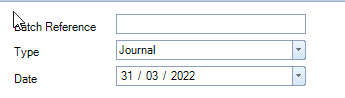
When posting journals, the date will default to the first open period end date.  When posting into the first accounting period, before any periods have been rolled forward this will be the only date displayed.  Thereafter, an additional field will  be displayed.

If using dimensions (set-up prior to posting) a pop-up box will appear for each nominal code that has a dimension associated with it, choose the relevant dimension and click OK.

First period before roll-forward
Accounts_Production_Periodic-Reports_Journal-Entry-Roll-forward-Roll-Back_1.png

Roll-forward

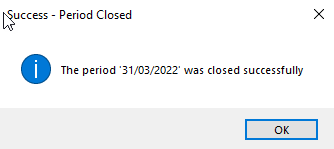
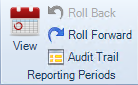
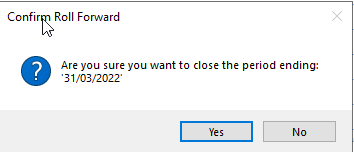
Once all entries have been posted into the first accounting period, to move to the next accounting period (assuming it has been created as above), from the Accounts Production Home screen, click on Roll Forward.  A message will be displayed either click Yes or No to roll forward or not.  If Yes is selected a further message will be displayed to advise the period has been successfully closed, click OK to close this message.
Accounts_Production_Periodic-Reports_Journal-Entry-Roll-forward-Roll-Back_2.png

Accounts_Production_Periodic-Reports_Journal-Entry-Roll-forward-Roll-Back_3.png

Accounts_Production_Periodic-Reports_Journal-Entry-Roll-forward-Roll-Back_4.png

Posting into a subsequent or prior period after roll-forward

Now that the first period has been rolled forward an additional date box is displayed on the screen.
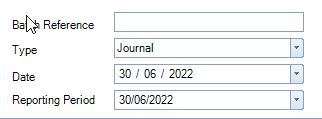
Accounts_Production_Periodic-Reports_Journal-Entry-Roll-forward-Roll-Back_5.png

To post into the current reporting period, do not change the date, enter the journals as normal.  

Once data entry is complete for this current period, close it and move forward to the next reporting period using the Roll forward option from the top ribbon of the Accounts Production Home screen.  If rolled forward in error use Roll Back to reverse this.  

If using reversing journals, these will be automatically reversed when the period rolls forward.

To enter journals into a prior period, select an earlier period from the drop-down list on the Journal screen. 

You will not be able to roll back once you have posted transactions to the new period.

Related documents

CCH Accounts Production/iXBRL essentials training online (10133804)/(10133819)
This document outlines a course on using CCH Accounts Production software, aimed at helping new users efficiently produce statutory accounts. The course includes 1 x 2 hour session and 1 x 3 hour session focusing on practical skills such as setting up accounting periods, importing trial balances, and navigating the software. It is designed for all employees involved in preparing statutory accounts. Training is conducted in an interactive environment called CloudShare, with additional resources available online for further learning and support.
CCH Accounts Production: essentials training online (10133819)
This document outlines a course on using CCH Accounts Production software, aimed at helping new users efficiently produce statutory accounts. The course includes two 2-hour sessions focusing on practical skills such as setting up accounting periods, importing trial balances, and navigating the software. It is designed for all employees involved in preparing statutory accounts. Training is conducted in an interactive environment called CloudShare, with additional resources available online for further learning and support.
CCH Accounts Production 2026.3 Hotfix: Release Notes
Release Notes for CCH Accounts Production 2026.3 Hotfix
CCH Accounts Production 2026.3: Release Notes
Release Notes for CCH Accounts Production 2026.3
CCH Accounts Production 2026.2: Release Notes
Release Notes for CCH Accounts Production 2026.2