
Licensing - Overview
Licensing Methods
Products within Central are licensed in different ways:
User Licensing
Concurrent Users
This means that the system counts the number of users who are in the application simultaneously. Applications that are used for client work tend to be priced on this basis, e.g. CCH Personal Tax or CCH Accounts Production. Every user in a practice can have access to the product, but there is a limit on how many users can go into the product at the same time. If a single user has tabs open for multiple clients at the same time, this still utilises just one concurrent user licence.
Active Employees
This means that the system counts the number of users who have access to the product, whether they go into the product or not. Applications that are used for managing the practice tend to be charged on this basis, e.g. CCH Practice Management or CCH Document Management. The exact meaning of an "active employee" varies slightly from product to product.
Notes
- For Central, an active employee is one who is marked as Active.
- For Practice Management, an active employee is one who is marked as Active and has a timesheet. In this case, the active employee count is only updated when a user creates a new timesheet. So to reduce the active employee count, you need to mark an employee as inactive and then create a timesheet on another employee (to force the count to be updated).
- For Document Management, an active employee is one who has access to Document Management through Task Permissions.
Client Licensing
This means that the number of clients that can be created in Central is limited. This tends to apply to smaller firms who have a Starter Pack licence.
Expiry
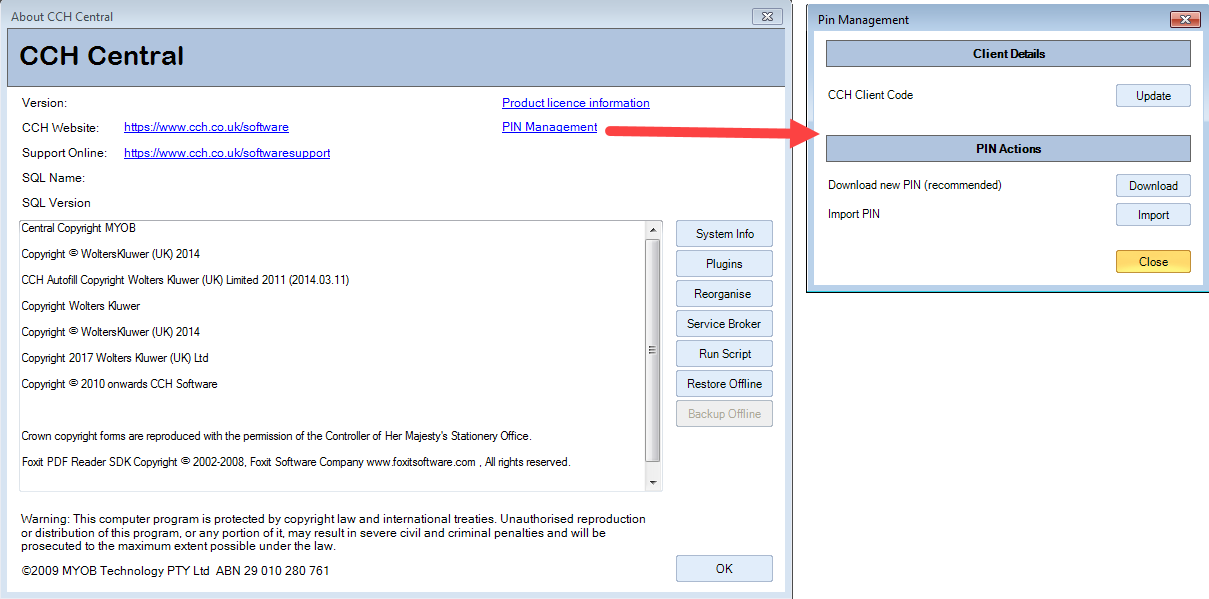
When a licence is due to expire, you are requested to download a new PIN. This occurs on logging in to Central. What happens depends on whether you log in as a user with Task Permission Central # Maintenance # Help @Can Enter PIN. This is usually only allocated to Super Users.
- Users with the Task Permission – If there are less than 40 days to expiry, a warning appears on log on which asks whether you wish to download a new PIN. If you agree you are taken to the PIN Management screen to do so.
- Users without the Task Permission - If there are less than 30 days to expiry, a warning appears on log on which asks you to contact CCH Support,. This is because these users don't have the rights to download a PIN.
The intention of this system is that Super Users are given 10 days to download a new PIN before all users start to receive a warning.
Notes
- Warnings are only shown once per day. So if a user ignores the warning, then they will not be warned again until the next day.
- If you are approaching expiry and are unable to download a new PIN, please contact CCH on [email protected]. Usually a PIN file is issued attached to an email. To import the PIN file, see the section below.
- A single PIN licenses all the products in CCH Central. It can be downloaded or imported, but there is no option to type in the PIN manually (as the number is far too long). So users do not see the PIN number itself.
- Firms can have several CCH licences that expire on different dates, although most firms request that multiple licences are aligned to the same expiry date. If you have licences that expire on different dates, you are asked to download a new PIN as each of the expiry dates approaches.
PIN Files
Usually PINs are downloaded as explained above, but sometimes CCH issue a PIN file which is attached to an email. If you receive a PIN file from CCH, it can be imported as follows:
- Save the attached PIN file to the desktop.
- Log into Central as a Super Users and on the main menu select File > Help > About > PIN Management.
- Click Import and browse to the PIN file. The PIN file is imported.
- Log out of Central and log in again for the new PIN to take effect.
Note: Pin files only work in the month they are issued or the subsequent month. So you should import a new PIN file reasonably