
Linking Addresses to Accounts
Linking a Registered Office or Business address to Accounts Production
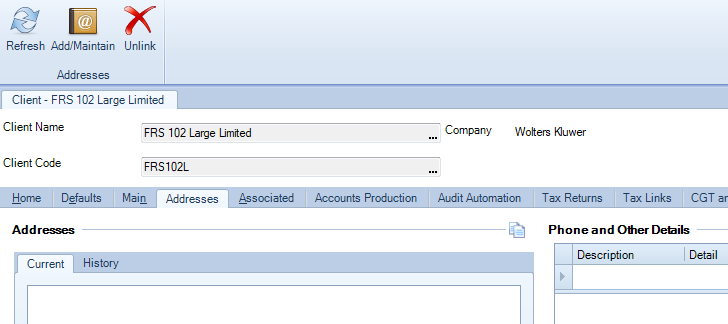
- Select the Addresses tab from within the client screen.
- Select the option Add/ Maintain on the ribbon, from here you are able to view, add, edit, link or delete, subject to the relevant task permissions.
note: Unlink will unlink the address from the client but will leave the address in Central and will not affect any other clients it may be linked to.
- Search for the address in Central by entering any part of the address into the search box to the right of "which starts with", and click the Search button. Do not type into the data entry fields, this will create a new address.
The above shows the card view, you can toggle between the grid and card view by using the Card View option at the bottom of the screen. - The address will be displayed, select it (do not click on the post code as this is a hyper link and will take you to maps). If the address does not exist see below re: adding a new address.
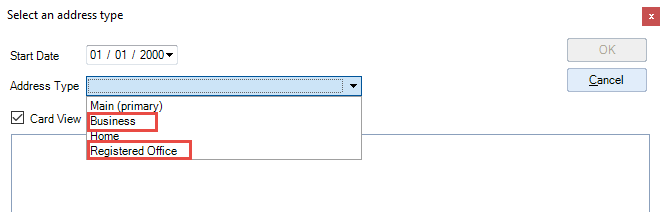
- Click the Link paper clip icon on the ribbon, you will then be asked to select the Address Type, which for accounts Production will be Business or Registered office, you may link one address at a time, if you wish to link both address types then repeat the process.
- To add a new address, do one of the following:
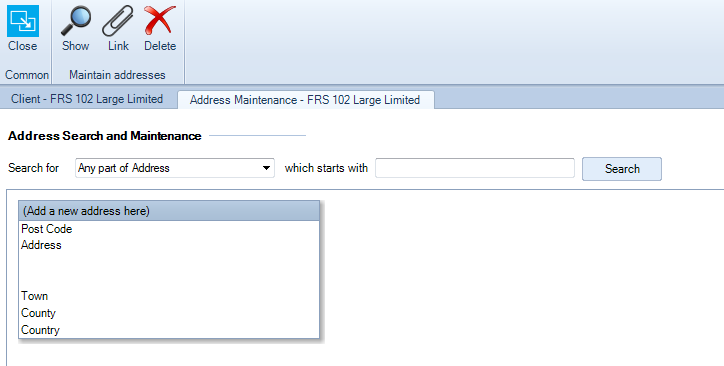
- In the Card View: click and enter the address details in the relevant fields of the “Add a new address here” card.
- In the Grid View: click and enter the address details in the data entry row ensuring that you enter to the end of the row so that it drops below the line.
- Upon completion of the entry, when you move away from the card or grid view, press the [Enter] key in the entry row, the following prompt is displayed:
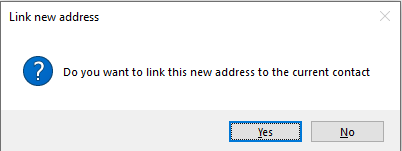
- Select as appropriate, if you choose Yes, you will need to select the address type, as above
Note: Selecting Delete on the ribbon within the Address Maintenance area will remove an address from the Central, not just from the client, if you wish to unlink an address from a client, if linked in error, then you will do this from the Addresses tab.
Start and End dates
Each address has a start and end date, which determines if an address is relevant to an accounting period. If the start date falls before the last day of the accounting period and/or the end date falls after the date the accounts are signed, the address will be used in the financial statements. If the dates fall outside of this range, then the address will be ignored. The benefit of this approach is that a history is maintained of different addresses and the system will chose the correct one for each accounting period.
Note: for both Associations and Addresses, if the start and end dates are blank, it will be taken that the record is relevant for all accounting periods.