
Materiality Base of Factors
Each materiality figure is defined as an average of one or more factor bases, which in turn are defined to include a range of classifications from the chart of accounts.
For example, assume that a profit and loss materiality factor was to be calculated by averaging two figures, one based on turnover and the other on result before tax. Two factor bases would be created, one representing all the classifications allocated to turnover codes (normally just TO), and the second all the classifications which represent accounts that go to make up the result before tax figure. In this case it includes turnover and all classifications representing expenses. In our example the classifications are:
TO = Turnover
PUR = Purchases
SAW = Salaries and wages
II = Investment income
ALL = All other profit and loss account codes
The two factor basis would be defined as incorporating the base classifications listed above, and an indication of the percentage that is considered material in each case. 1% may be material for turnover and 5% may be material for result before tax.
The profit and loss materiality factor would then be defined as an average of the two factor bases.
The profit and loss account factor would be defined as an alternative materiality factor. The first materiality factor defined is the base materiality factor, and should include the definition of the overall materiality for the client. In the CCH masters this is defined as an average of the following:
X% of turnover
5% of result before tax
4% of net assets/liabilities
X% of gross assets
(X% refers to a graduated percentage, see below.)
The alternative materiality factors will be calculated and the result will only be used if it is less than the base materiality factor. If it is higher, then the base materiality factor will be used wherever the alternative materiality factor is referred to.
To edit the materiality factors, load the pack for editing and click on the Materiality option in the Master options list. The system will display a list of the bases that have already been defined.
Materiality calculations dialog
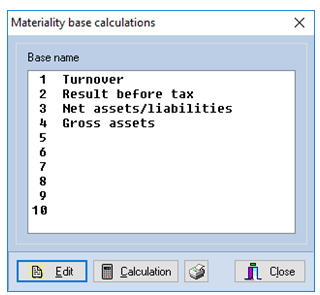
Up to ten bases can be defined and to edit or add a base, either double click on the line containing the base (or to contain the base), or click on it and then select [Edit]. Whichever method is used, the Base details dialog will be displayed.
Base details dialog
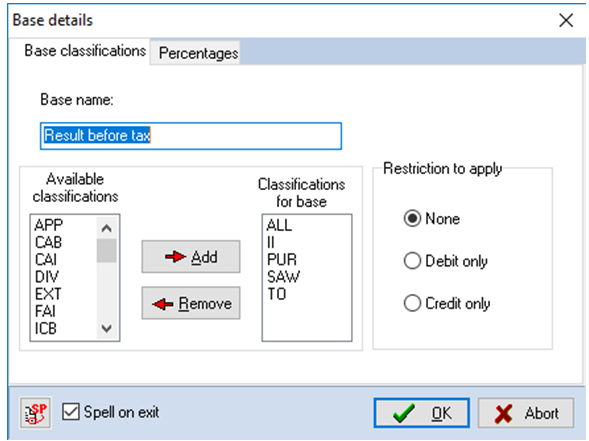
This dialog contains two pages, the first allows you to enter or edit the base name, classifications to include and any restrictions to apply, and the second allows you to define the percentage to apply to the total of the base to arrive at the level considered material for that group of data.
Edit the base name, if it is not correct, and add or remove classifications as follows:
Add a classification to the base
Either double click on the code of the classification in the Available classifications list, or click on it once and then select [Add]. The code will be added to the Classifications for base and removed from the list of available classifications.
To remove a classification from the base
Either double click on the code of the classification in the Classifications for base list, or click on it once and then select [Remove]. The code will be added to the Available classifications list and removed from the list of codes included for the base.
Restrictions to apply
The system can be set to include all totals from each classification, None for no restriction, only include classifications if the total of the accounts within it are in debit, Debit only, or only to include them if the total of the accounts is in credit, Credit only. To change the setting, click on the radio button of the new restriction to apply.
Percentages
To set the percentage to apply to the total of the base, select the Percentage tab on the Base details dialog.
Base details dialog
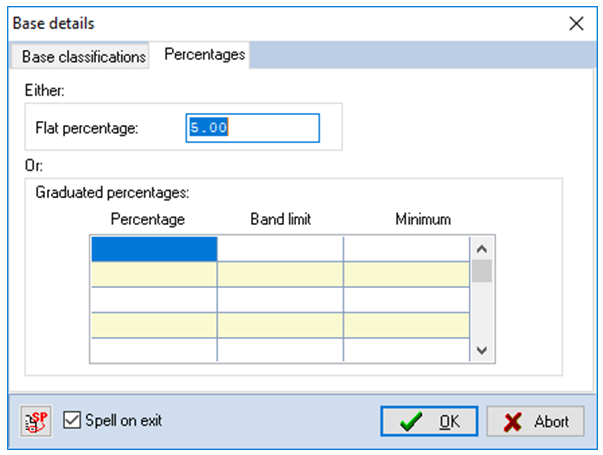
If you only require materiality based on a single percentage, no matter what the level of the activity, enter the level of the percentage to apply in the Flat percentage edit box and leave the Graduated percentage grid blank. However, if you would like to use different percentages for different levels of activity, leave the Flat percentage edit box blank and enter the details in the Graduated percentage grid.
The figures shown in the screen shot could be used in one of two ways:
1) If the checkbox called Increment over base on the Master audit pack settings dialog is not ticked, they would be applied as follows:
- For turnover up to £500,000 - take 3%.
- For turnover between £500,001 and £1,000,000 - take 2.5%, subject to a minimum of £15,000.
- For turnover between £1,000,001 and £2,000,000 - take 2%, subject to a minimum of £25,000. Etc.
2) If the checkbox called Increment over base on the Master audit pack settings dialog is ticked, they would be applied as follows:
- For turnover up to £500,000 - take 3%.
- For turnover between £500,001 and £1,000,000 - take 2.5% of the excess over £500,000 and add the result to £15,000.
- For turnover between £1,000,001 and £2,000,000 - take 2% of the excess over £1,000,000 and add the result to £25,000. Etc.
You may move around the table using the <Up arrow>, <Down arrow>, <Left arrow> and <Right arrow> keys, making changes where required. On entering a cell the figure will be highlighted. If you start typing the existing figure will be cleared and your new entry recorded, however, if you wish to edit an existing figure, press <F2> and the insertion point will appear.
When you have finished editing the figures, click on [OK] and the system will return to the Materiality base calculations dialog. Alternatively if you do not wish to store any changes that you may have made, click on [Cancel].
You may now select another factor base, as described above.
Materiality calculation matrix
The system uses the Materiality base matrix dialog to allow you to edit the name and content of each materiality factor.
Materiality base matrix
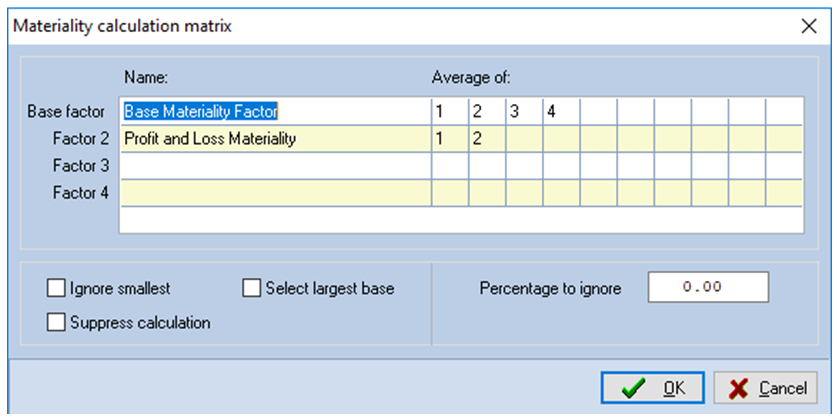
This matrix allows you to name each of the four materiality factors and type in the numbers of the individual bases to average in order to arrive at the materiality figure.
When the dialog is first displayed, the name of the base materiality factor will be highlighted and this can be typed over, or edited by pressing <F2>. You may use the arrow keys to move around the grid, editing the data as required.
The numbers entered in the Average of columns, correspond to the position of the base in the Materiality base calculations list.
The facility is provided to allow the materiality model to ignore the smallest item in the factor base if it is less than a specified percentage of the next largest item. If you wish the model to apply this option, check the Ignore smallest check box and enter the percentage to apply.
When you have finished editing the information shown, click on [OK], or [Cancel] if you do not wish to retain any changes made, and the system will return to the Materiality base calculations dialog.