Milestones: Creating, Editing and Deleting
Milestones are significant events in the life of a project. They can be created and tagged to an assignment type and can have target completion dates applied.
Milestones are created by Assignment Type, and you can have different milestones for each Assignment Type. On the Jobsheet home page control you have the option to filter by Assignment Type and only see the jobs/schedules relevant for the chosen type with the applicable milestones.
Setting up a new Milestone
Once milestones are set up they can have a status assigned to them via the right click menu on the Jobsheet home page control.
- On the main menu, click File > Maintenance > Assignment > Milestones.
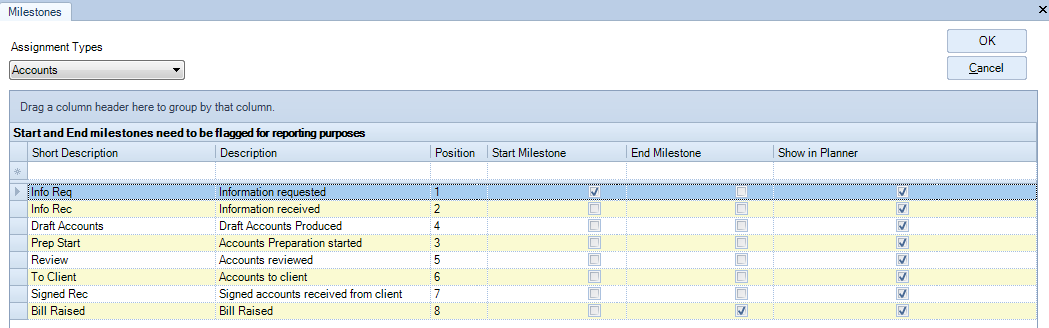
- On the Milestones window select the Assignment Type from the drop down list.
- In the blank row at the top of the table, enter the Short Name for the milestone. This name will be displayed on the Jobsheet home page control.
- Enter the milestone Description. This information will appear in reports.
- Indicate the Position of the milestone on the homepage control in the order from left to right. For example, if you enter position 1 the milestone will appear in the first column from the left.
- To set the milestone as the starting milestone, select the Start Milestone check box. When completed, this is the actual start date. You can have only one start milestone for an Assignment Type.
- To set the milestone as the end milestone, select the End Milestone check box. The date this milestone is completed will be the actual end date. You can have only one end milestone for an assignment type.
- To display the milestone in the Toolbox > Jobsheet home page control select the Show in Planner check box . If this check box is clear, the milestone will not be displayed in the planner.
- To modify an existing milestone, click in the field and amend the text directly.
- When you have finished, click OK to save the changes and close the Milestones window.
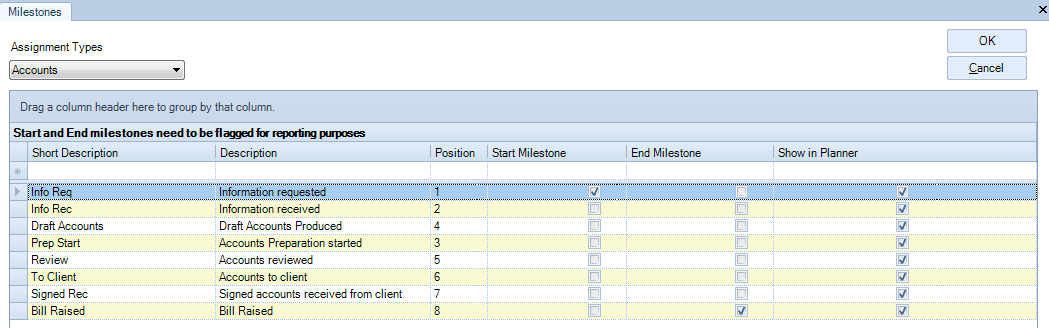
Note: In order to make use of reporting on milestones, a start and end milestone must be flagged for each job. A job is deemed started when the status of the Start Milestone is set to Complete. A job is deemed to have ended when the status of the End Milestone is set to Complete. When the status of the End Milestone is set to Complete, the job/schedule will not be displayed on the Jobsheet home page control any more.
Editing Milestones
- Click File > Assignment > Milestones.
- Click on the short description or description field to edit it.
- Re-adjust the order of the position if required.
When you have finished, click OK to close the window.
Deleting Milestones
- On the main menu, click File > Maintenance > Assignment > Milestones.
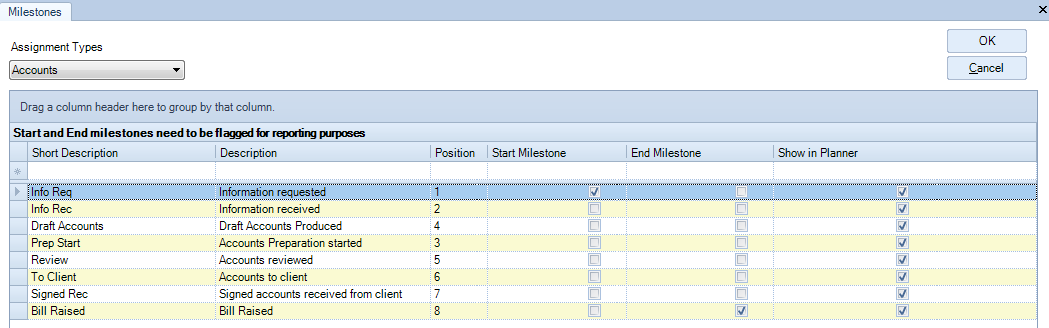
- On the Milestones window, select the Milestone to delete by clicking the blue arrow on the left of the line until the line is highlighed in blue.
- Press the [Delete] key and then click Yes when prompted to confirm the delete action.
- Re-arrange the order of the position. Make sure the start and end boxes are selected on the correct milestone.
- When you have finished making changes, click OK to save the changes and close the Milestones window.