Moving Forward to Next Year
After the audit has been completed, all journals, and completion data entered, the points forward memorandum updated and the pack printed, the client should be balanced forward ready to plan the next years audit.
The option to balance forward will only be available if the completion of the audit on the system has been fully recorded, or the flag is set in the client control data to indicate that the system does not have to force on screen completion.
To balance forward a client, select [Balance forward] from the Utilities menu. If the third-party link is set for the system, the system will check that all agreed journals have been consigned to a posting file, it will also check that the planning was completed before proceeding. If either checks fail, it will not allow you to proceed. See click here regarding planning and click here regarding exporting journals.
The system will display the Balance forward dialog:
Balance forward dialog
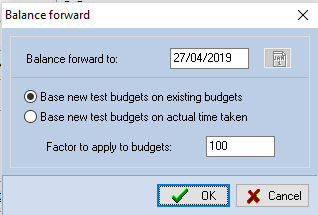
Either accept, or change the date shown for the following period. When the date box has focus, the calendar button will be active to allow you to pick a date. The other options on the dialog operate as follows:
Base new test budgets on existing budgets
If this option is selected, as it is by default, the system will not alter the staff members to which tests are allocated, and will calculate a time budget based on the existing budget multiplied by the percentage factor, see below.
Base new test budgets on actual time taken
If this option is selected, the system will set the allocated member of staff to the employee that carried out the test in the current year and calculate the budget based on the time the test took to complete, multiplied by the percentage factor.
Factor to apply to budgets
The factor entered here will be applied to the calculation of the time budgets for each test. A factor of 100% will leave the figure unaltered, 110% will increase it by 10%, etc. Select the option to be used and click on [OK]. The system will ask you to confirm that you wish to balance forward.
If, after you have selected the destination for the backup anything happens to stop the backup running to completion, e.g. the destination already contains a backup and you indicate that you do not wish to proceed, or a file is locked and the backup fails, the balance forward will be aborted and you will need to run the process again.
During the balance forward process, the accounting data is moved back one year and the current year’s TB set to nil, any movements in the permanent data added to brought forward figures and movements set to zero, the journal and checklists files are cleared and all files are packed to recover space taken by deleted records.
After a balance forward, you will be left with the same audit programme as the previous year. You can vary this by running the option to update audit test exclusion and by customising it further for the current year. It is also possible for the System Manager to release the option to initialise the audit programme if you wish to start with a new one based on the master audit programme, or for you to do this if you switch to a different master audit pack. See click here for more information.
The Balance Forward process
When the balance forward is complete users will be asked to consider if the client is attached to the latest version of the master pack with the following message:

Update missing checklists and audit programmes
A new button has been added to the utility menu to allow users to rebuild the checklists and audit programmes based on the master pack that the audit is linked to. This is to resolve a issue when the software is unexpectedly closed during the balance forward routine causing the audit checklists and programmes to be incomplete.

Missing Documents
As part of the balance forward routine the software will check for any missing documents and display a message to the user asking if they want to proceed with the balance forward routine. Continuing with the balance forward will remove the documents from the audit file and exclude them from the balance forward routine.
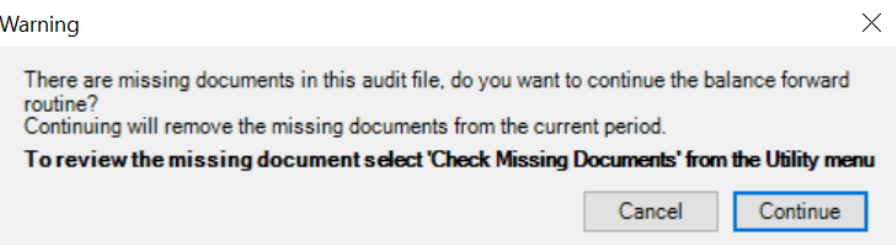
To review the missing documents click the cancel button above and select the Check Missing Documents option from the utilities menu. This will display a list of the missing documents.

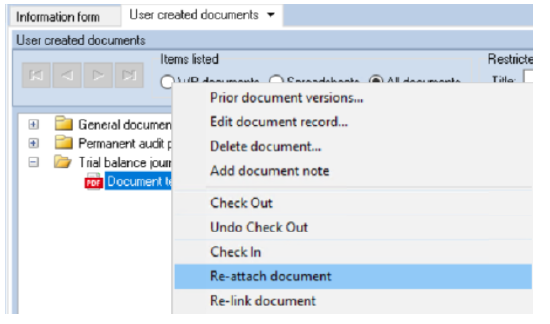
Any required documents can be re-attached from the right click menu in the User Documents area.