
Pensions Accounts User Guide
This is the user guide for the CCH Accounts Production Pensions accounts, updated for Master Pack 16.
CCH Accounts Production Pensions Master Pack
Introduction
This user guide provides accounts preparers with guidance on the preparation of Annual Reports under the 2018 Pensions SORP, FRS 102 and other regulatory guidance including the Occupational Pension Schemes (Requirement to obtain Audited Accounts and a Statement from the Auditor) Regulations 2016 (Statutory Instrument Number 229).
Scope
This Pensions Master Pack has been produced to provide compliant accounts for the following types of pension funds:
- Defined benefit (DB) schemes
- Defined contribution/money purchase (DC) schemes that require a set of financial statements to be produced
- Hybrid schemes - ie, where there are both DB and DC elements
- Small self-administered schemes (SSAS)
The pack does not cover the following schemes:
- Ear marked money purchase schemes
- Relevant ear marked money purchased schemes
The pack does not include:
- Lead schedules
- Management account formats
- Exception report
Client creation
Create the client in Central if it does not already exist:
- Client type = Not for profit organization
- Business type = Other
On the Accounts Production tab, click in the grid to create a new accounting period, using the settings below:
- Type = Pension
- Entity = UK Pension Fund
- Master Pack = Most recent version
- Chart = Can be either 3 digit or 4 digit, depending on what your firm is accustomed to. If there is no past experience, choose 4 digit.
Small self-administered schemes (SSAS)
See Appendix B.
Hybrid schemes
See Appendix C.
Is an audit required?
Section 47 of the Pensions Act 1995 requires the trustees or managers of every occupational pension scheme to appoint auditors. Non-compliance by a trustee or manager with this section of the Act is subject to a civil penalty. The scheme Administration Regulations (S1 1996 No 1715, regulation 3) exempt a number of schemes from appointing Scheme Auditors. The schemes which are exempt from appointing a Scheme Auditor, include:
- Superannuation funds (schemes under section 615(6) of the Taxes Act).
- Unfunded schemes.
- Money purchase Small Self-Administrated Schemes (SSASs) where all members are trustees and all decisions are by unanimous agreement.
- Non-approved schemes.
- Schemes guaranteed by the Crown.
- Salvation Army, Devonport and Rosyth Royal Dockyards, Atomic Weapons Establishment and certain British Rail schemes.
- Certain public service schemes.
- Schemes with less than two members.
- Schemes providing only death benefits and which provide no accrued rights.
- Relevant earmarked schemes, which are money, purchased schemes where all benefits are secured by insurance or annuity contracts. These benefits are specifically allocated to individual members, and all members are trustees and all decisions are by unanimous agreement (SI 1997 No. 786).
Advisors and addresses
In a similar way to how the Limited Company Master Pack works, details of the Advisors and Addresses relating the Pension Scheme are obtained using Central Associations. Pension Schemes have additional advisors and address types compared to a normal limited company job. The list of Advisors that can be included in the statutory accounts is as follows:
| Secretary to the trustees | #se3 - Central Association "has secretary of" (Note: Title can be overwritten in statutory database grid) |
| Scheme administrator | #oa1 - Central Association "has other advisor of" (Note: Title can be overwritten in statutory database grid) |
| Principal employer | #sp1 - Central Association "has sponsoring employer of" (Note: Title can be overwritten in statutory database grid) |
| Actuaries | #at1 - Central Association "has actuary of" |
| Accountants / Auditors | #au1 - Central Association "has auditor of" |
| Legal advisors | #so1 - Central Association "has solicitor of" |
| Investment advisors | #ia1 - Central Association "has investment advisor of" |
| Investment custodians | #cu1 - Central Association "has custodian of the scheme's assets of" |
| Property managers | #pp1 - Central Association "has property manager of" |
| Property valuers | #sv1 - Central Association "has surveyor of" |
| Bankers | #bk1 - Central Association "has bank/bs of (accts prod)" |
| Investment manager | #oa2 - Central Association "has other advisor of" (Note: Title can be overwritten in statutory database grid) |
| Other advisor 2 | #oa3 - Central Association "has other advisor of" |
Other advisor 2 can have a title added to their name and this should reflect their position or occupation. This can be input using the Alias field on the Central Contact record.
The commonly used advisor types can have their titles overridden in the statutory database:

Trustees and advisors
The Trustees of the Pension fund should be entered via the Officers screen. This is a simplified version of the same screen in the company Master Pack. For pension schemes you only need to show the list of trustees along with the date of appointment and/or retirement.
Nominal ledger
The nominal ledger structure differs from other FRS 102 entities in that it continues to use the legacy 3 and 4 digit UK Pension charts.
Sub codes
Many of the nominal codes are subcoded, eg:
3400 Change in market value of investments
340001 Investment properties
340002 Fixed interest securities
All data entered into a sub-account is reflected in the balances of its main/parent account.
Home and overseas
The need to distinguish between Home and Overseas investments is no longer required by the SORP 2015. The distinction remains in the chart of account for user convenience but Home and Overseas balances are not split out on the Statement of Net Assets.
Pooled investment vehicles
The SORP 2015 introduced a new category of investments called Pooled Investment Vehicles (PIV). These are included in the chart of accounts with the following categories: Equities, Bond, Diversified growth, Hedge funds, Property, Cash, Spare headings 1 – 3. User defined headings can be entered via the statutory database.
Derivatives
The SORP 2015 introduced a new investment category called Derivatives. These are included in the chart of accounts with the following categories: Futures, Swaps, Options and Foreign currency exchange contracts.
Statutory database entries
The Statutory database reflects the key information needed for the scheme as a whole and the various sections of the acccounts, eg:
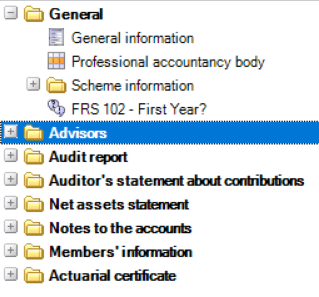
Scheme information
The Scheme Information section has options to configure the type of pension scheme and the relevant requirements.
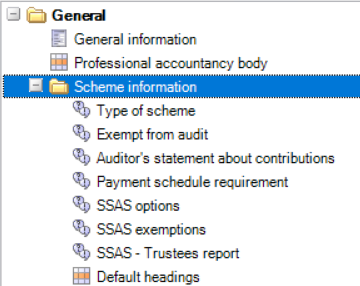
Scheme type and description for headings
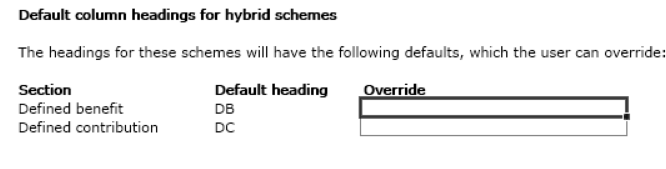
The user chooses the scheme type and can then override the column headings used where it is a hybrid scheme:

Trustees’ annual report
This operates in the same way as the Directors’ report section in the company FRS 102 Master Pack. The headings shown indicate the general requirements of this report. Where possible standard wordings have been included as a basis for tailoring to the pension scheme’s circumstances. Within the master paragraphs there are a lot of suggestions. These suggested paragraphs have been prefixed with asterisks, eg as follows:
“**Particulars of how the scheme is managed, including:|who has powers to appoint and remove trustees, and method of appointment;|frequency of meetings, voting arrangements;|composition of the board of trustees including the number appointed by members and those by employers;|etc.
The Trustees Responsibilities Statement has been presented as a separate format, similar to the company FRS 102 and in line with proforma accounts. If you wish to include it as part of the main Trustees report there is a trigger question (#cz68) to allow this:

The membership of the scheme must be disclosed, split into beneficiaries, active members, deferred members, and pensioner members. The SORP suggests that this information be presented as a reconciliation from last year’s numbers, along with an explanation of any significant increase or decrease in membership. The Actuarial Liabilities disclosure may likewise be included with the main Trustee’s Annual Report, or presented as a separate disclosure as preferred by using the trigger question #px412:

The signatories for the Trustees’ Annual Report are specified in the Officers Screen.
Trustees’ responsibilities statement
This appears by default as a separate statement. There is however an option (#cz68) to include it as part of the Trustees’ Annual Report.
Investment report
The Investment management disclosures may be included with the main Trustees’ Annual Report or split out into a separate report as preferred, using the trigger question #px410:

Each memo field, with the exception of the three free text fields, has notes as to the type of information to be typed into the field. For example, the Review of business field has the following text:
- “***A review of the performance of the scheme's investments during the year (and over a three to five period) including an assessment of the nature, disposition, marketability, security and valuation of the scheme's assets.”
- The *** at the beginning of the text indicates that this is text that needs to be edited on a per client basis.
Audit report
This is consistent with that included in the FRS 102 Company master pack, but with references to the relevant pensions legislation.
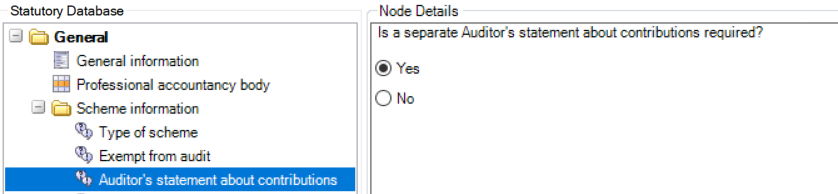
Auditor's statement about contributions
This is a requirement to provide a statement as to whether, in the auditor's opinion, contributions have been paid in all material respects, in accordance with the Schedule of Contributions or Payment Schedule.
This would be a requirement for all occupational pension schemes that are required to have audited financial statements, with the rare exception where the scheme has at least 20 participating employers. [Regulation 4 of the Audited Accounts Regulations]
The user chooses whether this is required:
Application to SSAS schemes
This audit concerning contributions does not apply to an SSAS scheme unless:
- The SSAS scheme is audited, or
- The auditor's statement about contribution is specifically required by the members or the trust deed.
Schedule of Contributions (DB) and Payment Schedule (DC)
Ordinarily, an auditor's certificate is required only for comparison of contributions received against a Schedule of Contributions related to DB schemes, as prepared by an actuary and confirmed in the actuarial certificate.
For DC schemes, there will instead be a Payments Schedule. This will not usually be audited, but it could be.
Hybrid schemes might be audited only for the DB element, or for both DB and DC elements. Therefore the user will in some circumstances need to clarify this:
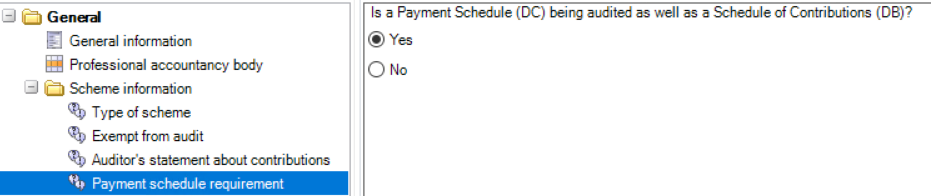
References to the two Schedules are governed by #px4 (Type of scheme) and #px5 (Payment schedule requirement):
- If #px4 = DB scheme only, the references will be to the Schedule of Contributions
- If #px4 = DC scheme only, the references will be to the Payments Schedule
- If #px4 = Hybrid, the assumption will be that only the DB contributions are audited, so
• If #px5 = n, the references will be to the Schedule of Contributions ONLY
• If #px5 = y, the references will be to BOTH the Schedule of Contributions AND the Payments Schedule
Accountants’ report
This is consistent with that included in the FRS 102 Company master pack.
Actuarial statement
The statement is required for defined benefit plans only. The Disclosure Regulations require the annual report to contain a copy of the appropriate certificate by the actuary under section 227 of the Pension Act 2004 about the adequacy of the contributions payable towards the scheme (certification of schedule of contributions). See SORP 3.34.7 for further details.
It has two parts:
- Adequacy of the rates of contribution
- Adherence to the Statement of Funding Principles.
Dates relating to the actuarial review are required for inclusion in other sections of the accounts, even where the actuarial statement itself is not required within the accounts.
Accounting policies
There are default paragraphs for the various policies, which should be tailored to the circumstances of the pension fund.
Notes to the accounts
The notes are listed below in the order in which they appear in the financial statements. Each of the notes has their own section within the Statutory Database and for some of them the only field they contain is a memo field for extra text.
Reconciliation of investments : This note includes various paragraphs as required by the SORP if applicable. It also includes two grids for entry of figures for disclosure purposes:
- Transaction costs, and
- Defined contribution assets allocated to members and trustees.
Spare Investment headings: There are two user defined investment headings. These correspond to the following nominal codes:
Spare 1 – 754.01 – 754.08
Spare 2 – 754.11 – 754.18
Property: We have included five paragraphs for detailed disclosure as required by the SORP. The Guidance Notes detail what is required for paragraphs 1 to 4. The fifth is a free text paragraph.
Pooled investment vehicles : There are three user defined PIV headings. These correspond to the following nominal codes:
Spare 1 – 751.71 – 754.78
Spare 2 – 754.81 – 754.88
Spare 3 – 754.91 – 754.98
Derivatives: There are four categories of derivatives; Futures, Swaps, Options and Forward Foreign Exchange Contracts. These correspond to the following nominal codes:
| Derivatives - 753 |
| Futures - 753.01 – 753.1H |
| Forward foreign currency - 753.21 – 753.3H |
| Swaps - 753.41 – 753.5H |
| Options - 753.61 – 753.7H |
Disclosure of objectives and policies for holding derivatives is given via paragraphs. Disclosure of key contract details is given in a grid; we have allowed for five different descriptions for each category.
Example:

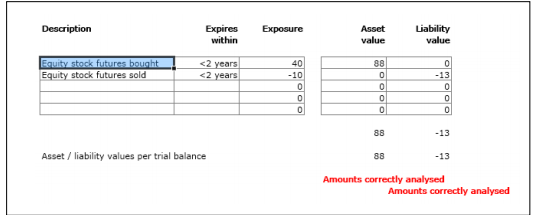
The nominal totals for assets and liabilities for each category are included, to confirm analysed correctly. Liability figures should be entered with a lead minus sign.
Intangible assets and Tangible fixed assets: The column headers are provided by default but may be changed to suit the client’s situation.
Self investment: There are two master paragraphs: one for when there is no self investment, and the other for details where there is self investment.
Insurance policies: There is a grid to analyse up to five different insurance policy descriptions.
AVC investments: There is a grid to enter descriptions of up to five AVC investments. These correspond to the five sub code analysis of nominal code 750.
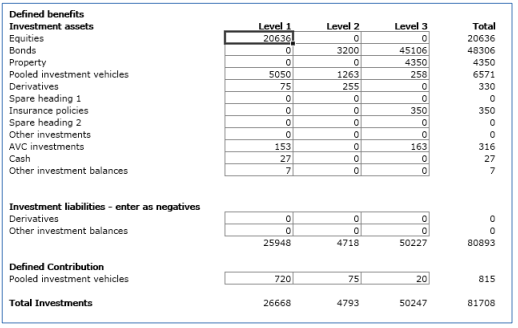
Fair value determination: A grid is provided to enter the level 1, 2 and 3 values.
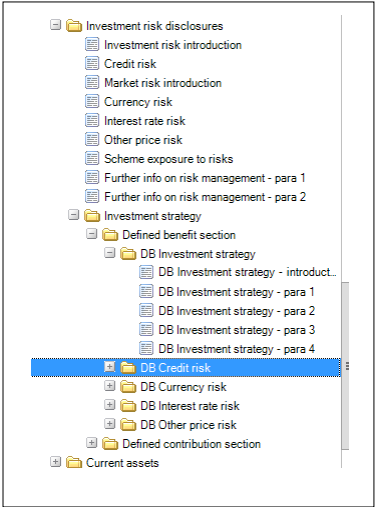
Investment risk disclosures: The disclosures required by the SORP for the various types of investment risk have been catered for via various paragraphs. Investment strategy is split between Defined Benefit and Defined Contribution. Five paragraphs have been included for disclosures re each type of risk.
Borrowings: This section includes the maturity analysis required.
Members’ information
If required, a page can be included with the Accounts detailing general information about Pension services that may be of interest to the Members of the scheme. This can be printed via the trigger question #px460:
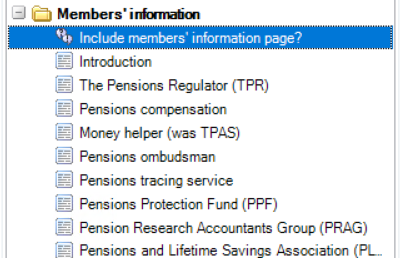
Where the page is triggered, the user can tailor the individual paragraphs
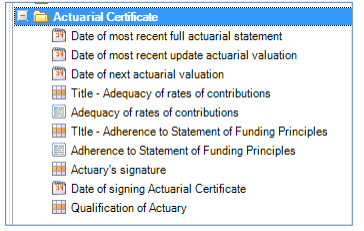
Actuarial certificate
The final section in the Statutory Database allows the entry of details that will appear on the Actuarial Certificate included at the end of the accounts:
Appendix A – Formats guide
Detailed below is a list of the Pages and Notes for each type of fund.
| Sequence | Format Name | Format Code |
| 0 | Front Cover | p01cover |
| 1 | Contents | p02contents |
| 2 | Trustees And Advisors | p03trusteesadvisors |
| 3 | Trustees' Annual Report | p04trusteesreport |
| 4 | Report on Actuarial Liabilities | p04AAactuarialliab |
| 5 | Trustees' Responsibilities Statement | p04Atrusteesresponsibilities |
| 6 | Governance Statement | p04bgovernancestmnt |
| 7 | Auditor's Report | p05auditreport |
| 8 | Auditor's Statement About Contributions | p05aauditcontbnstmnt |
| 9 | Accountants' Report | p06accountantsreport |
| 10 | Investment Report | p07investmentreport |
| 11 | Fund Account | p08fundaccount |
| 12 | Fund Account - Hybrid | p09hybfundaccount |
| 13 | Statement Of Net Assets - Defined Contribution | p10netassetsstatementdef con |
| 14 | Statement Of Net Assets - Defined Benefit | p11netassetsstatementdef ben |
| 15 | Statement Of Net Assets - Hybrid | p12hybnetassetsstatement |
| 16 | Basis Of Preparation | n01basisofpreparation |
| 17 | Accounting Policies | n02accountingpolicies |
| 18 | Spare Note | n03spare |
| 19 | Contributions | n04contributions |
| 20 | Contributions | n05hybcontributions |
| 21 | Transfers In | n06transfersin |
| 22 | Transfers In | n07hybtransfersin |
| 23 | Other Income | n08otherincome |
| Sequence | Format Name | Format Code |
| 24 | Other Income | |
| 25 | Spare Note | |
| 26 | Benefits Paid Or Payable | n11benefitspayable |
| 27 | Benefits Paid Or Payable | n12hybbenefitspayable |
| 28 | Payments To And On Account Of Leavers | n13paymentstoleavers |
| 29 | Payments To And On Account Of Leavers | n14hybpaymentstoleavers |
| 30 | Other Payments | n15otherpayments |
| 31 | Other Payments | n16hybotherpayments |
| 32 | Administration Expenses | n17adminexpenses |
| 33 | Administration Expenses | n18hybadminexpenses |
| 34 | Spare Note | n19spare |
| 35 | Investment Income | n20investmentincome |
| 36 | Investment Income | n21hybinvestmentincome |
| 37 | Investment Management Expenses | n24investmentmanagementexpenses |
| 38 | Investment Management Expenses | n25hybinvestmentmanagementexpenses |
| 39 | Taxation | n50taxation |
| 40 | Spare Note | n26spare |
| 41 | Prior Period Adjustments | n27priorperiodadjustments |
| 42 | Prior Period Adjustments | n28hybpriorperiodadjustments |
| 43 | Spare Note | n29spare |
| 44 | Reconciliation Of Investments | n30Investmentmovement |
| 45 | Reconciliation Of Investments | n31hybinvestmentmovement |
| 46 | Property | n56Property |
| 47 | Pooled Investment Vehicles | n57piv |
| 48 | Pooled Investment Vehicles | n57hybpiv |
| Sequence | Format Name | Format Code |
| 49 | Derivatives | n58derivatives |
| 50 | Insurance Policies | n59InsurancePolicies |
| 51 | Defined Benefit AVC Investments | n61DBAVCInv |
| 52 | AVC Investments | n62hybAVC |
| 53 | Tangible Fixed Assets | n34tangibleassets |
| 54 | Tangible Fixed Assets | n35hybtangibleassets |
| 55 | Intangible Fixed Assets | n36intangibleassets |
| 56 | Intangible Fixed Assets | n37hybintangibleassets |
| 57 | Fair Value Determination | n51FairValue |
| 58 | Investment Risk Disclosures | n52InvestRisk |
| 59 | Spare Note | n38spare |
| 60 | Self Investment | n53SelfInv |
| 61 | Current Assets | n39currentassets |
| 62 | Current Assets | n40hybcurrentassets |
| 63 | Current Liabilities | n41currentliabilities |
| 64 | Current Liabilities | n42hybcurrentliabilities |
| 65 | Borrowings | n43borrowings |
| 66 | Borrowings | n44hybborrowings |
| 67 | Auditors' Ethical Standards | n45audethical |
| Sequence | Format Name | Format Code |
| 68 | Related Party Transactions | n46relatedparties |
| 69 | Contingencies And Commitments | n54Conting |
| 70 | Subsequent Events | n55Subsequent |
| 71 | Auditor's Liability Limitation Agreement | n47auditorlimitation |
| 72 | Transition To FRS 102 | n60TransFRS102 |
| 73 | Members Information | p14membersinformation |
| 74 | Actuarial Certificate | p15actuarialstatement |
Appendix B - Small self-administered schemes (SSAS)
Options
The following options are provided for these:
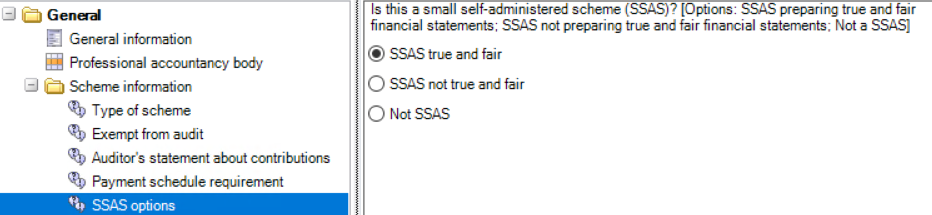
Where 'SSAS true and fair' OR 'SSAS not true and fair' is chosen, there is an exemption to consider. Choosing "yes" will suppress disclosures that are only required by the Regulations, but will leave disclosures required by the SORP or FRS 102 where relevant:
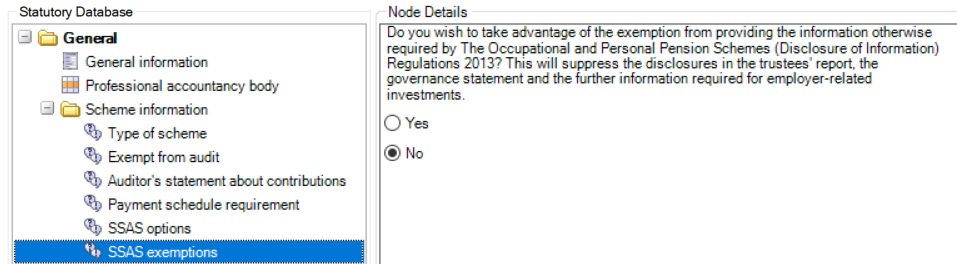
Where 'SSAS not true and fair' is chosen AND the exemption noted above has been chosen, there is a further exemption possible:
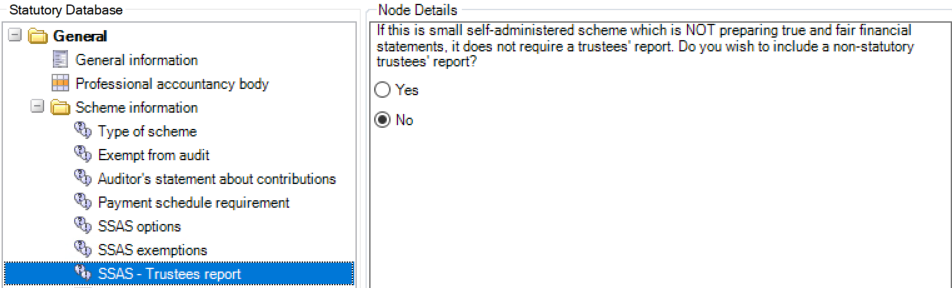
Note that where a non-statutory trustees' report is provided, it is the user's responsibility to amend the disclosures by choosing blank paragraphs and - where necessary - amending the format page.
Background
Where a scheme qualifies as an SSAS, it is exempted from providing the annual report information otherwise required by The Occupational and Personal Pension Schemes (Disclosure of Information) Regulations 2013, on the basis that all the members are trustees or managers of the scheme, and the scheme does not have more than 12 members.
Such a scheme will therefore have one of two types of annual report:
• Where the scheme is required by its trust deed or its members to have audited financial statements or financial statements that provide a true and fair view, it must apply FRS 102 and the Pensions SORP. Application of the SORP means that it will be required to produce a Trustees' Report. However, (1) It is not required to provide the additional information set out in the Regulations noted above; (2) Much of the trustees' report can be simplified or suppressed.
• Where the scheme is not required to produce financial statements that provide a true and fair view, it can prepare its financial statements in a much simpler fashion, so long as they are not misleading. It can also dispense with the trustees' report; alternatively, it can keep the trustees' report but simplify it as much as it wishes.
SSASs applying 'true and fair' can exclude any information which is solely required by the Regulations, eg:
- Analysis of membership and beneficiaries
- Pensions increases (DB schemes)
- Transfer value information (DB schemes)
- Governance statement DC schemes)
- Employer-related investments UNLESS the scheme is audited (note - user will need to deselect the paragraph).
SSASs not applying 'true and fair' will exclude the above and will also have the following suppressed entirely:
- Trustees' responsibilities
- Actuarial valuations
- Basis of preparation
- Accounting policies
- Distinction between allocated and designated investment assets (DC).
SSASs not applying 'true and fair' may also wish to suppress individual notes and simply show the primary statements, with or without a trustees' report.
Appendix C - Hybrid schemes
Funds with multiple benefit structures sometimes comprise two discrete sections within the terms of the trust deed, namely:
- A defined benefit section, and
- A defined contribution section.
Since the interests of the members and calculations of benefits attributable to each section differ, these need to be separately identified and expressed in the financial statements. Clear segregation of investments between the two sections is necessary in order to determine the calculation and provision of benefits to members.
Note: the approach CCH has taken to address this issue is to provide formats that split the two distinct sections apart. This is one of the two suggested approaches in the SORP.
Method of preparing hybrid pension scheme accounts
Create a new pension fund job in the normal manner, selecting either the three or four digit chart of accounts as required. The formats are using Dimension to split the nominal codes between the two different types of pension fund.
Creating dimensions
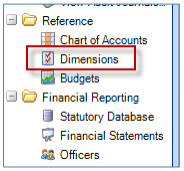
You can add dimensions to your data. From the Reference section of the Task Bar, select the Dimensions option:
The Nominal Ledger Dimensions window appears:
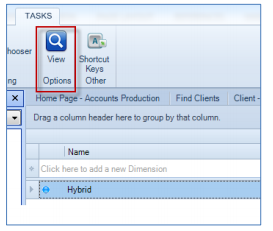
Enter the name of the dimension as "Hybrid" and press Enter to create that dimension. Then click the "View" button on the ribbon bar to add the following dimension options:
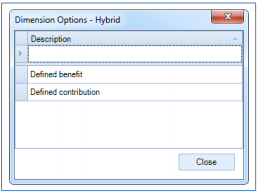
Note: the name and descriptions should be the same as entered above. This is to ensure that there is some measure of consistency applied across the various hybrid pension funds you might have.
Next, you must specify which nominal codes this Dimension applies to: Open the Chart of Accounts screen. Select all the nominal codes in the grid by selecting the top row, then scrolling down to the bottom of the grid, pressing the Shift key and selecting the bottom row. All rows should now show as selected.
Click the View Dimensions button on the ribbon. In the pop up window, choose the Dimension "Hybrid" from the drop down list:
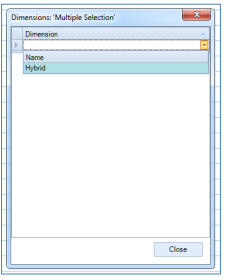
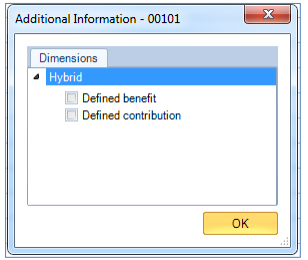
Press Enter (there may be a short delay while the application updates each nominal code) and the click Close to attach this Dimension to all the selected nominal codes. From now on, any time one of these nominal codes is selected during transaction entry, the system will bring up an additional window allowing you to identify the balance as belonging to either the Defined contribution or the Defined benefit part of the Pension Fund:
Data entry
Proceed with the entering of the client’s data ensuring that every entry is allocated to either the Defined benefit section or the Defined contribution section. Entries that are not allocated to either choice will cause a reconciliation on the appropriate page in the formats.
Saved trial balances
The Pension formats have been designed to use the concept of 'saved trial balances' in order to report on each Dimension. From the Trial Balance screen, click the Filter Trial Balance button in the ribbon. You can then filter the live balances by ticking either Defined Benefit or Defined contribution from the filter screen:
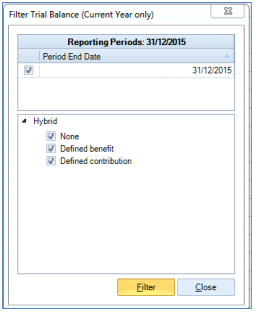
Useful information! The "None" option allows you to check if any transactions have been posted without selecting either the Defined benefit or the Defined contribution option.
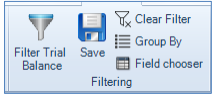
When you press Filter, the live balances displayed will be replaced by the filtered balances. You then need to save the filtered balances and create a Saved Trial Balance record that can subsequently be referenced on the formats. To do this, click Close to close the Filtering options window, then click the Save button in the ribbon:
The following windows will be displayed;
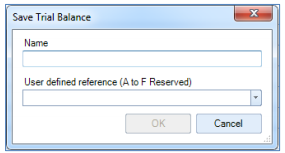
First enter a name for the saved trial balance record in the Name field. The names of the trial balance must be:
- Defined benefit (current year); DEFBENCY
- Defined benefit (comparative year); DEFBENLY
- Defined contribution (current year); DEFCONCY
- Defined contribution (comparative year); DEFCONLY
Secondly enter a User defined reference. (This is the code that allows the application to pick up the balances from each Saved Trial Balance record and display them on the formats). For example
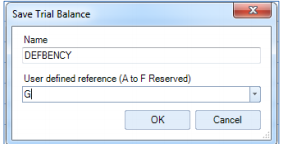
You will need to create a total of four saved trial balance records, two in the current accounting period and two in the comparative accounting period.
Once complete, your list of available Saved Trial Balance records for this client should look like this;
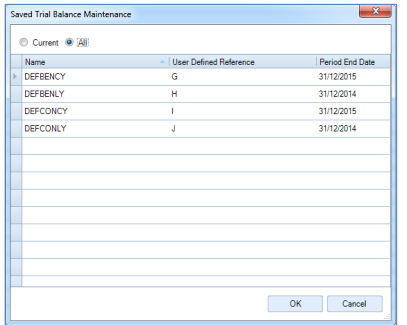
Note: the formats are written so that the current year defined benefit figures is picked up using reference G, therefore the above order is mandatory and must not be changed.
Formats
Each format has a reconciliation that prints if the total of the amounts assigned to the Defined benefit group (reference G) plus Defined contribution group (reference I) does not equal the current year value for the range (reference A).
Year end routine for hybrid schemes
The year end procedure for a hybrid pension scheme is the same as normal except that the balances brought forward into the current year are not split by dimensions.
You must therefore:
- Print the final dimensional trial balances at year-end, including the "None" trial balance to ensure that every entry has been posted to either division.
- Proceed with the year end in the normal manner. In every account that has a current year balance as a result of the year end procedure, journal that balance out to the suspense code 999 / 3990.
- Repost the opening trial balance, reallocating the balances between the dimensions as per the dimensional trial balances printed out above. You will need to manually calculate what is shown as the opening balance due to the fact that many codes may balance forward into one code.
For example,
| 3 Digit Nominal | 4 Digit Nominal | DEFBENCY | DEFCONCY | Total |
| 740/01 | 5900 | 2,000 | 25,000 | 27,000 |
| 740/02 | 5901 | 10,000 | 60,000 | 75,000 |
| 740/03 | 5902 | (1,000) | (4,000) | (5,000) |
| 740/05 | 5910 | (2,000) | (3,000) | (5,000) |
| Total | 9,000 | 83,000 | 92,000 |
After the year end process, the balances will be as follows:
| 3 Digit Nominal | 4 Digit Nominal | |
| 740/01 | 5900 | 97,000 |
| 740/05 | 5910 | (5,000) |
These amounts must be reanalysed as follows:
| 3 Digit Nominal | 4 Digit Nominal | DEFBENCY | DEFCONCY | Total |
| 740/01 | 5900 | 11,000 | 86,000 | 97,000 |
| 740/05 | 5910 | (2,000) | (3,000) | (5,000) |
| Total | 9,000 | 83,000 | 92,000 |
Process and print the dimension trial balances as normal and check that they are correct.