Printing a Report
Useful Information! You can run the Smart Reports from different windows.
How to run a Smart Report from the Reports window
- Search for the report you want to run by using the Search or expand the category where the report is.
2. Double click on the report or click Run from the task bar or press the key [F5] on your keyboard.
3. The smart report will be shown on a separate preview window, with a format bar at the top.

- Export function at the top left will export the report to: Microsoft Excel, PDF, Html or will Email the report.
When exporting to Excel using this option, the information is sent through as text rather than numbers, the totals or subtotals do not have formulas. However, in terms of layout and colours, it looks like the original report.
- Print function saves the report to file or send to a printer
- Copy function copies the report on the clipboard
- Zoom in and Zoom out the report on screen
- Navigate to the pages using arrows up and down
- Close the report
- Export to Excel, this option will open the report in Microsoft Excel with formulas when there are subtotals and totals, however it will not export any logo or colour.
Note: the preview of a smart report opens in a separate window from CCH Central; when the report has an hyperlink, for example the client code or client name, click on the hyperlink to open its records.
How to run a Smart Report from the Change or New Report window
-
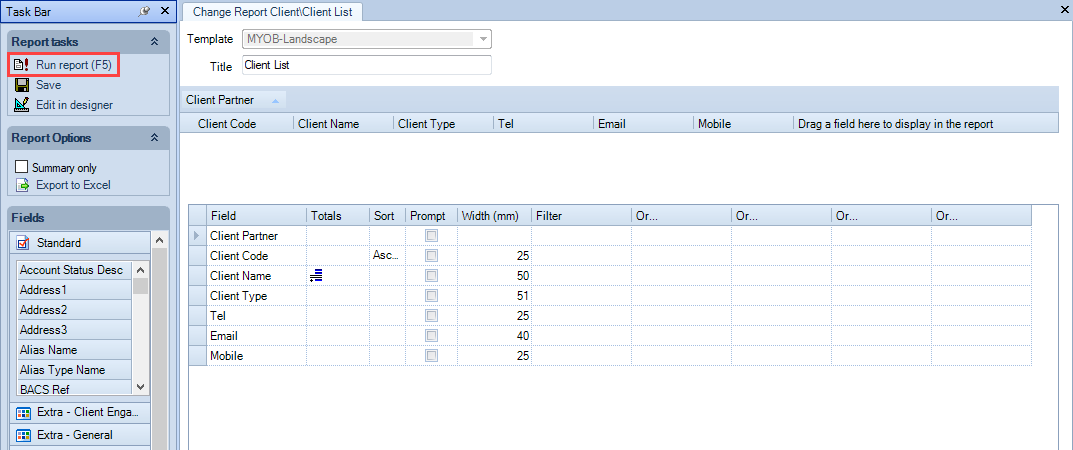
Click the Run Report or press key [F5].
2. The smart report will be shown on a separate preview window, with a format bar at the top.

- Export function at the top left will export the report to: Microsoft Excel, PDF, Html or will Email the report.
When exporting to Excel using this option, the information is sent through as text rather than numbers, the totals or subtotals do not have formulas. However, in terms of layout and colours, it looks like the original report.
- Print function saves the report to file or send to a printer
- Copy function copies the report on the clipboard
- Zoom in and Zoom out the report on screen
- Navigate to the pages using arrows up and down
- Close the report
- Export to Excel, this option will open the report in Microsoft Excel with formulas when there are subtotals and totals, however it will not export any logo or colour.
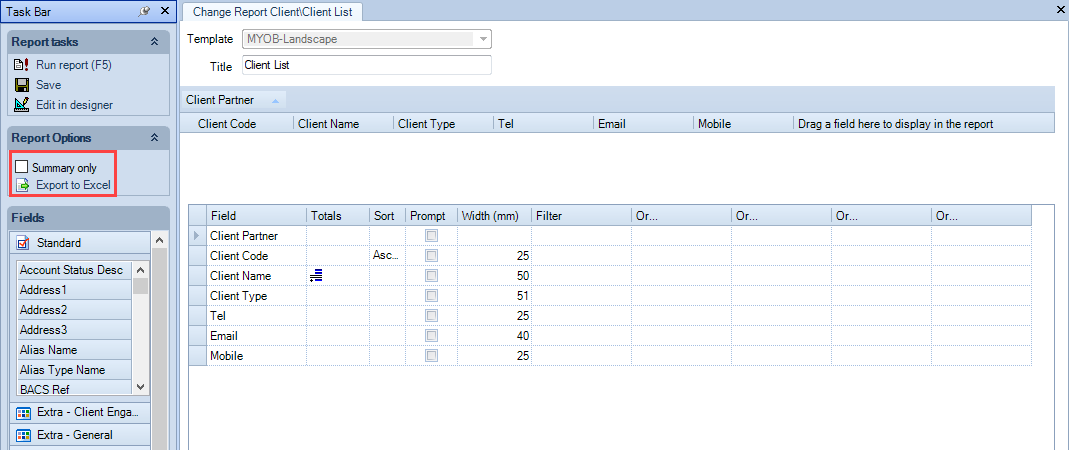
3. Or Export to Excel, either the whole report by clicking on Export to Excel ot export only the summary to Excel by check the box Summary only.
Export to Excel using this option will open the report in Microsoft Excel with formulas when there are subtotals and totals, however it will not export any logo or colour.